Range Slider
1
A draggable control for choosing a numeric value or interval along a continuous range.
.webp)
A range slider lets someone choose a numeric value by moving a thumb along a bounded track. It is useful when the position helps communicate magnitude and nearby values are easy to compare. In SaaS interfaces, sliders often configure limits, thresholds, content preferences, or visual properties. Their apparent simplicity hides a product decision: what should each position mean, and how precisely does someone need to choose it?
A single-thumb slider selects one value within a range. A two-thumb slider selects an interval, such as a minimum and maximum budget. These are related controls with different requirements. The first answers “how much?”; the second answers “between which limits?” Neither should force people to estimate an exact number from the track alone.
A slider earns its place when moving left or right gives a useful sense of less or more. Examples include previewing image intensity, narrowing a price interval, or adjusting a small integer limit. The control makes the available space visible and allows quick exploration without opening a menu.
That advantage disappears when the number must be exact and the domain is large. Choosing an invoice amount, an account identifier, or a precise timeout generally calls for direct entry. A slider with thousands of possible positions may appear compact while requiring repeated corrections. Pairing it with a numeric field can preserve exploration without sacrificing accuracy.
For a handful of named choices, a segmented control may express the decision better. For a binary preference, use a toggle. A slider should not turn distinct categories into an unexplained numerical scale. “Conservative, balanced, aggressive” requires definitions of those outcomes, whether presented as labels or another control.
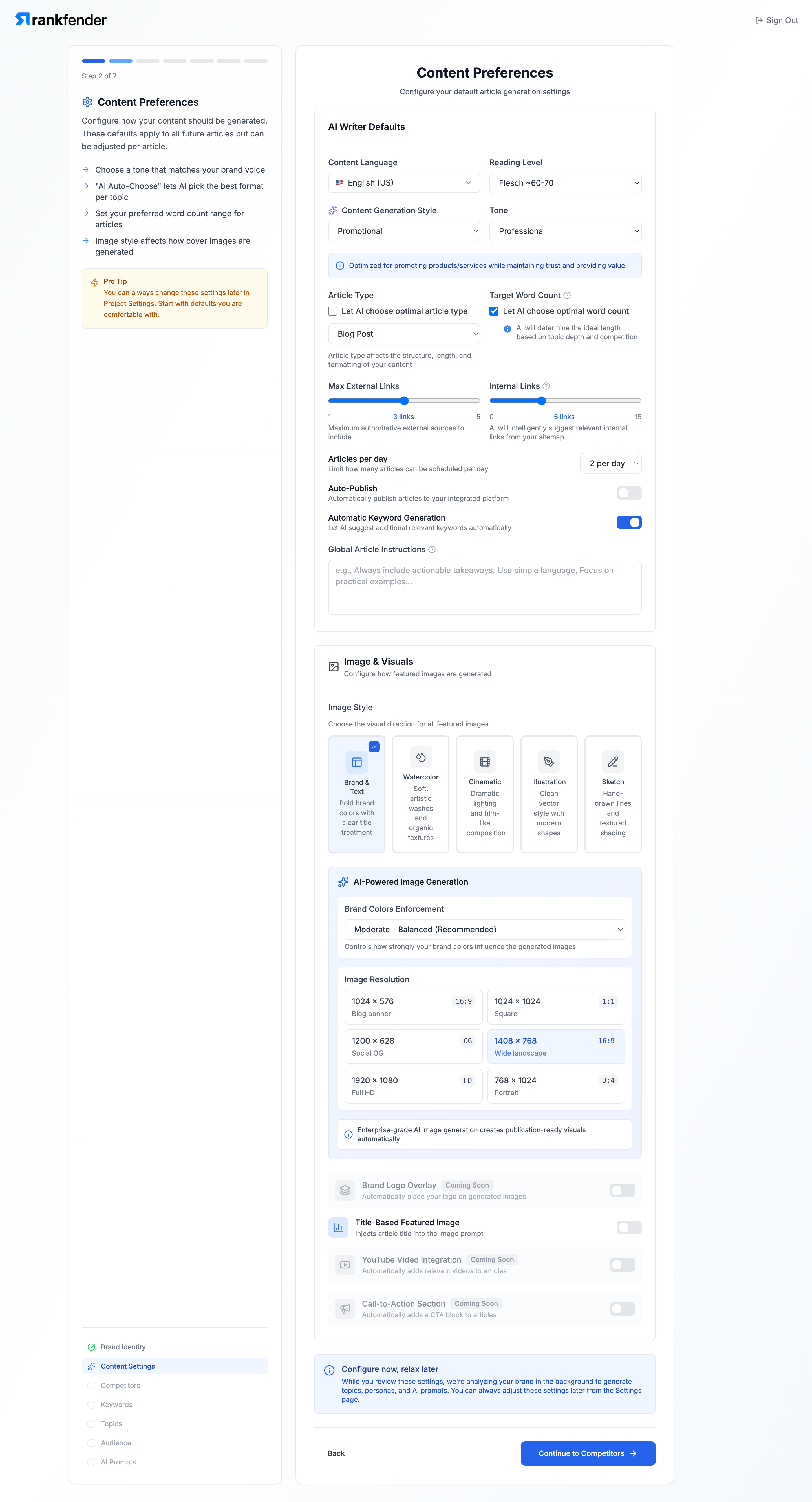
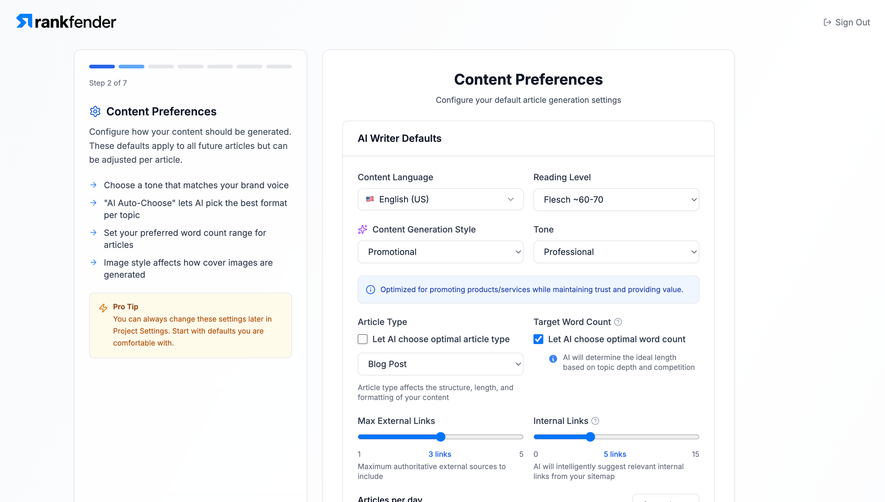
The Rankfender screenshot shows two adjacent single-thumb controls under AI Writer Defaults. “Max External Links” spans 1 to 5 and displays “3 links.” “Internal Links” spans 0 to 15 and displays “5 links.” Each combines a field label, a track, endpoint numbers, a selected-value label, and explanatory text. The selected amount remains readable without estimating the thumb’s position.
The external-link helper describes a maximum number of authoritative sources. The internal-link helper says that AI will suggest relevant links from the sitemap. This wording matters: a maximum, a target, and an exact count are different promises. A setting should state which one it controls. The screenshot supports analysis of the visible layout and language; it does not establish how the generation engine enforces those values.
The different lower bounds also carry meaning. Internal links can be set to zero, while the external-link control begins at one. A designer reviewing this screen should ask whether disabling external links is intentionally unavailable. If zero is prohibited, explain the reason where it matters. If zero is a supported preference, the control should expose it rather than make people search elsewhere.
The surrounding form demonstrates another useful distinction. Article type and reading level use dropdowns, while automatic keyword generation uses a toggle. Rankfender reserves sliders for bounded numeric preferences instead of applying the same visual treatment to every setting. This helps people infer how each control behaves.
The minimum, maximum, and step size are the core of the interaction. Choose them from the supported product behavior. A control for link counts should work in whole links; a slider for opacity may support finer increments. Do not expose fractional values simply because a component library allows them.
Endpoint labels should make the domain explicit. “0” and “15” are understandable when the field names links, but “Low” and “High” alone may hide operational consequences. If the setting influences cost, output volume, or resource consumption, add a concrete unit or outcome. Position is a supplement to meaning, not its replacement.
A linear track implies that equal distances represent equal changes. A nonlinear scale can be useful for a domain covering several orders of magnitude, but it requires deliberate labeling and testing. Someone moving a thumb halfway across the control should not discover that the chosen quantity is unexpectedly close to the minimum. Prefer a simpler input when the scale takes a paragraph to explain.
Defaults should represent a defensible starting point, not the geometric middle of the track. In an onboarding form, a recommended value can reduce decision pressure. Explain why it is appropriate and make later revision easy. Avoid presenting a recommendation as though it were mandatory.
The thumb is a position indicator; the value label is the precise answer. Display the current value near the control and include its unit. “5 links,” “30 days,” and “80%” are more useful than an isolated number. The label should remain visible after dragging ends and should not depend on hover.
During adjustment, update the displayed value as the position changes. Reserve enough space for the longest supported label so the surrounding form does not jump. If a floating label follows the thumb, check both endpoints: the label must remain inside the visible area and should not be obscured by a finger on touch devices.
When a numeric field accompanies the slider, both should represent the same state. Editing the field updates the thumb; moving the thumb updates the field. Validate typed values against the same bounds and steps. If an entered number is unsupported, explain the accepted range rather than silently replacing it with a distant value.
Do not communicate the selected amount only through blue fill. The Rankfender screenshot also displays a textual amount below each track. This redundancy helps someone read the setting even when the track is small or color perception differs.
A slider can update a local preview immediately without committing a lasting change. That is particularly helpful for visual properties: people can compare nearby positions and settle on a result. If an adjustment triggers an expensive request, use a separate commit mechanism or a controlled update strategy appropriate to the task.
For configuration forms, make the save model clear. Does the value save as soon as it changes, when focus leaves the field, or when someone presses a final button? A visible thumb movement does not tell the user that the server accepted the setting. Provide save feedback at the form or field level when persistence is consequential.
Rankfender’s screen includes a “Continue to Competitors” action at the end of an onboarding step. That visible structure suggests a review-and-continue workflow, but a static screenshot cannot prove its save timing. When designing a similar form, state whether continuing saves the current defaults and preserve edits if the next step fails.
If the control influences billing or irreversible operations, treat movement as a proposal. Show the resulting quantity and consequence before confirmation. A small accidental drag should not immediately launch a large job or change a paid commitment.
An interval slider adds a second value and therefore a second set of questions. Name the lower and upper bounds explicitly, keep both amounts readable, and define whether the thumbs may meet or cross. A budget filter and a content-length preference may need different rules even if they share the same visual component.
If the thumbs cannot cross, stop the active thumb at the other boundary in a predictable way. If crossing is supported, avoid confusing swaps of meaning or keyboard focus. The selected interval should remain understandable when the bounds are very close or equal.
Provide direct entry when users commonly know both limits. Two fields labeled “Minimum” and “Maximum” can make exact selection easier while the track communicates the interval visually. If the pair is invalid, show an actionable message such as a maximum that must be greater than or equal to the minimum.
A two-thumb price filter also needs an empty-result strategy. Keep the chosen interval visible when no items match and offer a clear way to widen or reset it. Clearing the selection automatically removes the evidence someone needs to understand why results disappeared.
A slider must support keyboard use and expose its name, current value, and bounds to assistive technology. W3C’s Slider Pattern describes arrow-key adjustment and Home/End navigation. Its guidance also explains using a human-readable value when a raw number does not communicate the setting adequately. These semantics must match the value shown visually.
For an interval, each thumb needs its own understandable name and keyboard operation. W3C’s multi-thumb slider guidance is a useful reference. Test the actual implementation with keyboard and touch assistive technology; a correctly styled mockup does not demonstrate accessible interaction.
The thumb can look small while its interactive area is larger. Give touch users enough space to adjust it without activating a neighboring field. Preserve a visible focus indicator, and check the track, selected range, and thumb against the backgrounds used in the product. A slider should remain understandable in high-contrast modes.
When precision is essential, an accompanying number input provides another adjustment route. This is also useful for people who find dragging physically difficult. It should be a first-class alternative with the same validation and save behavior, not a hidden fallback.
Test the smallest and largest values, every supported step, a typed out-of-range value, and a return to the default. Check that the displayed value, persisted value, and generated outcome remain consistent. For interval controls, include equal bounds, nearly overlapping thumbs, and an invalid typed pair.
Review the setting in context rather than as an isolated component. Can someone tell what “three links” means for future articles? Can they distinguish a maximum from a recommendation? Can they leave onboarding with confidence and revise the choice later? These questions expose product ambiguity that a polished track cannot fix.
Terminology varies. A single-thumb slider chooses one value within allowed bounds. An interval or two-thumb range slider chooses a lower and upper value. Specify the intended behavior when discussing a component so the name does not conceal different requirements.
Include direct entry when people need exact values, the domain is large, or dragging requires repeated corrections. Keep the field synchronized with the slider and validate both using the same rules.
It depends on the consequence. Local previews can update immediately. Persistent preferences need clear save feedback. Expensive, paid, or irreversible actions should have an explicit commitment step rather than execute during every movement.
No. A screenshot can reveal labels, visible amounts, spacing, and contrast concerns. Keyboard behavior, accessible names, touch assistive-technology support, and persistence require testing the working interface.
Use SaaSFrame’s range slider examples to compare how products present bounded quantities, then study related settings and preferences, filters, and toggles to choose the control that fits the decision.