Chat Widget
0
An embedded website chat interface for sales, support, or automated assistance.
.webp)
A chat widget gives visitors a compact route to assistance or conversation while they remain in the current page. It usually begins with a launcher and opens a surface for questions, messages, or support options. The pattern is useful when the visitor can understand what kind of help is available and continue their original task without losing context.
Do not assume that a chat-shaped button means a live human conversation. A widget may provide documentation search, automated answers, asynchronous messaging, or several routes. Its labels and opening state should explain the service that actually exists.
Decide whether the widget offers immediate chat, a message for later response, an assistant, or a help collection. These models create different expectations. A visitor asking a question needs to know whether someone is present or whether they should return later.
Keep the scope clear. A sales conversation and a product-support conversation may require different information and destinations. If the widget routes between them, explain the choices rather than making the visitor discover the distinction after composing a message.
Avoid promising response timing that the service cannot support. An availability label should reflect actual operations. The interface can remain welcoming without implying that a human is already reading every message.
The Context.dev capture shows a blue Support launcher at the lower right of a product page. The control combines a conversation symbol with readable text, making its purpose more explicit than an unlabeled floating icon.
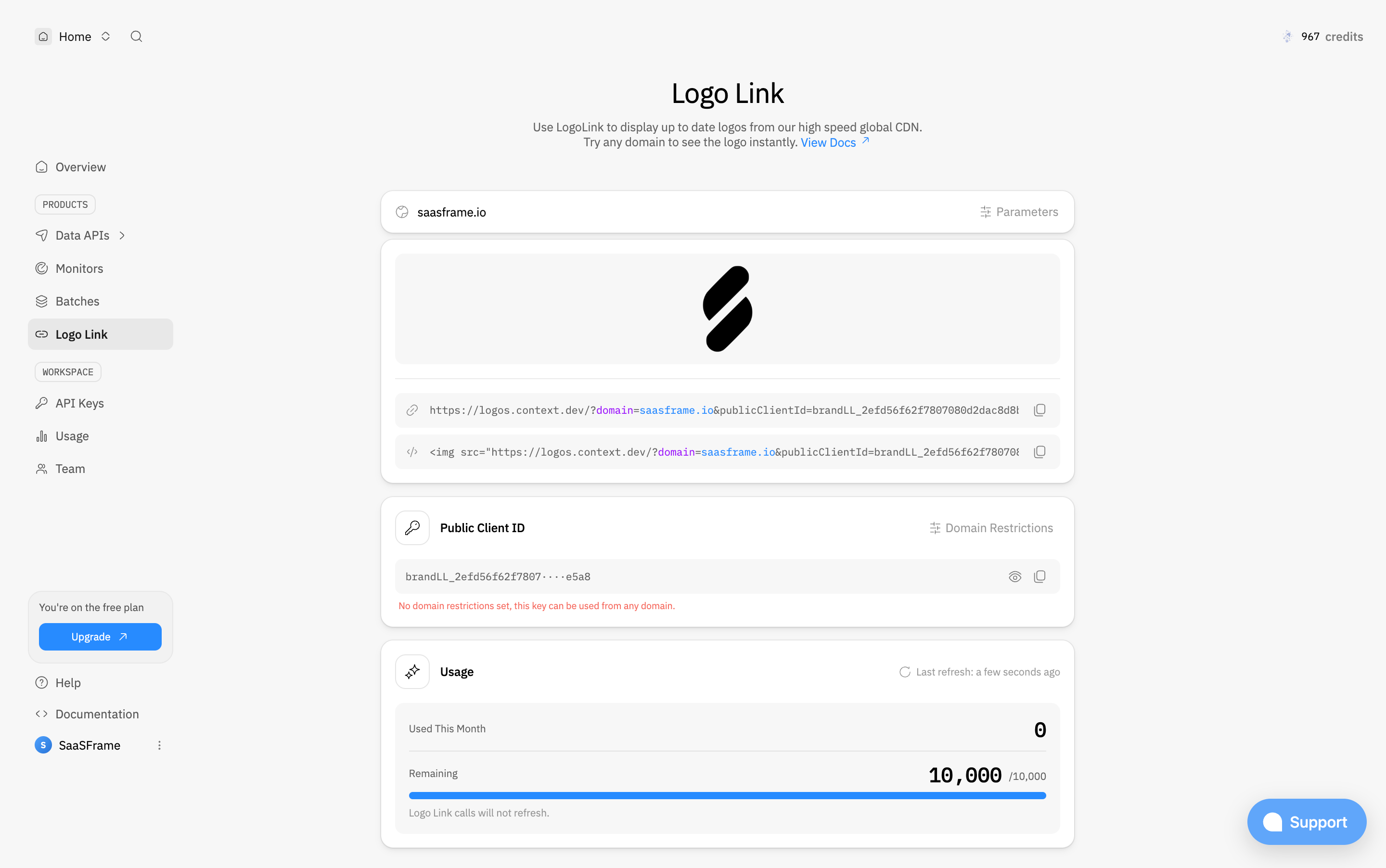
The placement keeps the help route separate from the central configuration content. The screenshot only shows the closed launcher. It does not establish the opened panel, whether a human or automated system responds, response timing, or message persistence.
For your product, review the launcher within the complete interface. It should remain discoverable without covering a primary action, focused field, or status message. A corner position is common, but its usefulness depends on the other elements already occupying that area.
The Mintlify team-settings capture includes a compact conversation bubble in the lower-right corner. Unlike the labeled Context.dev launcher, it relies on the symbol and position to suggest help. The main settings interface remains visually dominant.
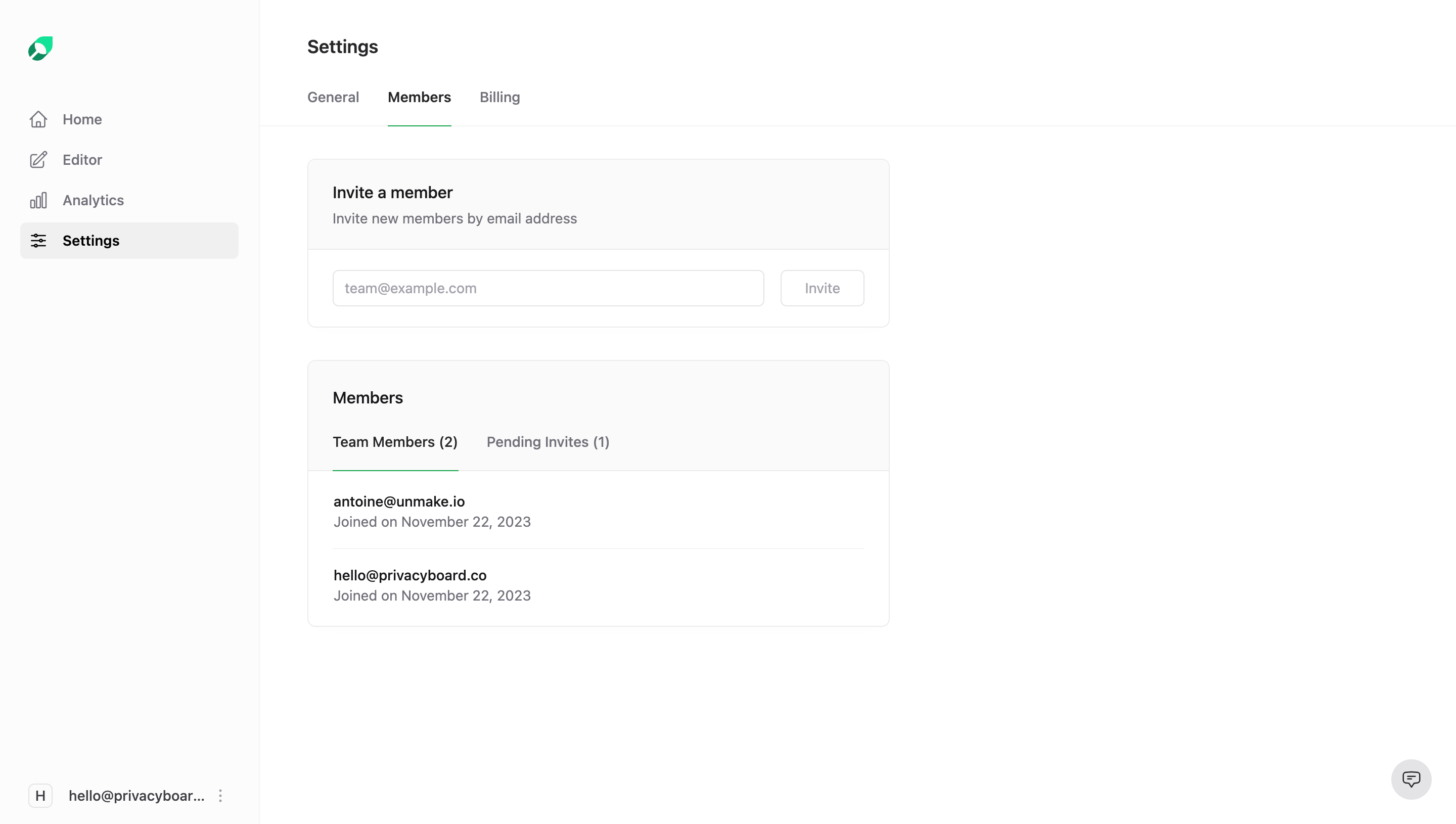
This comparison illustrates a tradeoff in the closed state. A small icon uses less space, while a text label can make the destination clearer. Neither screenshot proves what opens after activation. Choose the treatment according to familiarity, available space, and the need to distinguish support from other messaging features.
Provide a meaningful accessible name even when the visible control is only an icon. A symbol that looks familiar visually should still communicate its purpose to someone navigating by controls rather than by position.
The first panel should explain what the visitor can do and what kind of response to expect. If several routes exist, show a manageable set of choices. A long welcome message should not delay access to the question field or relevant help.
Distinguish automated assistance from human support when that difference matters. If the conversation may be handed over, explain the transition and preserve useful context. Do not imply that a person authored a response when the system generated it automatically.
Keep identity requests proportionate to the service. A visitor may need to provide contact information for an asynchronous reply, but the reason should be clear. Avoid demanding unrelated qualification data before offering basic help that does not require it.
A widget should allow the visitor to return to the task they were trying to complete. Keep a clear close or minimize route, and decide what happens to a draft when the panel closes. Losing a composed question after a minor navigation creates unnecessary work.
If the panel covers a relevant field or error, consider how the visitor can refer to it while asking for help. A practical layout may allow movement, minimization, or another way to inspect the page. The conversation should not obscure the problem it is meant to resolve.
When navigation changes the context, decide whether the conversation persists. Preserve continuity where it helps, but avoid silently attaching messages to the wrong record or workspace. The widget should reflect the actual scope of the support session.
Sending, delivered, awaiting response, and failed are different states. Show enough feedback that users know whether their question reached the service. A message should not appear completed simply because it was added optimistically to the conversation.
For failures, preserve the content and offer an appropriate retry. Avoid encouraging repeated messages when the outcome is uncertain and duplication may occur. If the service is unavailable, explain an alternative route rather than leaving an indefinite waiting indicator.
If conversation history persists, clarify where it can be found. A returning visitor should not have to guess whether closing the widget erased their request. Keep the interface's promise aligned with the actual storage and access model.
Contextual suggestions can help someone resolve a common issue quickly. They should relate to the current task and be easy to bypass when the visitor wants to ask something else. A rigid decision tree can become frustrating when no option fits.
Avoid automatically opening a large panel whenever the page loads. A proactive prompt may be useful in a specific context, but repeated interruption can obscure the main content. Review whether the prompt helps the visitor or merely increases widget interaction.
Keep notification badges and attention cues meaningful. An unread response is different from a generic invitation to start a conversation. Do not use the same badge treatment for both if it implies a message exists when none does.
If a conversation moves between an assistant and a support team, communicate who or what is responding and what happens next. Preserve the relevant question so users do not repeat the same explanation unnecessarily.
For asynchronous support, explain how the reply will become available. The widget, an email, or another destination may carry the response, but users need to know which route to expect. Avoid promising delivery through a channel that has not been established.
If the support team needs more information, request it in a way tied to the problem. The conversation should help clarify the task rather than become an unstructured collection of account details.
Make the launcher, opening panel, input, send action, and close control operable by keyboard. Preserve visible focus and a coherent reading order. The overlay should not leave someone interacting with obscured controls behind it unexpectedly.
When messages arrive, communicate meaningful updates without overwhelming the user with repeated interruptions. The visitor should remain able to read their draft and navigate earlier messages. A chat history needs clear boundaries among authors, content, and status.
On mobile, the on-screen keyboard can reduce the available area substantially. Keep the focused input and send action usable, and provide a practical route to inspect history or return to the page. Test text zoom and long responses rather than only short sample messages.
Support launchers can compete with cookie controls, toasts, sticky actions, and feedback buttons. Review their combined placement and stacking. A widget that hides another control can undermine the task even when it looks unobtrusive alone.
Keep opening and dismissal behavior predictable across those surfaces. Closing a toast should not activate the support launcher behind it. Opening chat should not make a required notice unreachable. The full page needs a coherent overlay hierarchy.
Consider performance and failure locally. If the widget cannot load, the main interface should remain useful. Provide another support route where appropriate rather than making assistance depend entirely on one third-party surface.
Ask users to find help, explain a problem, understand message status, and return to their task. Check whether the opening state accurately sets expectations and whether the conversation preserves relevant context.
Test unavailable service, failed sending, closing with a draft, navigation, handoff, unread replies, mobile input, and keyboard use. Measure whether the visitor can resolve or progress on the problem rather than only whether they opened the widget.
Explore the SaaSFrame chat-widget collection to compare labeled and icon-only help entry points. Use the closed-state references to plan discovery, then verify the actual conversation and service behavior separately.
Does a chat widget need live human support? No. It can provide several forms of assistance, but the opening state should describe the service accurately and avoid misleading availability claims.
Should it open automatically? Use proactive opening only when it supports a clear task. Repeated automatic interruption can obscure the page and make help feel intrusive.
What should happen if sending fails? Preserve the message, explain its status, and offer a practical recovery route. The visitor should not need to reconstruct their question or guess whether it reached the service.