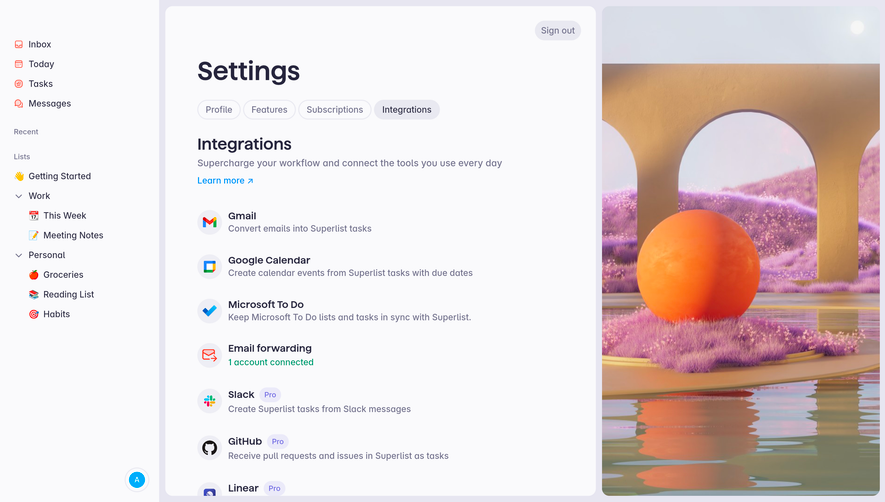
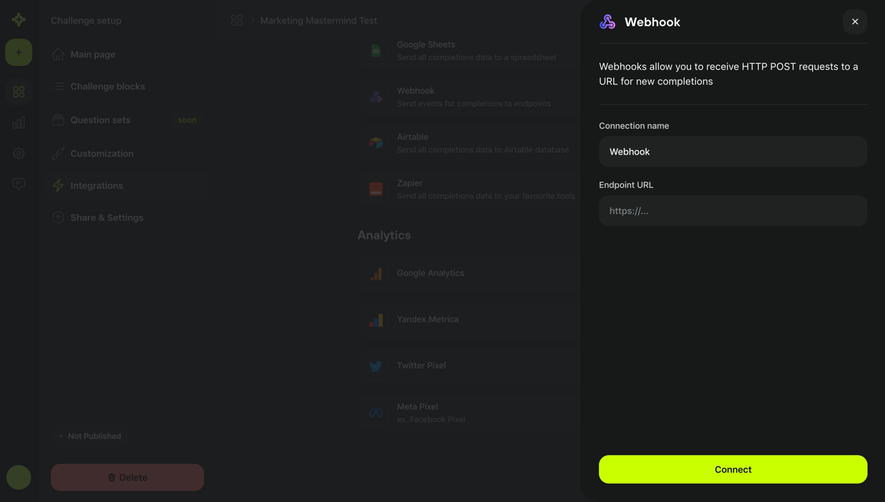
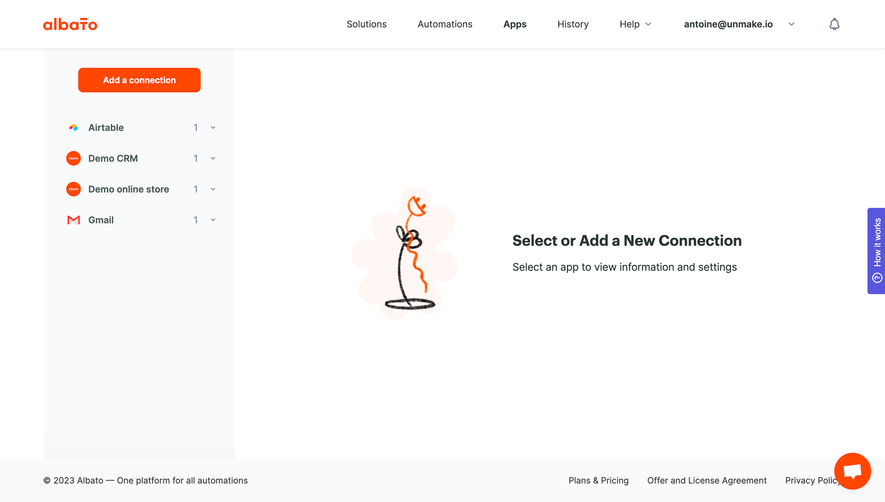
Generate a new design based on this screen using your own content.
Thank you! Your submission has been received!
Oops! Something went wrong while submitting the form.
# Design from Reference: Superlist Connect Integration
Create an original, high-fidelity visual design inspired by the reference. Prioritize composition, typography, colors, spacing, and component styling over technical implementation.
## Reference
- **Product:** Superlist
- **Category:** Integrations
- **Screenshot:** https://cdn.prod.website-files.com/5e9dc792e1210c5325f7ebbc/6acad5195a5fdf4c30310d64_6acad43f0f527efc4a5ab182_cms-b31a2e1e2132349a0e82534a.webp
Analyze the screenshot first. If inaccessible, request it rather than guessing.
## Content
{{content.instructions}}
{{content.data}}
Preserve essential messaging and factual accuracy. Adapt structure and copy length for visual balance; never invent product claims.
## Visual Design
Use this context to reproduce the reference's visual language: layout, typography, colors, spacing, borders, radii, and distinctive elements. The screenshot takes priority if descriptions conflict.
## Direction
{{preferences.fidelityInstructions}}
## Output
{{output.instructions}}
Deliver a polished, cohesive design with precise alignment, hierarchy, and spacing. Produce the requested visual artifact, not just a description. If unsupported, explain the limitation.
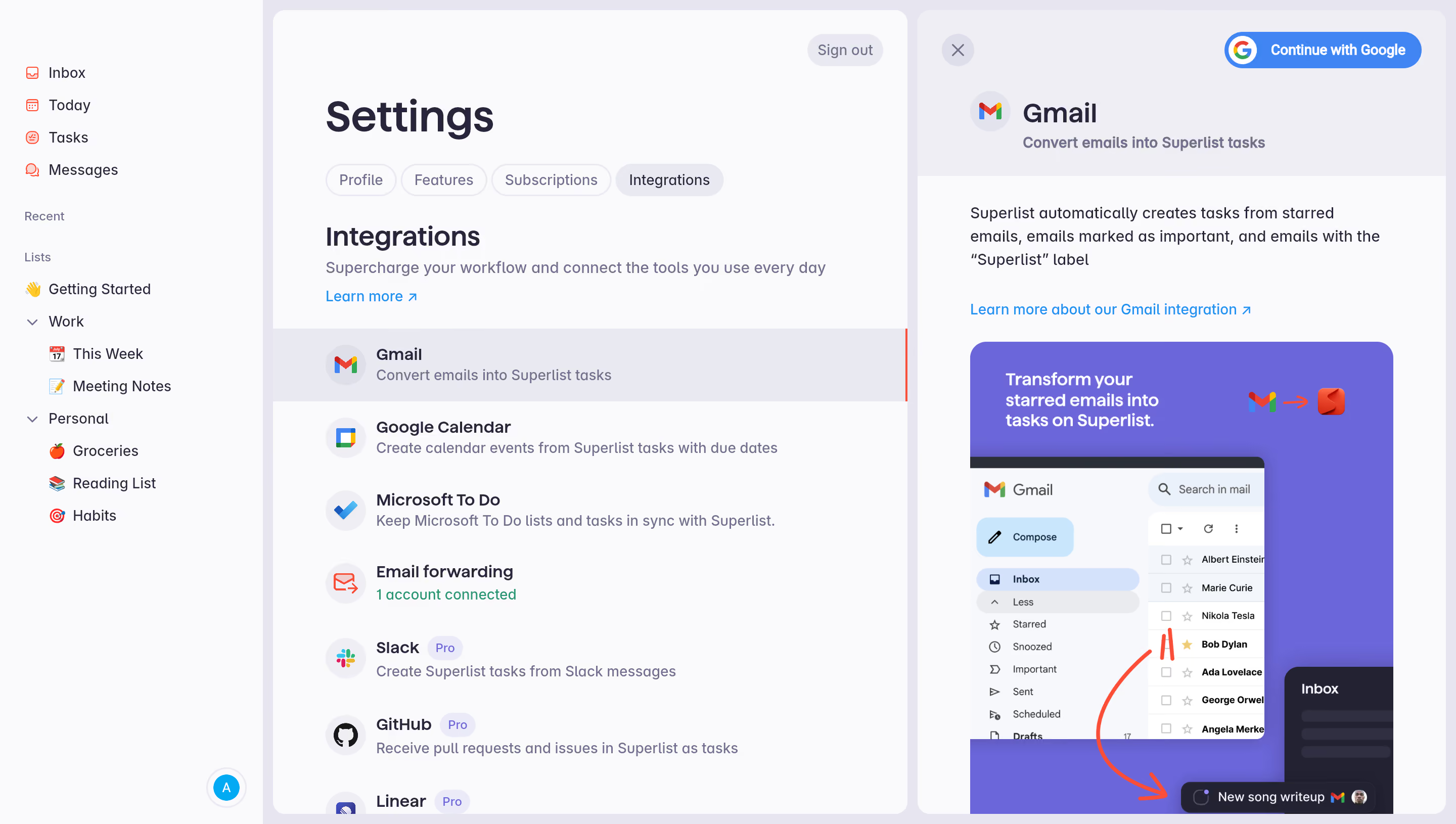
First thing you notice is the split-panel layout. Left side shows a tidy settings page with integration options stacked vertically. Right side opens into a focused detail view for Gmail with a visual explainer. It's a smart way to handle density without overwhelming anyone.
Color Done Right
The palette is restrained. Soft grays, white cards, and that punchy purple-blue gradient on the Gmail promo graphic. Each integration icon brings its own brand color, which keeps the list scannable without needing extra decoration. The "Pro" badges in light purple are subtle but clear. Typography is simple, likely a geometric sans. Nothing fancy, just readable.
What Makes It Stand Out
That right panel is the real move here. Instead of just listing what Gmail does, they show a mock inbox with familiar names like Albert Einstein and Marie Curie. Red arrows trace the flow from starred emails to Superlist tasks. It teaches through visual storytelling. The "Continue with Google" button sits top-right, impossible to miss. One click setup. The left sidebar with emoji-labeled lists adds personality without clutter.
.webp)




.avif)