.webp)
Thank you! Your submission has been received!
Oops! Something went wrong while submitting the form.
Get SaaSFrame Pro
Monthly
$18
Quarterly
$48
Yearly
$180
Upgrade to access this feature
Browse all screens & flows
Filter and search screens & flows
Access Figma files
Access mobile versions
Bookmark screens & flows
Join now
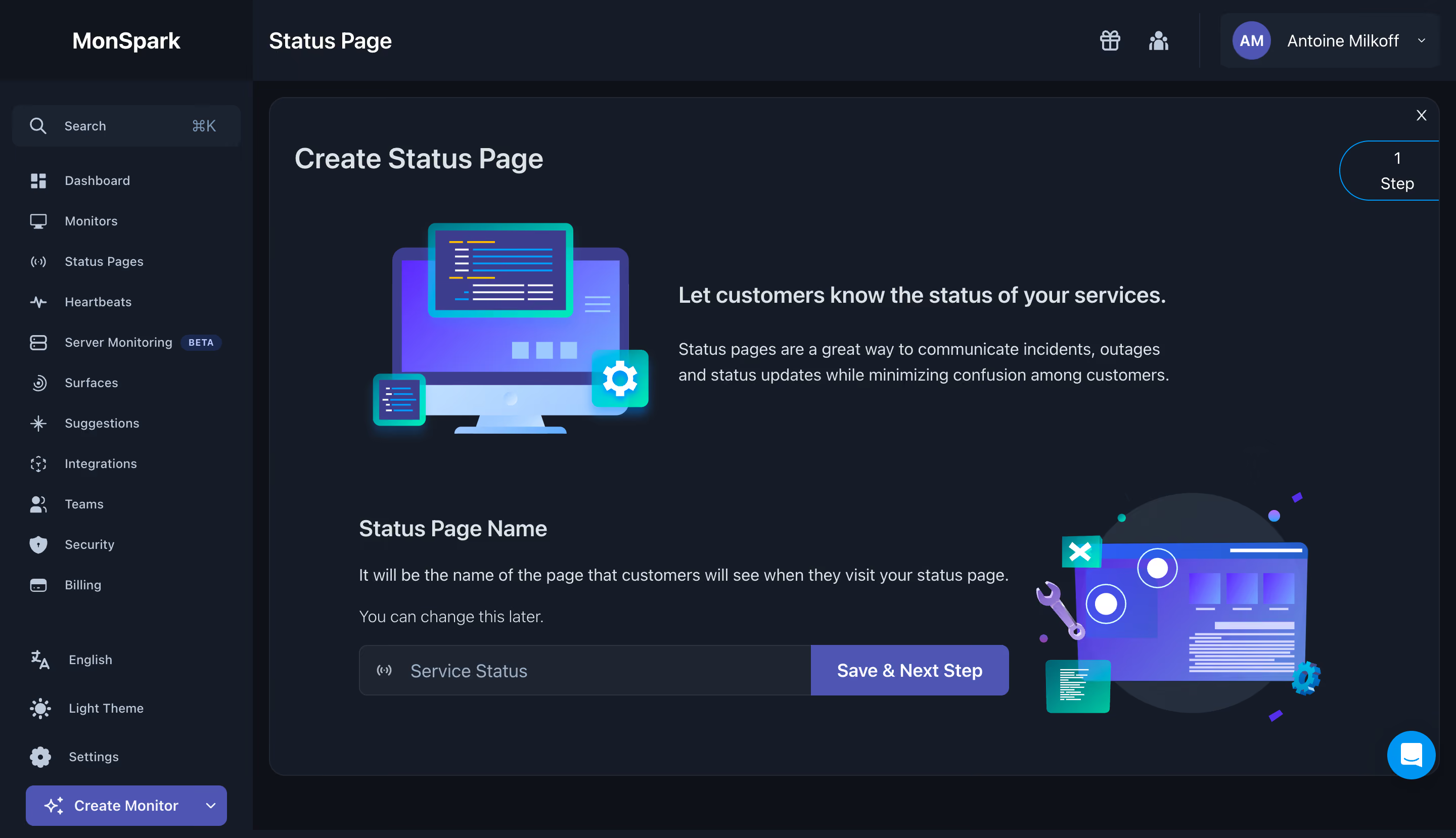
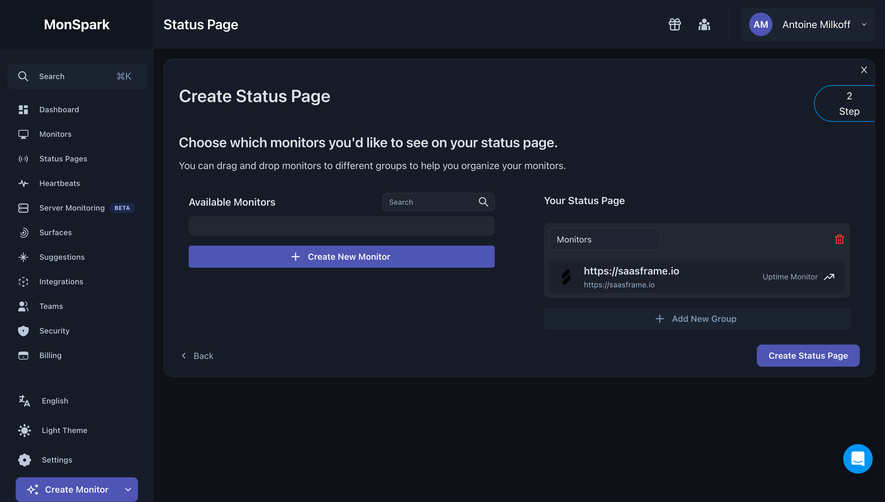
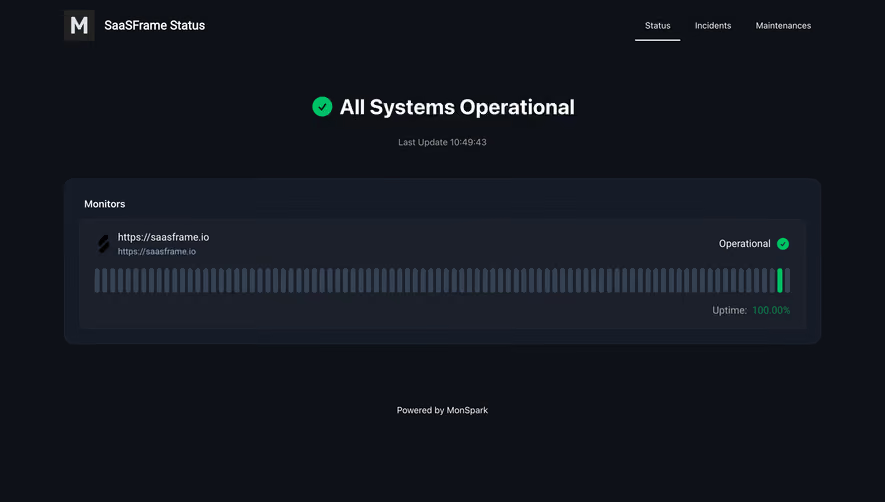
MonSpark Create Status Page

MonSpark
All In One Website Monitoring
Designed by
No items found.

Bookmark
Bookmark

Design with AI
Thank you! Your submission has been received!
Oops! Something went wrong while submitting the form.
# Design from Reference: MonSpark Create Status Page
Create an original, high-fidelity visual design inspired by the reference. Prioritize composition, typography, colors, spacing, and component styling over technical implementation.
## Reference
- **Product:** MonSpark
- **Category:** Add & Edit
- **Screenshot:** https://cdn.prod.website-files.com/5e9dc792e1210c5325f7ebbc/6acb65c7b206c0d3f8f0f706_6acb650c672175f31f2236ee_cms-3a66d1757c424ee1e922aaa2.webp
Analyze the screenshot first. If inaccessible, request it rather than guessing.
## Content
{{content.instructions}}
{{content.data}}
Preserve essential messaging and factual accuracy. Adapt structure and copy length for visual balance; never invent product claims.
## Visual Design
### Overall aesthetic
- **Character:** Dark monitoring dashboard with a large onboarding panel, bright purple/teal technical illustrations and a purple primary action.
- **Visual emphasis:** A near-black shell, slate surfaces and light gray type make the colorful computer/status-page drawings the dominant decorative elements.
- **Scale:** The source image measures 2880 × 1658 px. Dimensions below estimate a 1440 × 829 CSS layout at 2× scale; device ratio and browser zoom are unverified.
### Page composition
- **Shell:** A roughly 250 CSS px sidebar holds search, monitoring navigation, account utilities and a bottom Create Monitor button. A top bar contains page title, small utility icons and an account dropdown.
- **Main panel:** A large rounded slate region begins just inside the workspace and fills most of its width and height. Create Status Page sits at the upper left, with close and step indicator near the upper right.
- **Introduction:** A computer illustration sits left of a bold service-status benefit line and two-line explanation.
- **Form region:** Lower in the panel, a Status Page Name heading, explanation and change-later note precede a wide joined input/action control.
- **Secondary illustration:** A colorful status-page drawing occupies the lower right, balancing the input on the left. A floating cyan chat control sits at the bottom-right edge.
### Information hierarchy
- **Task:** The panel title identifies creation; the introductory benefit explains the customer-facing purpose.
- **Input:** The lower heading explicitly names the requested field. The input displays a service-status example and the adjacent button announces Save & Next Step.
- **Progress:** A small outlined step badge indicates step 1. No later configuration screen or save result is visible.
- **Navigation:** Small icons and muted labels organize the shell; beta status appears as a tiny badge beside one monitoring destination.
### Typography
- **Family:** Neutral sans-serif throughout; exact font identity is unverified.
- **Panel title:** Approximately 28 CSS px, medium-to-bold, with about 34 px leading.
- **Section headings:** Intro benefit and field heading are around 22 px at medium-to-bold weight.
- **Body:** Roughly 16 px with 24–26 px leading, using a softer gray than headings.
- **Controls/navigation:** Main input/button text is about 16 px; sidebar labels are notably smaller, around 12–13 px.
### Colors & surfaces
- **Measured main surfaces:** ICC-aware sRGB sampling yields #161C27 as the dominant slate region and #0E1118 for darker shell areas.
- **Measured supporting surfaces:** #1F2530, #11151E and #1B2331 occur in controls and adjacent dark regions.
- **Measured action colors:** #4E55B3 and #3D3D8D appear in purple fills and illustration details.
- **Measured foreground:** #DDE2E6 is a prominent light text tone; white #FFFFFF appears in brighter icon/text elements.
- **Illustration accents:** Cyan, turquoise and electric blue create contrast with the dark canvas. A subtle border defines the panel without a heavy shadow.
### Components
- **Joined field/action:** An approximately 640 × 50 CSS px horizontal group has an icon and text input on the left, and a roughly 195 px purple action segment on the right. Outer corners are around 7–8 px.
- **Step badge:** A thin cyan outlined rounded badge sits partly against the panel's right edge, with numeral and Step text stacked.
- **Illustrations:** The upper computer drawing combines code windows, gear and small device; the lower drawing shows a stylized service dashboard, tools and gears. These are decorative assets, not live dashboards.
- **Sidebar search:** A dark rounded search field includes magnifier and shortcut hint. Navigation rows pair small line icons with compact labels.
- **Account menu:** A purple circular initials avatar sits inside a dark rounded dropdown surface in the top bar.
- **Chat:** A bright cyan circular button with a white message symbol floats at the panel's lower right.
### Visual rhythm
- **Panel inset:** Roughly 24 px padding aligns title and content, while the input region begins slightly further inward.
- **Vertical grouping:** A large gap separates introductory illustration/copy from field setup. Within the form, heading, guidance and input have clearly graded gaps.
- **Balance:** Two colorful illustrations create an upper-left/lower-right diagonal around the functional text.
- **Shell density:** Compact navigation contrasts with the large, relatively sparse onboarding panel.
### Responsive
- **Evidence limit:** Only desktop is shown; these are recommendations.
- **Shell:** Collapse navigation and account utilities into compact controls on narrow screens.
- **Panel:** Stack introductory illustration and copy, then place form before the secondary decorative image.
- **Input/action:** Split the joined group vertically when needed and retain a full-width, comfortably touchable next-step button.
- **Floating controls:** Ensure chat and step indicator do not overlap form content or keyboard focus.
### Adaptation guidance
- **Reusable pattern:** Explain a service-status setup task with an illustrated benefit followed by one clearly labeled field and next-step action.
- **Visual discipline:** Keep purple for primary progression and reserve brighter cyan/teal for limited illustration and support cues.
- **State coverage:** Define name validation, save progress and subsequent steps separately; none is demonstrated in the capture.
- **Accessibility:** Provide sufficient dark-theme contrast, explicit input labels, accessible close/chat names and visible focus states.
Use this context to reproduce the reference's visual language: layout, typography, colors, spacing, borders, radii, and distinctive elements. The screenshot takes priority if descriptions conflict.
## Direction
{{preferences.fidelityInstructions}}
## Output
{{output.instructions}}
Deliver a polished, cohesive design with precise alignment, hierarchy, and spacing. Produce the requested visual artifact, not just a description. If unsupported, explain the limitation.

.avif)
Category
Patterns
No items found.
Tech Stack


Added on
June 28, 2023




Similar screens
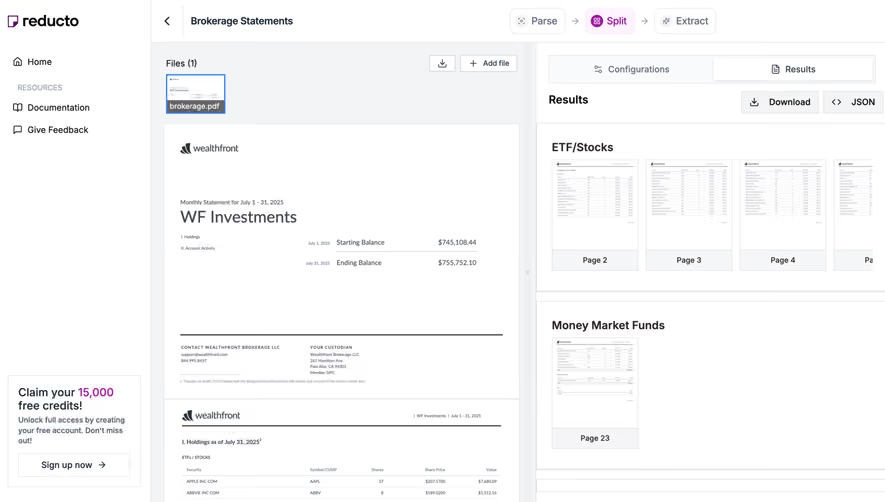


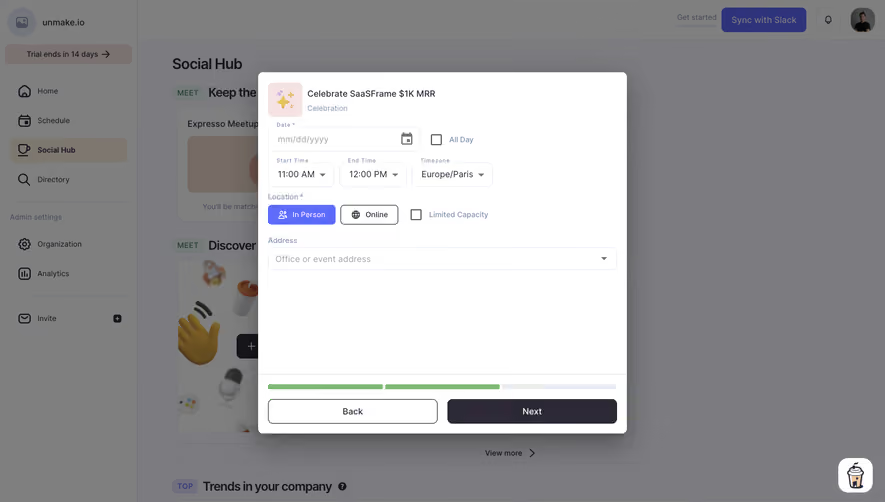


Upgrade to SaaSFrame Pro now to see similar examples.
Monthly
$18 /month
Billed $18 monthly
Browse all screens & flows
Filter and search screens & flows
Search text in screenshots
Access Figma files
Access mobile versions
Join now
Quarterly
$16 /month
Billed $48 quarterly
Browse all screens & flows
Filter and search screens & flows
Search text in screenshots
Access Figma files
Access mobile versions
Join now
Yearly
$15 /month
Billed $180 yearly
Browse all screens & flows
Filter and search screens & flows
Search text in screenshots
Access Figma files
Access mobile versions
Join now