.avif)

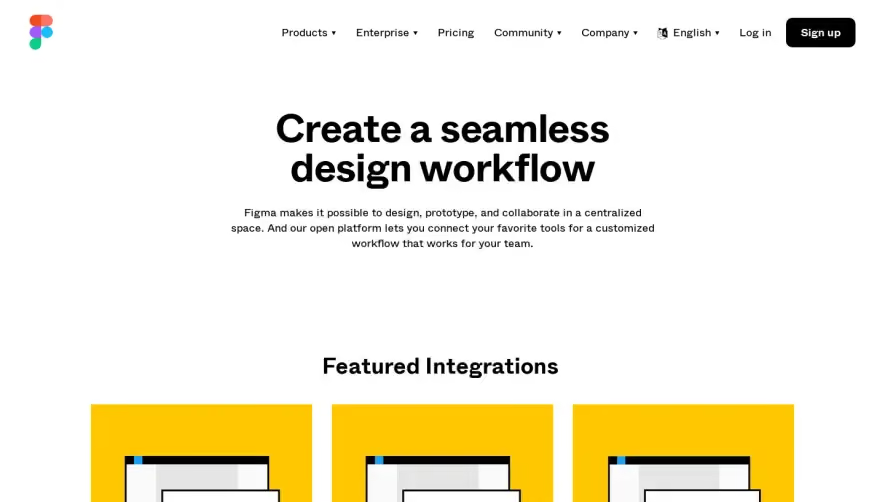
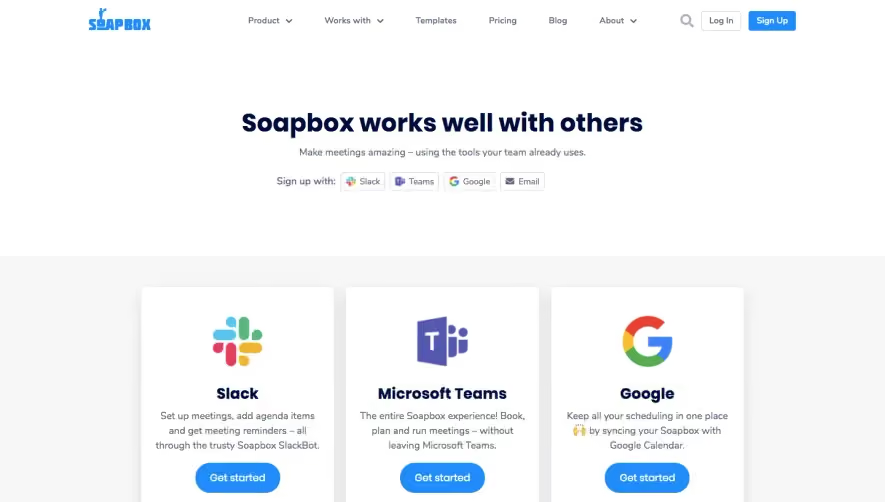
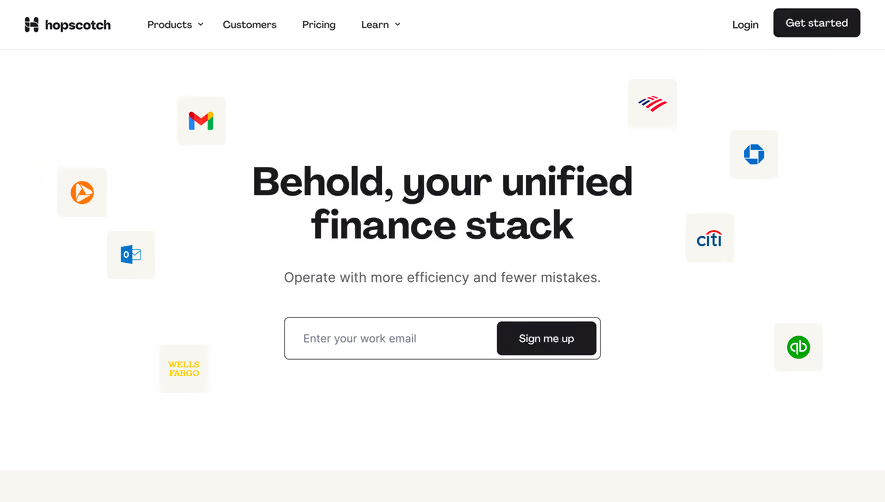
1. Logo and Navigation Menu: At the top-left corner, there is a Clubhouse logo. To the right of the logo is a navigation menu which has options for Home, Pricing, Integrations, and Learn. 2. Banner Image and Call-to-Action: Below the header, there is a banner image with a call-to-action button to “Sign Up for Free.” 3. Introduction: Below the banner, the page introduces the purpose of the Clubhouse Integrations page which is to “Streamline your workflow and keep your team in sync with Clubhouse integrations.” 4. Integration categories: The page is divided into different categories of integrations with a color-coded header. The categories include: a. Track Workflows: This category includes integrations with dev-related tools such as Github, GitLab, Bitbucket, etc. b. Manage Documents: This category includes integrations with tools like Google Drive, Dropbox, etc. c. Automate Processes: This category includes integrations with automation tools like Zapier and IFTTT. d. Notify Teams: This category includes integrations with communication tools like Slack and Microsoft Teams. 5. Integration Cards: Under each category, there are clickable cards that provide a short introduction to each integration, its features and how it works. 6. Additional information: At the bottom of the page, there are additional tools and plugins for Clubhouse such as Chrome extension, Zapier Integration, Slackbot, etc. 7. Footer: The page footer includes the navigation menu, social media links and contact information for Clubhouse.
.webp)


Shortcut lubhouse Integrations Page

Shortcut
Project Management for Software Teams
Designed by
No items found.
Category
Patterns
No items found.
Tech Stack
Added on
June 26, 2020