.webp)
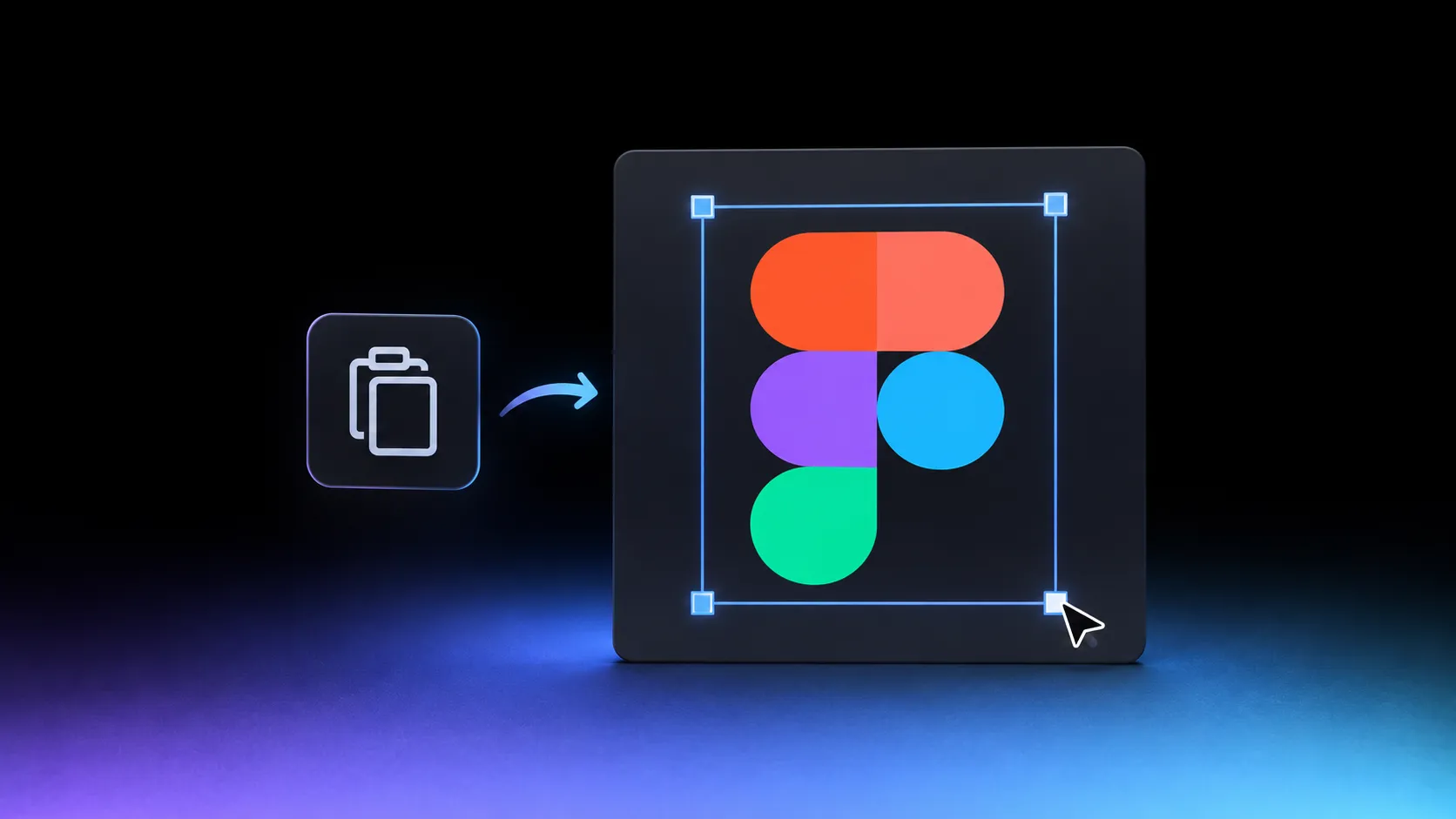
SaaSFrame lets you bring supported SaaS design examples into Figma as editable designs. Find a reference in the library, select Copy in Figma, then paste it into your design file. You can move from looking at an interface to exploring how its composition could work with your own content.
That is useful when you already know what you want to investigate: a clearer onboarding question, a different form hierarchy or a marketing section that needs to explain a complex product. An editable reference gives you material to work with before you commit to a direction.
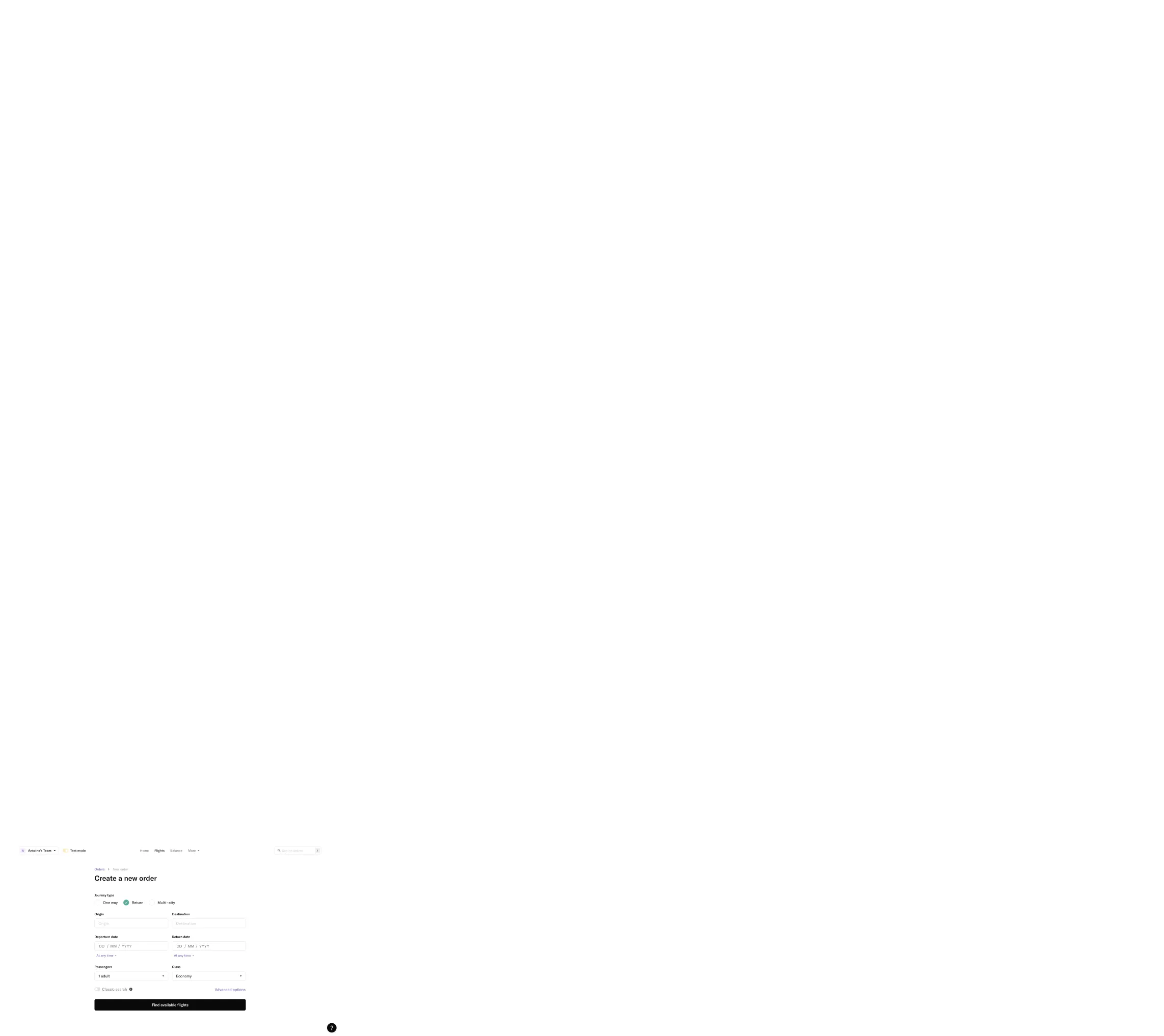
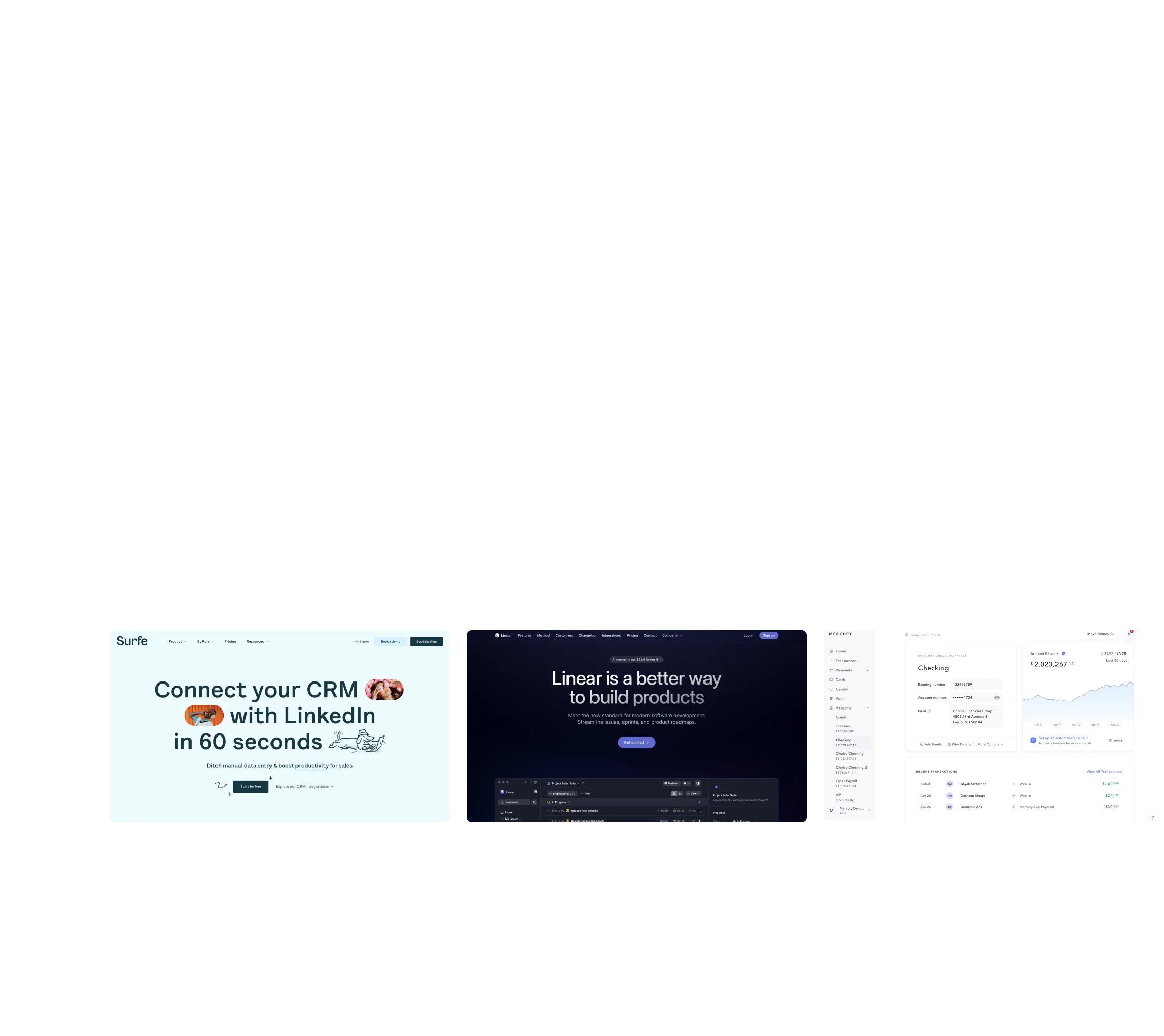
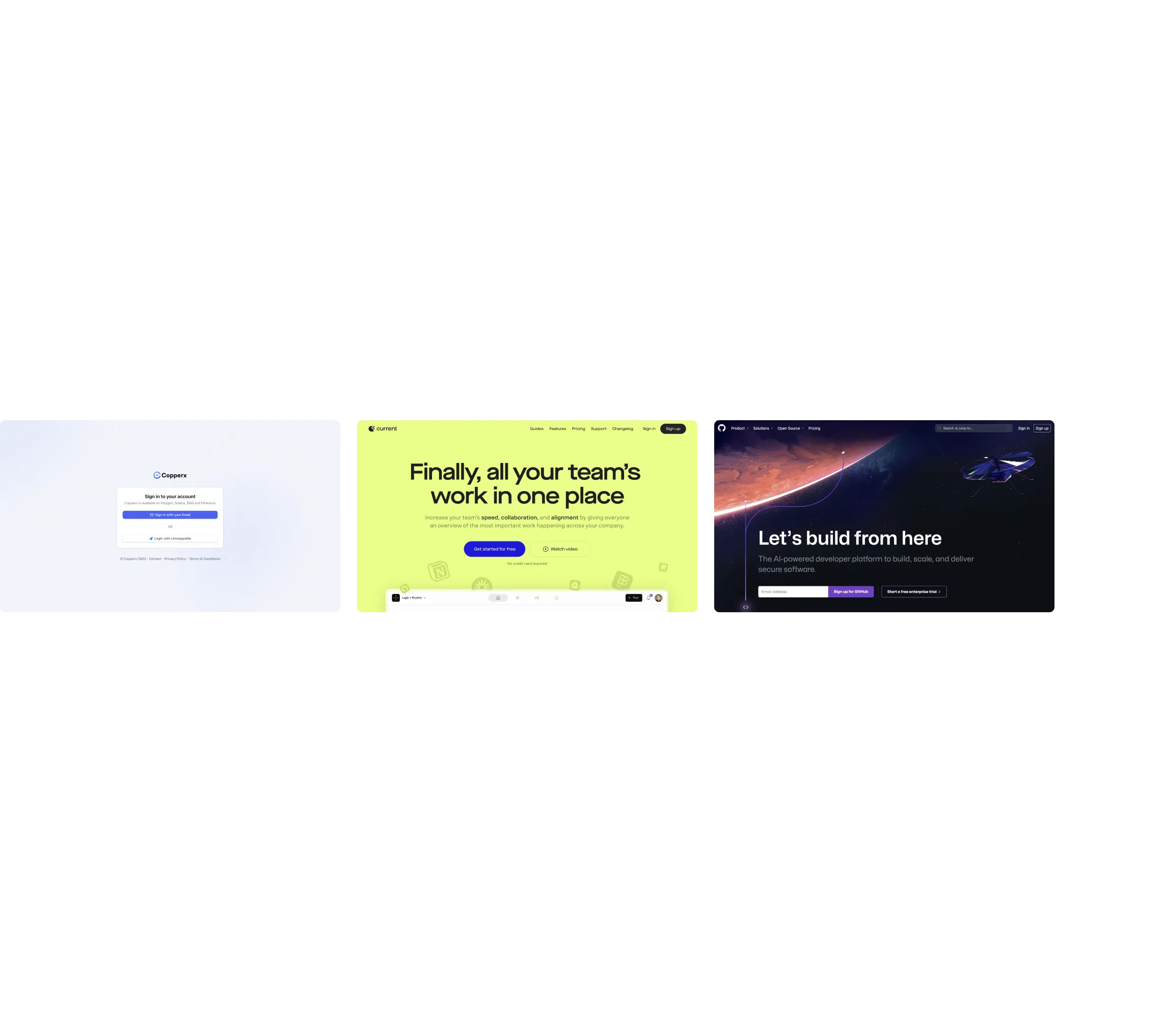
This guide explains the copy-and-paste workflow and how to use it during SaaS design research. The examples below are actual captures from the SaaSFrame library. They show the source interfaces, rather than screenshots of a completed Figma import.
Bring a real SaaS reference into the file where you design
Design research often ends with a folder of screenshots. Those images help establish a direction, but the next step can involve rebuilding enough of an interface to test a simple change. You may only want to see whether a longer headline fits, whether a form needs another field or whether a section can support a different reading order.
SaaSFrame's Figma functionality helps bridge that step. Supported examples include editable design content that you can paste into Figma and inspect. Use the result to explore the relevant parts of the composition, then adapt your own design around the problem you are solving.
The benefit is particularly practical for freelancers working across SaaS websites and product interfaces. A single project might include a demo request page and an onboarding flow. Both can inform the design, even though they serve different moments in the customer journey.
Copy an example from SaaSFrame and paste it into Figma
The copy action is available to SaaSFrame Pro members on supported examples. You need to be signed in and have a Figma design file open where you can edit.
- Find the reference. Browse a SaaS, category or pattern, or search for the words that appear in a screenshot.
- Open the example. Look for its Copy in Figma action. Availability depends on the example.
- Copy the design. Select the button and wait for Copied! Paste into Figma. Allow clipboard access if your browser requests it.
- Switch to your Figma file. Paste with Command + V on Mac or Ctrl + V on Windows.
- Inspect the result. Select the relevant elements and start a separate variation for your own content or layout test.
The copy workflow moves the design through your clipboard. There is no need to rebuild the source interface manually just to start investigating it.
Use screenshots to compare, then use editable layers to explore
A screenshot and an editable reference serve different stages of the work. A capture preserves a clear view of what you found. Editable elements let you investigate a possible change. Keeping both together makes the design review easier to follow.
Start each variation with a question. “Can this onboarding step explain why we ask for a company URL?” gives the exploration a purpose. “Make it look like this” leaves the important decision undefined.
Keep the untouched reference alongside your variation. That makes it easier to distinguish the structure you learned from the changes introduced for your own users.
Adapt the pattern to your own content and design system
Once a direction looks promising, bring it into the conventions of your product. Apply your typography and color choices, review spacing and replace reference content with your own labels and examples.
Inspect the imported structure before building on it extensively. Editable content does not automatically mean a complete component library, responsive layout system or production-ready file. Image assets may remain images, and the result can need cleanup. Review text, grouping and layout behavior in the example you choose.
For a reusable component, define the states your product needs: empty, filled, loading, validation and error, for example. A captured screen shows a particular moment. It cannot establish every interaction rule or edge case your implementation will require.
Use the reference to understand a decision and test an adaptation. Then make the final design coherent with the rest of your product.
If copying fails, check the confirmation before trying to paste again
Wait until the action reports that the design was copied. Pasting while the button still says Copying… can leave you pasting the previous contents of your clipboard.
If the button reports Could not copy, check your browser's clipboard permissions and confirm that you are signed in with access to the feature. Reopen the example and try the action again. If you still cannot copy it, contact SaaSFrame with the example URL, your browser and the message you saw.
If the content reaches Figma but needs adjustment, inspect that example's structure before assuming the entire import is an image. Separate what can be edited from the assets that need replacing in your own exploration.
Start with a reference that answers your next design question
The most useful starting point is a specific task: explain an onboarding question, simplify a demo form or compare how a pricing page presents limits. Find a relevant example, understand its context and use the Figma copy to test the change you have in mind.
Explore the SaaSFrame library for website pages and product interfaces. Open a supported example and select Copy in Figma when you are ready to move from research to an editable exploration. SaaSFrame Pro includes access to the Figma functionality.
Questions about SaaSFrame's editable Figma references
Can I copy SaaSFrame examples into Figma as editable designs?
Yes. Supported examples provide a Copy in Figma action for Pro members. Select it, wait for the confirmation and paste into a Figma design file. Check the specific example for availability and inspect its editable content after pasting.
Is this different from pasting a screenshot into Figma?
Yes. Pasting a screenshot gives you an image to annotate. The editable copy lets you work with supported design elements rather than only the complete image. Some assets can still remain images, and the file may need adjustment for your project.
Do I need a SaaSFrame plugin for the copy workflow?
The Copy in Figma action uses your clipboard. Follow the action on the example page, then paste into your Figma design file. Browser clipboard access and an active Pro membership are required for this workflow.
Does every example have a Figma version?
Availability varies. Look for Copy in Figma or a Figma availability indicator on the example you want to study. Do not assume every screenshot, platform version or flow step has the same export options.