 SaaSFrame
➕ Add & Edit
Explore intuitive Add and Create UI patterns for SaaS applications. This collection showcases floating action buttons, 'New Project' modals, and quick-add shortcuts designed to make data entry and resource creation feel effortless and fast.

Index of all 423 Add & Edit examples
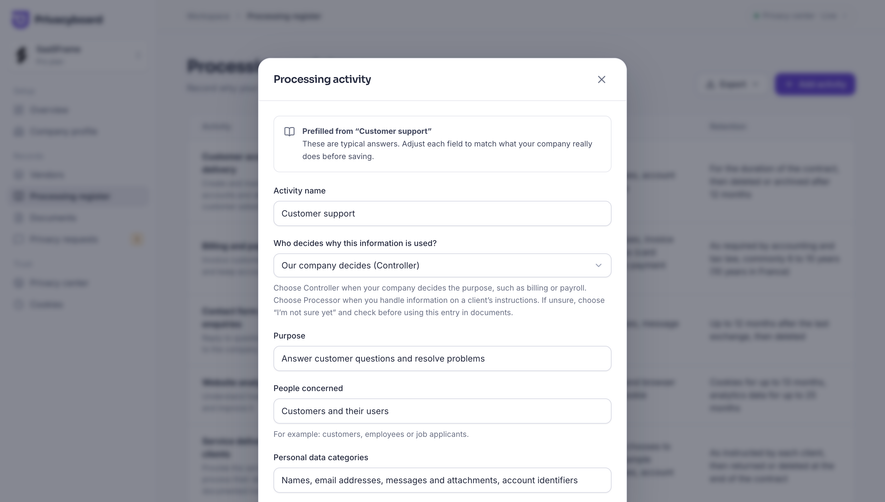
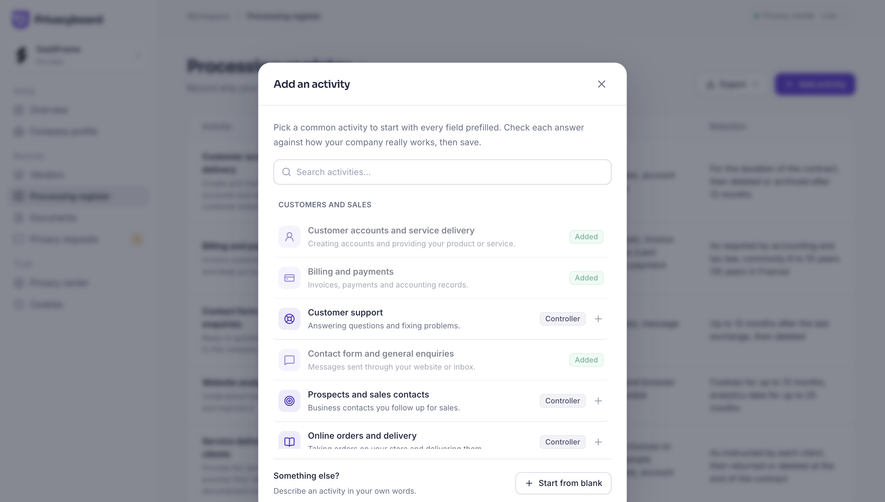
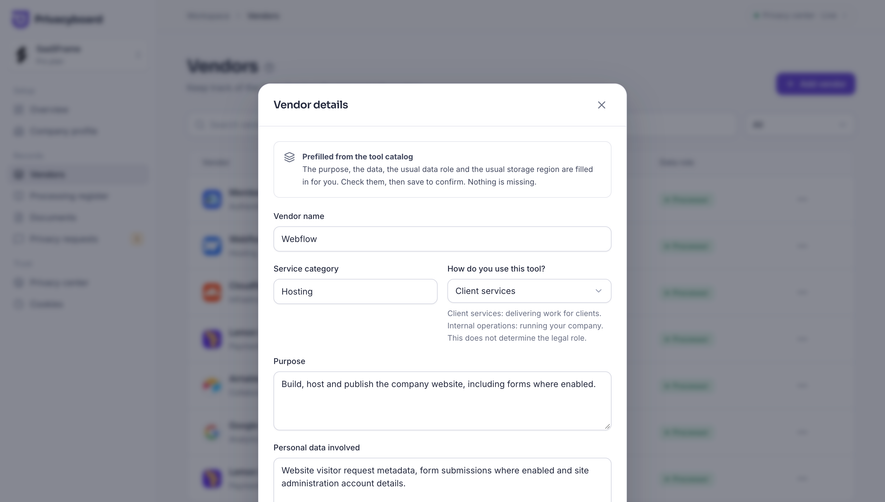
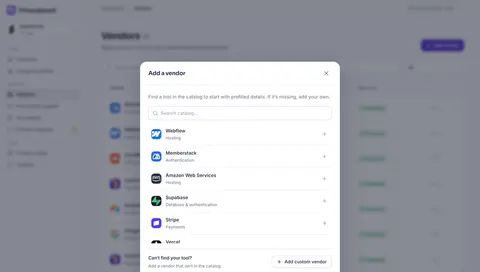
- Privacyboard Choose a vendor from the catalog
- Moss Create a project API key
- Moss Add a website crawl source
- Moss Preview a sample index dataset
- Moss Choose data for a new index
- Dub Create an API key
- Dub Create a link tag
- Dub Edit a short link
- Dub Create a short link
- Pangram Image ready for AI detection
- Pangram Extracted webpage text
- Pangram Extract text from a URL
- Pangram AI text detection
- Tines Skill Access Settings
- Tines Anthropic Connector Setup
- Lightspark Edit Profile Name
- Lightspark Payout Amount & Details
- Lightspark Business Recipient Details
- Lightspark Recipient Type & Currency
- Lightspark Choose Payout Recipient
- Lightspark Issue Virtual Card
- Lightspark Add Account Funds
- Context.dev Create a batch
- Context.dev Create a monitor
- Context.dev Enrich People setup
- Context.dev Scrape brand results
- Context.dev Crawl Website results
- Context.dev Map URLs results
- Context.dev Scrape Anything results
- Context.dev Scrape Anything settings
- EigenPal Create an API key
- EigenPal Add a webhook endpoint
- EigenPal Configure workflow output
- EigenPal Set up a new AI agent
- Hugging Face Create a storage bucket
- Hugging Face Create a new Space
- Hugging Face Create an organization
- Hugging Face Open a new pull request
- Hugging Face Create a discussion or pull request
- Hugging Face Create a model repository
- Close Lead capture form editor
- GraphCMS Selected text comment workflow
- GraphCMS Review AI-generated content
- GraphCMS AI content generation prompt
- GraphCMS Content editor loading state
- GraphCMS Move content entry modal
- GraphCMS Blank rich text content editor
- GraphCMS Edit digital asset modal
- GraphCMS Content entry editor with populated fields
- GraphCMS Blank content entry editor
- ReflexAI AI persona example responses editor
- ReflexAI AI persona participant behaviors editor
- ReflexAI AI persona emotions editor
- ReflexAI AI persona traits editor
- ReflexAI AI persona interaction details
- ReflexAI Simulation setup choice
- ReflexAI Create simulation dialog
- NewsCatcher Create New Key
- NewsCatcher Create Company Watchlist
- NewsCatcher Create Monitor
- NewsCatcher Query Review
- Cloudflare Create A Dashboard
- Cloudflare Register Domain Via API
- Profound Content Configuration
- Profound Content Templates
- Claude Create New Project
- Dust Add Connection
- Prelude Add Number
- Prelude Generate Key
- Unkey Create Identity
- Unkey Create New Permission
- Unkey Create New Role
- Unkey Edit External ID
- Unkey Manage Role And Permissions
- Unkey Create New API
- Visitors Add Project
- FullEnrich Enrich Work Email
- FullEnrich New Enrichment
- Huly Add Schedule
- Hume AI New Voice Set Up
- Hume AI Generating New Voice
- Hume AI Voice Design
- Reducto Extract Document
- Reducto Split Document
- Reducto Parse Document
- Atlas Add Widget
- Atlas Add Dataset
- Wise Select Conversion Amount
- Wise Select Conversion Amount
- Wise Convert Money
- Wise Send Payment Request
- Wise Request Money
- Wise Add Money With Card
- Wise Add Money
- Wise Select Transfer Recipient
- Wise Search Transfer Recipient
- Wise Add Transfer Recipient
- Wise Select Transfer Frequency
- Wise Schedule A Transfer
- Wise Send A Payment
- Customer.io CSV Import Review
- Customer.io Add A Contact
- Customer.io Campaign Review
- Customer.io Campaign Goals Settings
- Customer.io Campaign Review
- Checkout.com Set Up API Keys
- Checkout.com Add Chart To Board
- Checkout.com Create New Board
- Checkout.com Generating Report
- Checkout.com Create New Report
- Wiza Create A List
- OpenAI Create New Assistant
- OpenAI Create New Assistant
- OpenAI API Key Created
- OpenAI Create API Key
- Latitude Create New Project
- Uvodo Add A Team Member
- Uvodo Uvodo Create Virtual Card
- Uvodo Uvodo Create A Link
- Uvodo Uvodo Create A Link
- Remote Add A New Hire
- Remote Add A New Hire
- Remote Add A New Hire
- Remote Add A New Hire
- Hyperline Assign New Subscription
- Hyperline Assign New Subscription
- Hyperline Assign New Subscription
- Hyperline Create A New Customer
- Hyperline Create New Product Success
- Hyperline Create New Product Error
- Hyperline Create New Product
- Hyperline Select Product Category
- Copperx Add Customer
- Copperx Create A Payment Link
- Cal.com Create API Keys
- Cal.com Create API Keys
- Cal.com Add Webhook
- Cal.com Empty Workflow Dashboard
- Cal.com Set Up Team
- Cal.com Set Up Team
- Cal.com Create Team
- Dock Create Verification Templates
- Dock Send Credential to Recipients
- Dock Add Credential Recipiend
- Dock Add Credential Recipiend
- Dock Add Credential Recipiend
- Dock Edit Credential Design
- Dock Select Credential Design
- Dock Select Credential Template
- Dock Create Issuer Profile
- Dock Create Issuer Profile
- Dock Create Issuer Profile
- Audienceful Select Automation Action
- Audienceful Select Automation Trigger
- Audienceful Select Automation Trigger
- Frame Create A Note
- Rise Create An Event
- Albato Create Automation
- Albato Select Operation Mode
- Albato Setup Trigger
- Albato Create a Connection to Airtable
- Albato Setup Trigger
- Albato Setup Trigger
- Albato Create Automation
- Expertpage Add Product
- Expertpage Add Link
- Sellx Create A Sequence
- Sellx Create A Sequence
- Sellx Create A Sequence
- Sellx Create A Sequence
- Sellx Empty Sequences Dashboard
- Sellx Campaign Preview
- Sellx Review Campaign Setup
- Sellx Review Campaign Setup
- Sellx Campaign Setup
- Sellx Campaign Setup
- Sellx Campaign Setup
- Sellx Campaign Setup
- Sellx Campaign Setup
- Sellx Campaign Setup
- Sellx Campaign Setup
- Sellx Campaign Setup
- Sellx Campaign Setup
- Sellx Empty Campaign Dashboard
- Plausible Analytics Add A Goal
- Plausible Analytics Add A Goal
- Plausible Analytics Add A Goal
- Duffel Order Confirmation
- Duffel Fair Options
- Duffel Select A Flight
- Duffel Create An Order
- Duffel Create An Order
- Meiro Challenge Published
- Meiro Challenge Blocks Setup
- Meiro Challenge Setup
- Meiro Challenge Setup Preview
- Meiro Challenge Setup Details
And 223 more in the library.
➕ Add & Edit: design guide
SaaS add-and-edit screens let users create or change the objects that make a product useful. These can be reports, projects, contacts, settings, or profile fields. A good flow identifies the target, collects the necessary information, and makes the difference between a draft and a saved result clear.
The SaaSFrame references show report-type selection, a report preview, and a focused profile edit. They illustrate different levels of complexity. Creating a new object and modifying an existing one can share controls, but they should not share ambiguous commitment language.
Define the object before designing the form
Identify what will be created or changed and where it belongs. A report within a workspace is different from a personal profile field. Users need the destination and scope before they supply information.
Decide which inputs are required for a useful initial object. Additional configuration can often happen later, but the starting object should not imply readiness it does not have. Explain any remaining setup work.
For editing, make the current object unmistakable. A familiar form can still be dangerous if the user is changing a different workspace or record than expected.
Offer object types through meaningful outcomes
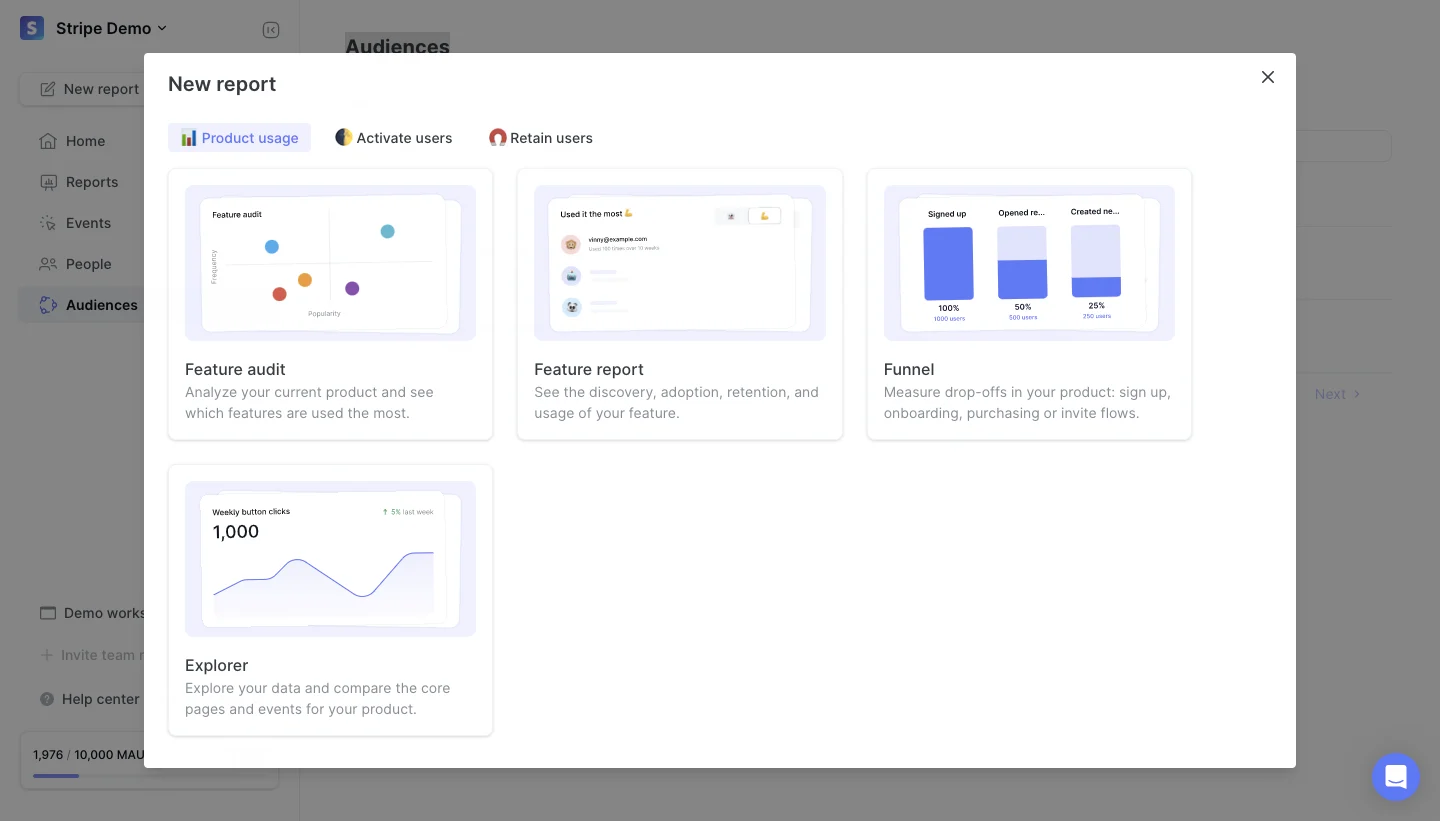
The June new-report capture presents report types through previews and short explanations. Choices include a feature audit, feature report, funnel, and explorer, with grouping around product-use and lifecycle questions.
This supports a decision about what the object should help investigate. Users can evaluate the purpose before encountering a configuration form. The visual previews add context without requiring every option to be opened.
When adapting the model, use labels that describe the actual result. A template choice should not merely select a decorative layout when the user expects a distinct analysis model.
Separate selection, configuration, and creation
Choosing an object type is one stage; providing its settings is another; saving it is a commitment. Keep those stages recognizable and allow correction where needed.
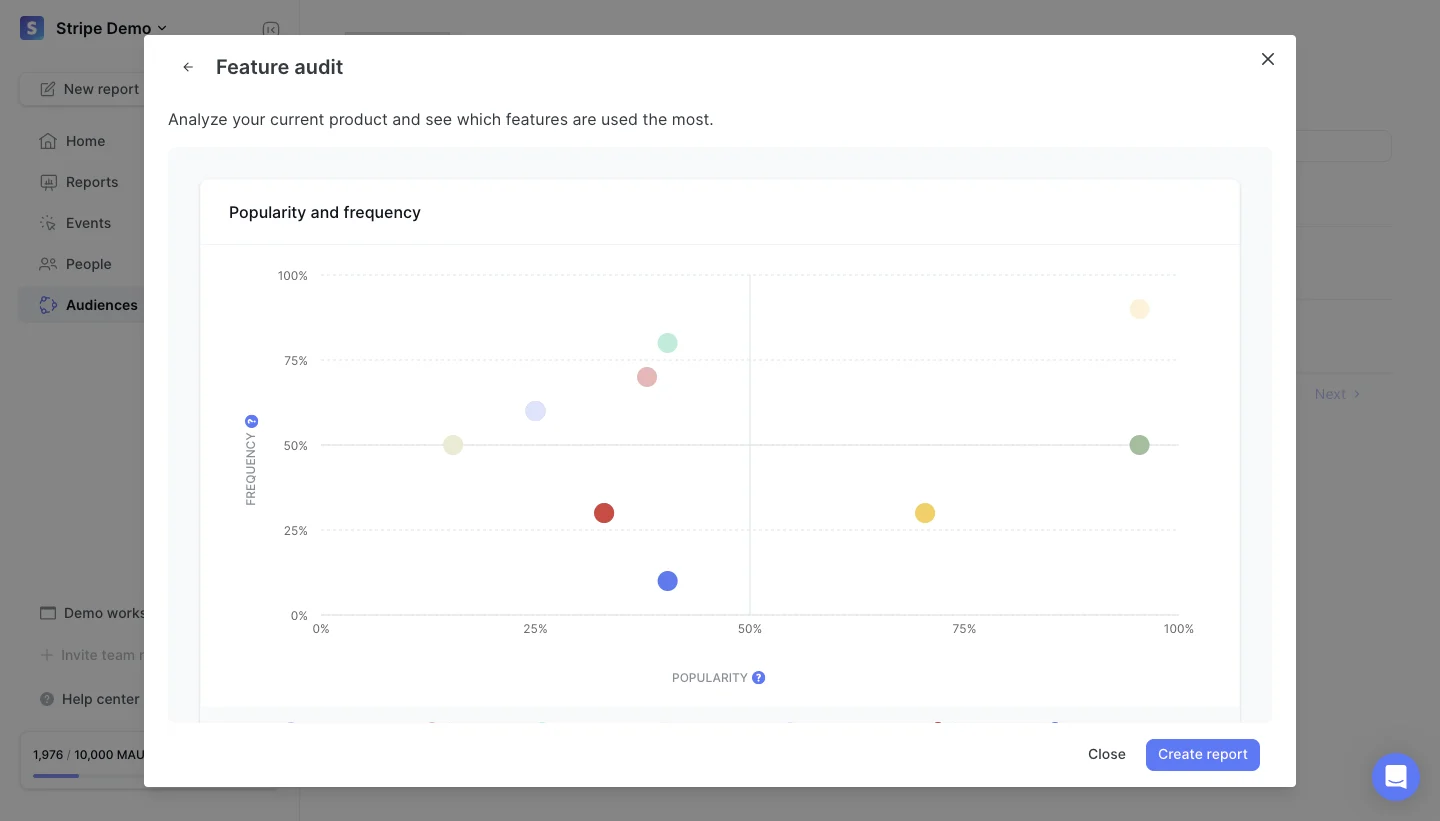
The June feature-audit capture shows a larger preview with a purpose explanation and a create-report action. The user can inspect the selected report type before creating it.
A preview can reduce uncertainty about the result, but it should identify sample content or an illustrative representation. Do not let a sample chart look like analysis already performed on the user's account.
Keep simple edits focused
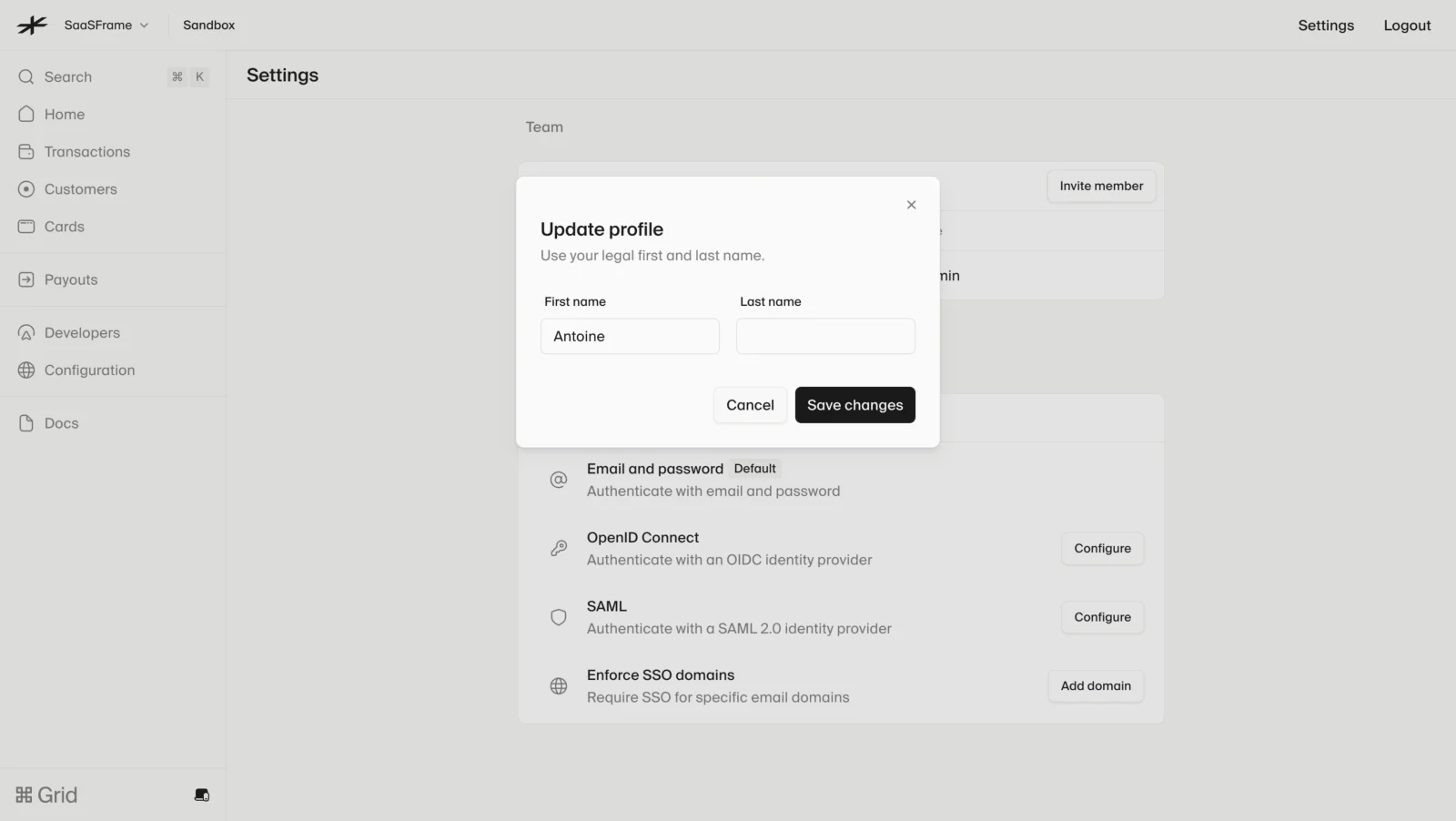
The Lightspark profile-edit capture uses a modal with first-name and last-name inputs, a short instruction, and cancel and save-changes actions. The surrounding settings screen remains visible.
This fits a narrow change with a clear subject. The explicit save action distinguishes editing the local fields from persisting the change. Cancel provides a route back without implying that the pending values were applied.
Use similar focus for genuinely simple tasks. A small modal is less suitable when users need extensive reference information, many dependencies, or complex validation across sections.
Group inputs by a coherent decision
Related fields should sit together. A name and description can establish identity; scheduling controls can establish timing; access choices can establish sharing. Mixing them without hierarchy makes the form feel longer and harder to reason about.
Explain uncommon fields through their effect. Generic helper text beneath every input adds noise, while a brief explanation of a product-specific setting can prevent incorrect configuration.
Use defaults only where they are appropriate and inspectable. A preselected workspace or access level should not silently determine a shared consequence the user did not notice.
Make validation corrective
Validation should identify the field and explain how to proceed. Preserve entered values when an error occurs. A user should not have to reconstruct a long form because one value failed.
Distinguish incomplete input from server or lookup failure. If a website cannot be retrieved, that is not necessarily evidence of an invalid address. The recovery route needs to reflect what the system knows.
Choose validation timing according to the field. Feedback during typing can help some formats but interrupt open-ended text. Provide a useful result when enough information exists to judge it.
Keep pending edits separate from saved state
A save-based flow needs a visible pending state and understandable cancel behavior. An immediate-save flow needs confirmed feedback and a useful recovery route. Do not mix persistence models without explanation.
If saving takes time, show the operation in progress and prevent unintended duplicate submission. A changed label or disabled button alone may not explain whether work was accepted.
When the save fails, preserve the edits and identify the problem. Do not close the form and display old values as though the new version succeeded.
Preserve draft and return behavior
Creation can require information users need to gather elsewhere. Save a draft where useful or warn about losing substantial work at an appropriate moment. A trivial empty form should not produce the same interruption as a detailed unsaved object.
Back navigation should preserve valid choices. Returning from configuration to type selection should not unexpectedly discard unrelated input unless changing the type makes it incompatible.
After creation, make the new object findable. A success message can link to it or open its relevant detail. If active filters hide it, explain that relationship instead of leaving users unsure whether it exists.
Explain shared and consequential edits
Some edits affect only the current user; others affect colleagues, published output, or automated work. Make the scope visible before commitment. The same save label can otherwise conceal very different consequences.
For objects with dependencies, explain meaningful effects of changing a field. Renaming a report may be minor; changing its source or access can have broader implications. The review should be proportionate to the actual change.
Adapt controls to permissions. A user who can inspect a record but cannot edit it needs a truthful view and a relevant route to request help, rather than a misleading form that fails at submission.
Handle concurrent and external changes
In a shared product, another person may update the object while the form is open. Decide how the interface detects and resolves that state. Avoid silently overwriting confirmed changes with an older local copy.
If an object is removed or becomes unavailable, preserve the user's work where practical and explain the condition. A generic save error does not help them understand what happened.
Show the resulting confirmed version after persistence. The list, detail screen, and form should describe the same object rather than different stale snapshots.
Test real creation and correction tasks
Ask users to choose the correct object type, enter realistic data, correct an error, cancel an edit, and locate the saved result. These tasks reveal the flow's actual clarity.
Include long names, duplicate objects, missing dependencies, slow saves, interrupted sessions, restricted roles, and account switches. Review keyboard navigation and mobile form behavior.
Measure successfully usable objects and accurate edits alongside form completion. A created record that lacks necessary configuration may not represent the intended outcome.
Frequently asked questions about add-and-edit screens
Should creation and editing use the same form?
They can share fields, but their defaults, context, and commitment labels may differ. Make the object and saved state clear in both routes.
When should an edit use a modal?
A modal suits a focused change with limited context needs. Complex work often benefits from a dedicated view or a more substantial panel.
What should happen after an object is created?
Confirm the actual result and provide a useful route to inspect or continue working on it. Explain any remaining configuration that affects readiness.