 SaaSFrame
Part of Workspace Administration
Langdock Model Settings
 LangdockCompany-wide AI chat, agents and workflows
About this screen
Defaults explained before the model list
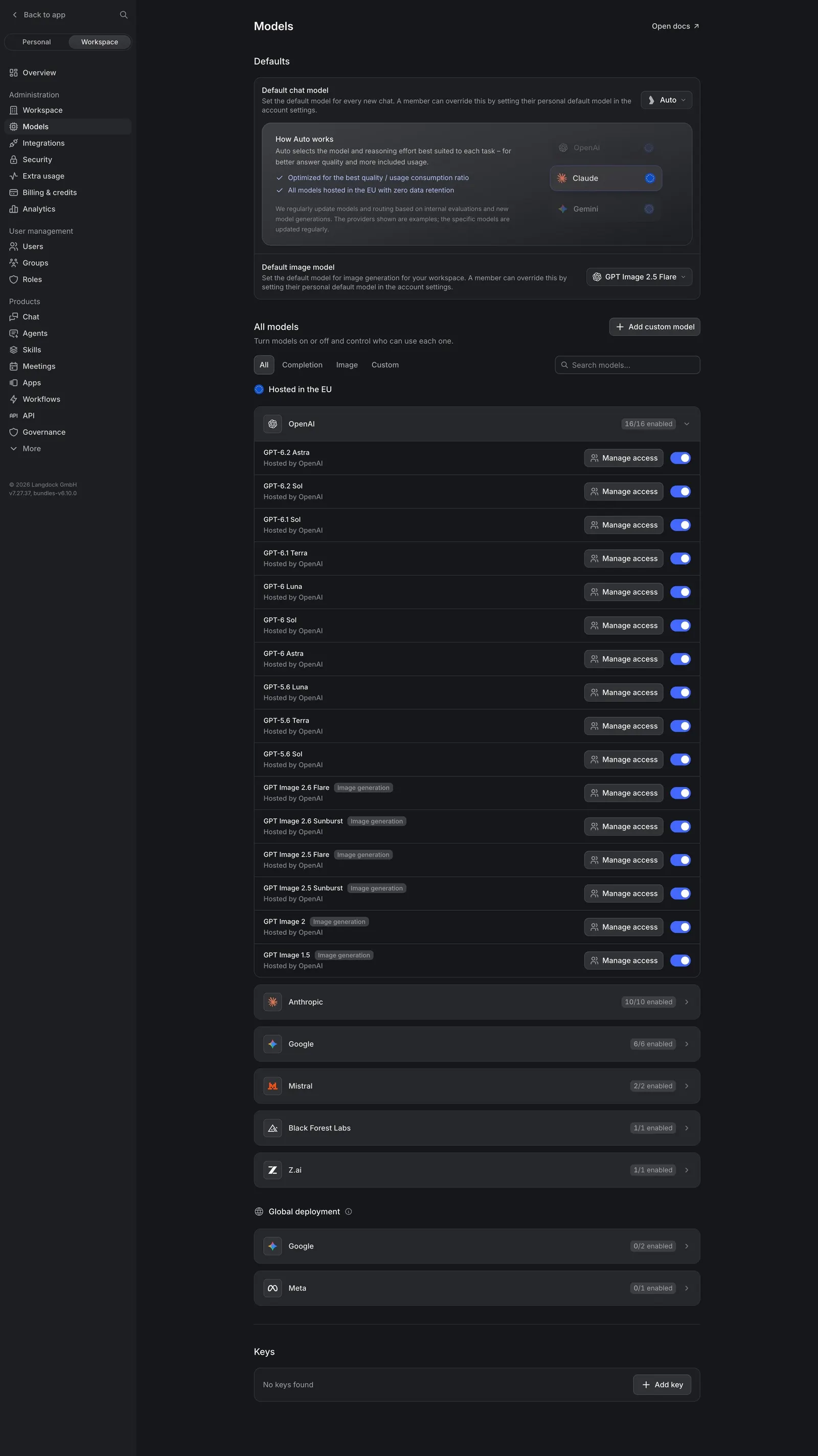
Langdock's Models settings start with "Defaults": a "Default chat model" set to "Auto" and a "Default image model". An inline "How Auto works" panel explains that Auto picks a model per task, with two check points, "Optimized for the best quality / usage consumption ratio" and "All models hosted in the EU with zero data retention", next to a small diagram of providers with Claude highlighted.
Every model as a toggle row
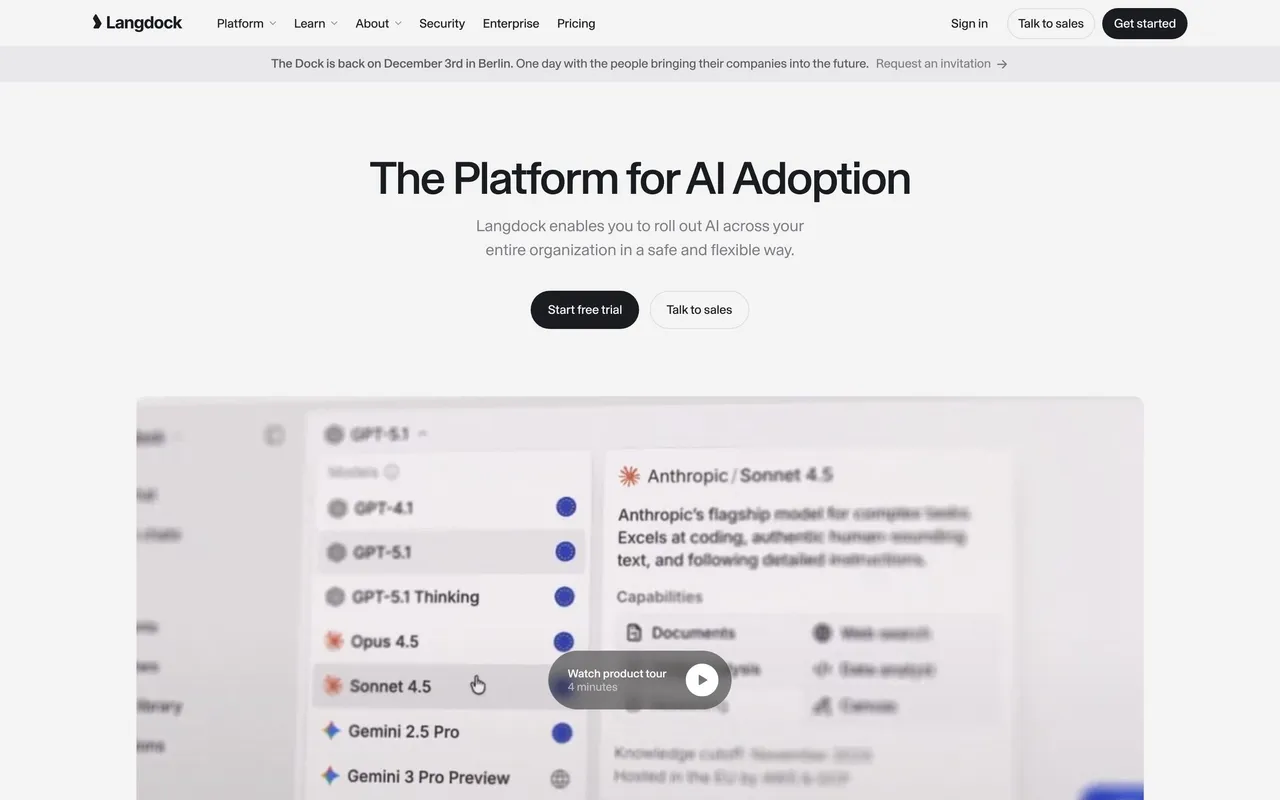
"All models" lists models grouped by provider (OpenAI, Anthropic, Google, Mistral, Black Forest Labs and more) under "Hosted in the EU" and "Global deployment" headings. Each row has the model name, "Hosted by" line, optional tags like "Image generation", a "Manage access" button and a blue toggle.
Filters and keys
Tabs filter "All", "Completion", "Image" and "Custom" models with a search field, an "Add custom model" button sits above, and a "Keys" section ends the page with "Add key" for your own provider keys.