6 more steps in this flow
Free accounts see the first 3 steps of each flow. Pro unlocks every step of every flow, every screen and section, plus the MCP for your AI tools and the Chrome extension.
Wise Send Money
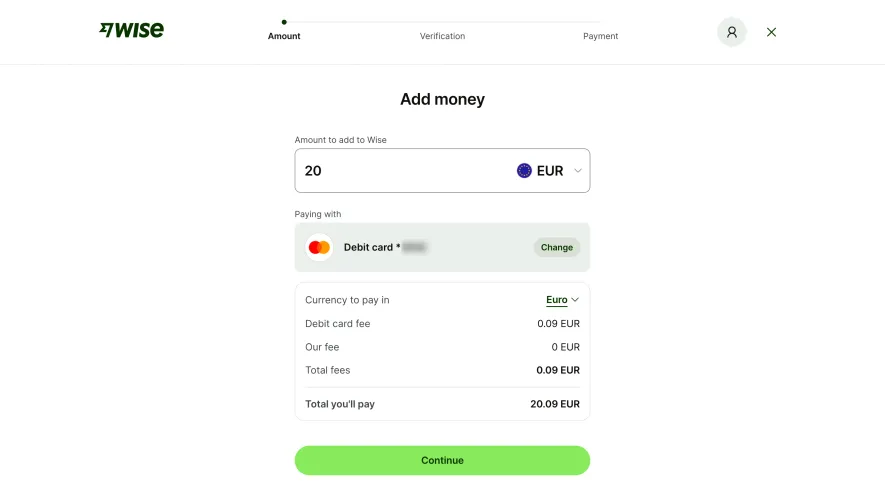
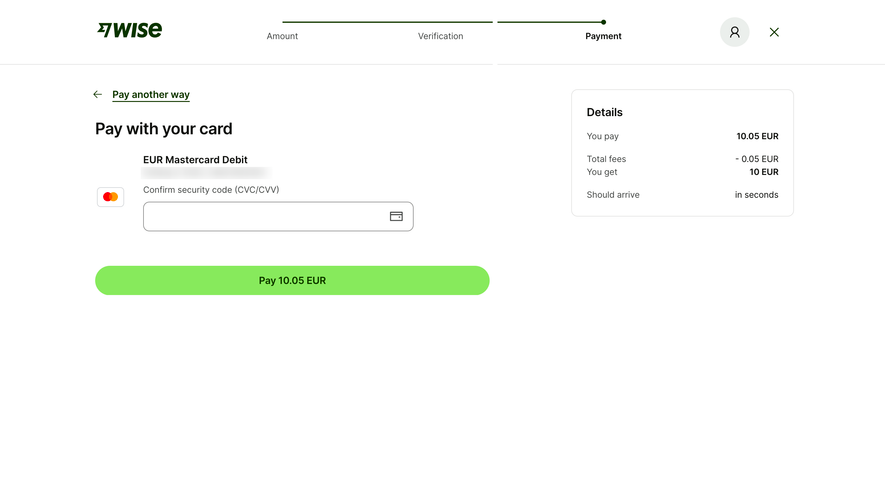
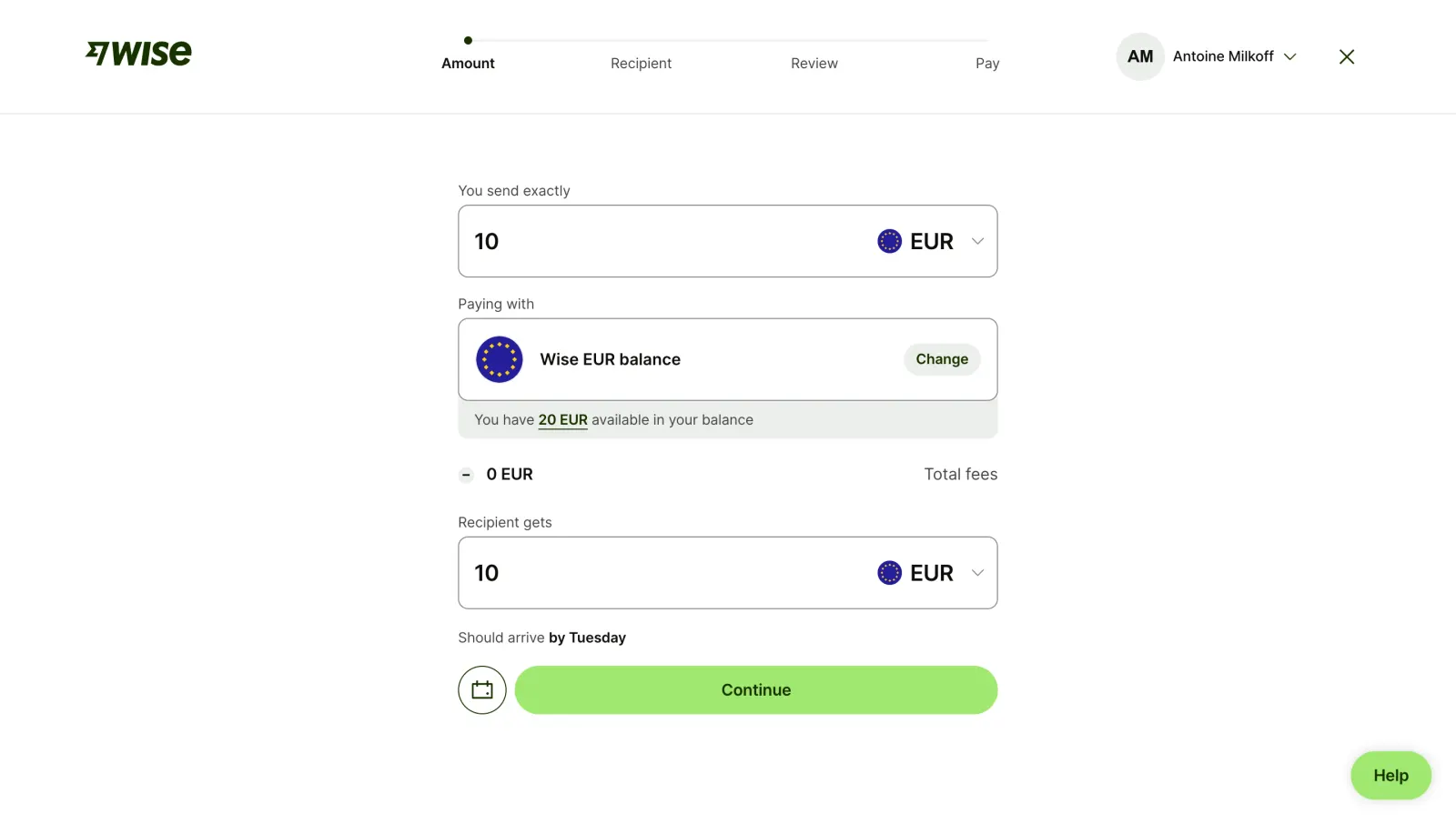
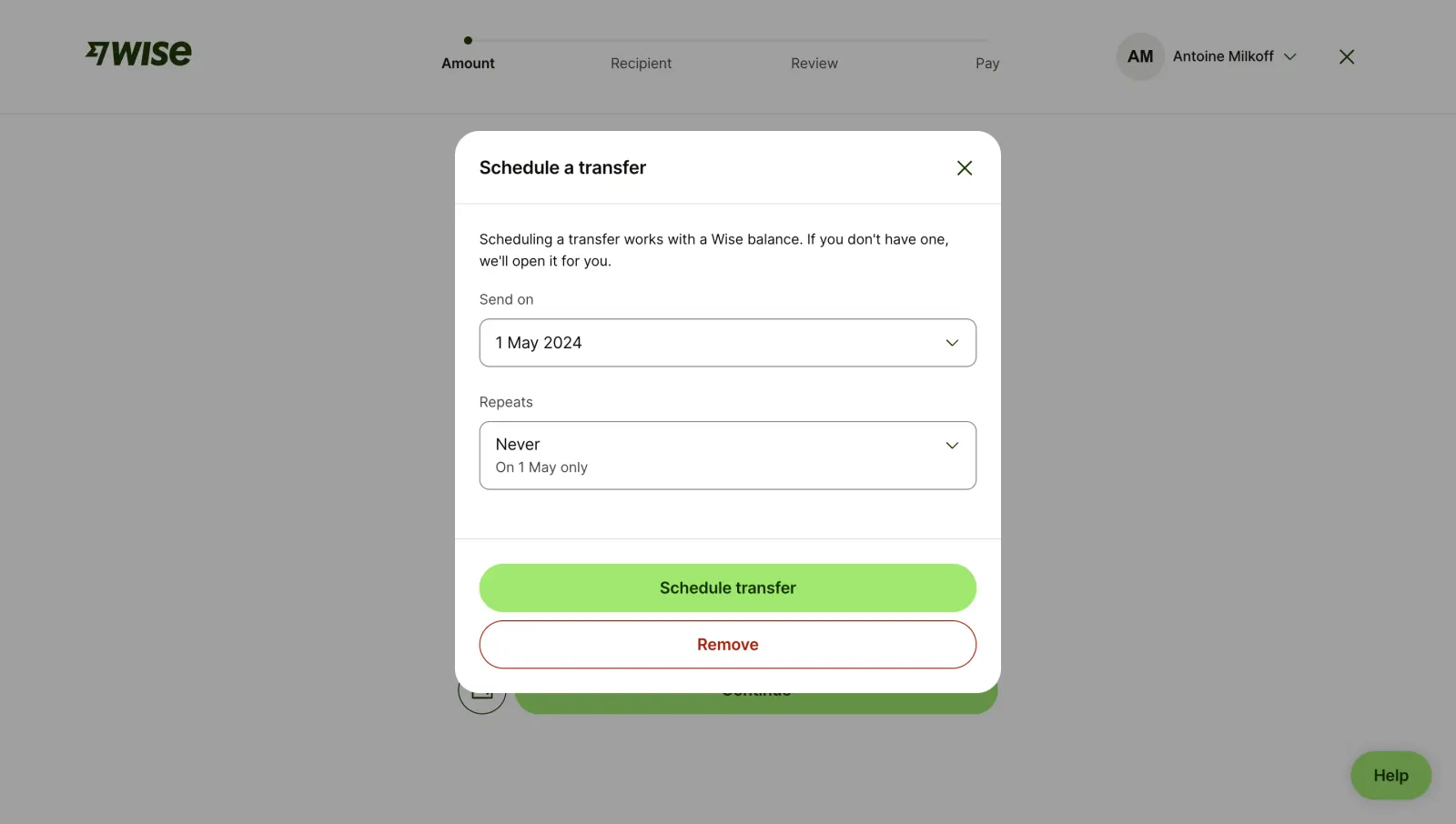
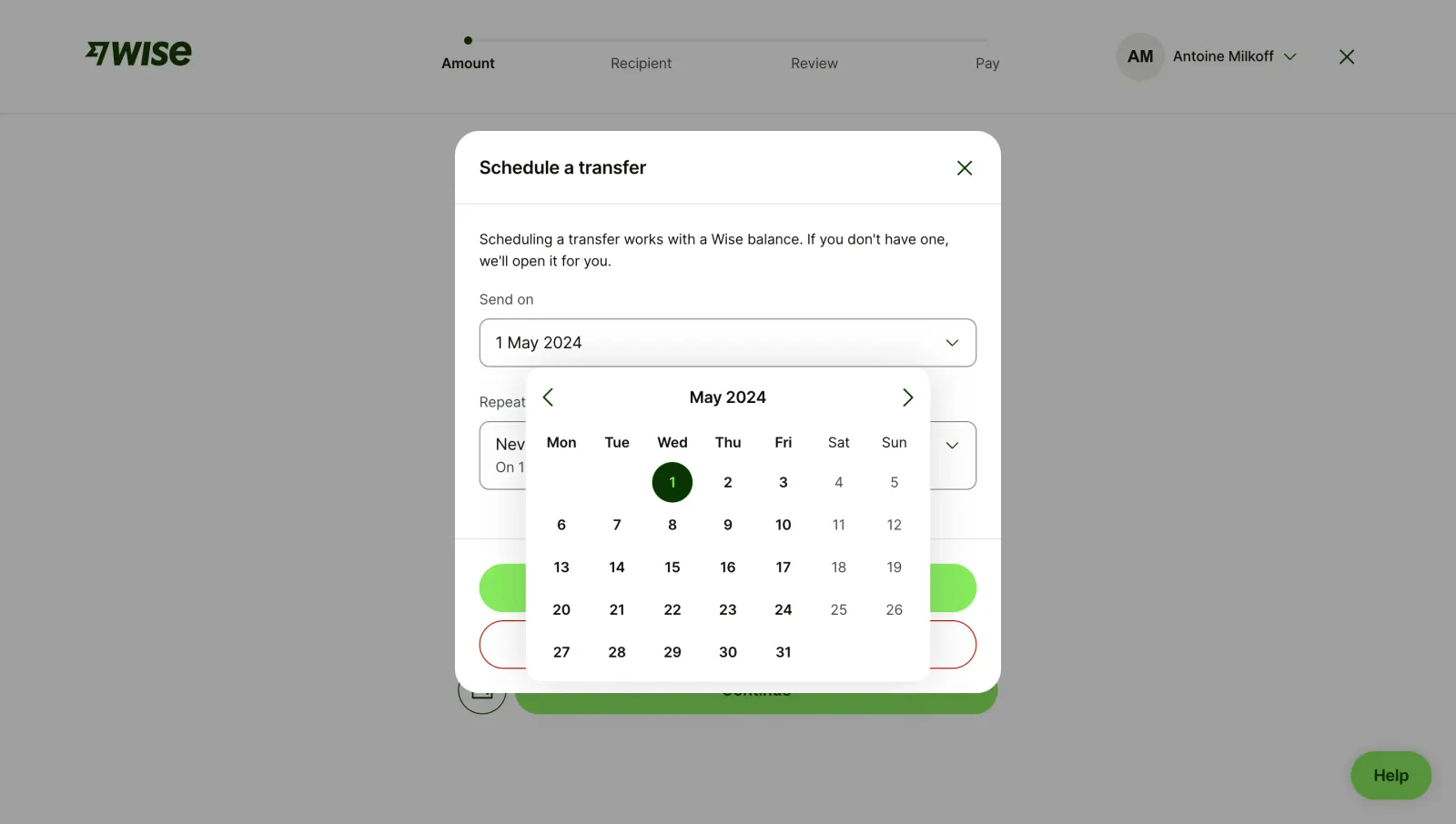
Wise's send money flow schedules a transfer, picks a recipient and confirms with a password across nine screens. A top tracker marks amount, recipient, review and pay. Scheduling uses modals with a date field, inline calendar and frequency dropdown. Recipient search shows an empty result card and a dark result tile, and the review groups details with edit links.
Follow Wise’s send money flow step by step: 9 real screens captured from the live product, from send a payment to enter password. Use ← → to move between steps, and open any screen to see it in full.
Steps in this flow
More flows from Wise
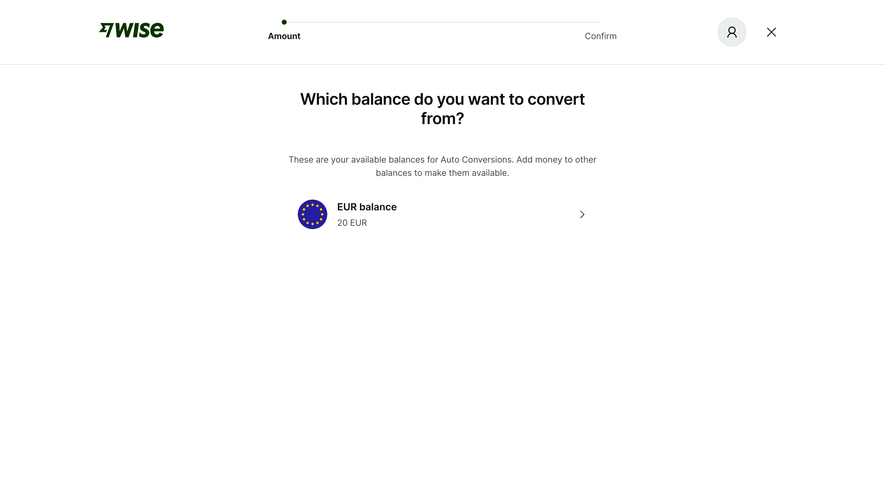
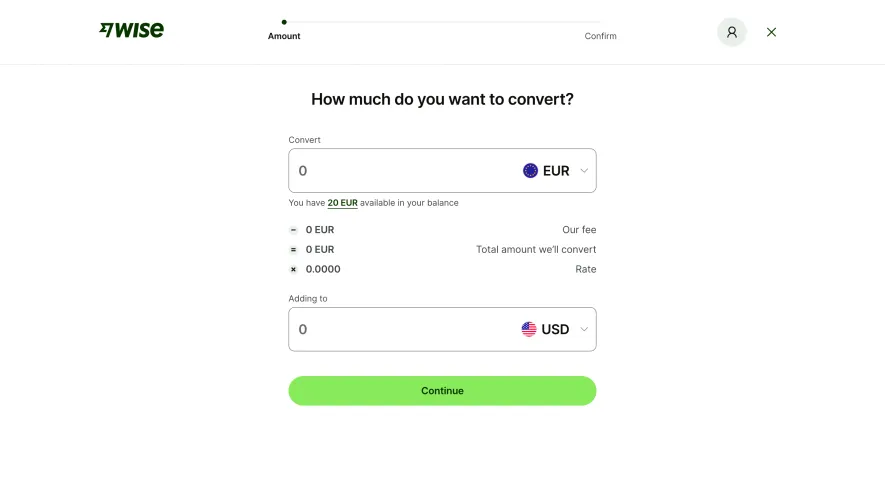
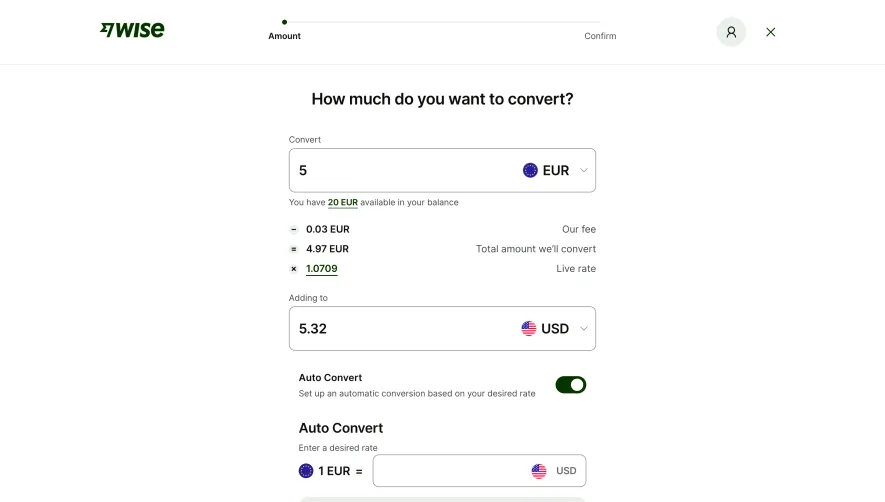
All Wise Wise Convert Money
5 screens
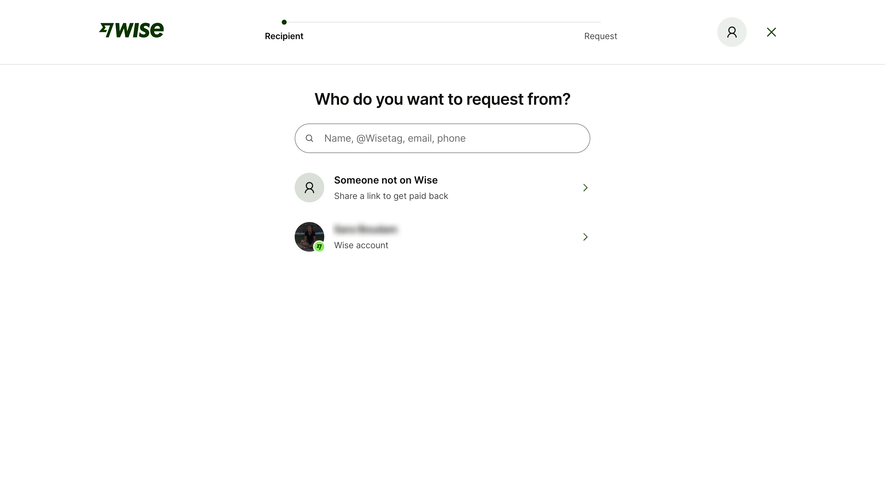
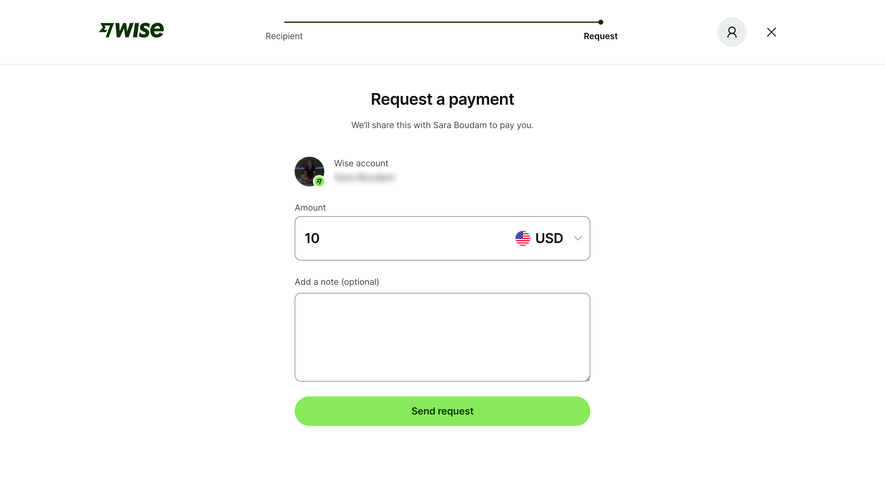
Wise Request Payment
4 screens

Wise Add Money
2 screens