SaaSFrame Pro
2 more steps in this flow
Free accounts see the first 3 steps of each flow. Pro unlocks every step of every flow, plus every screen, section and Copy in Figma.
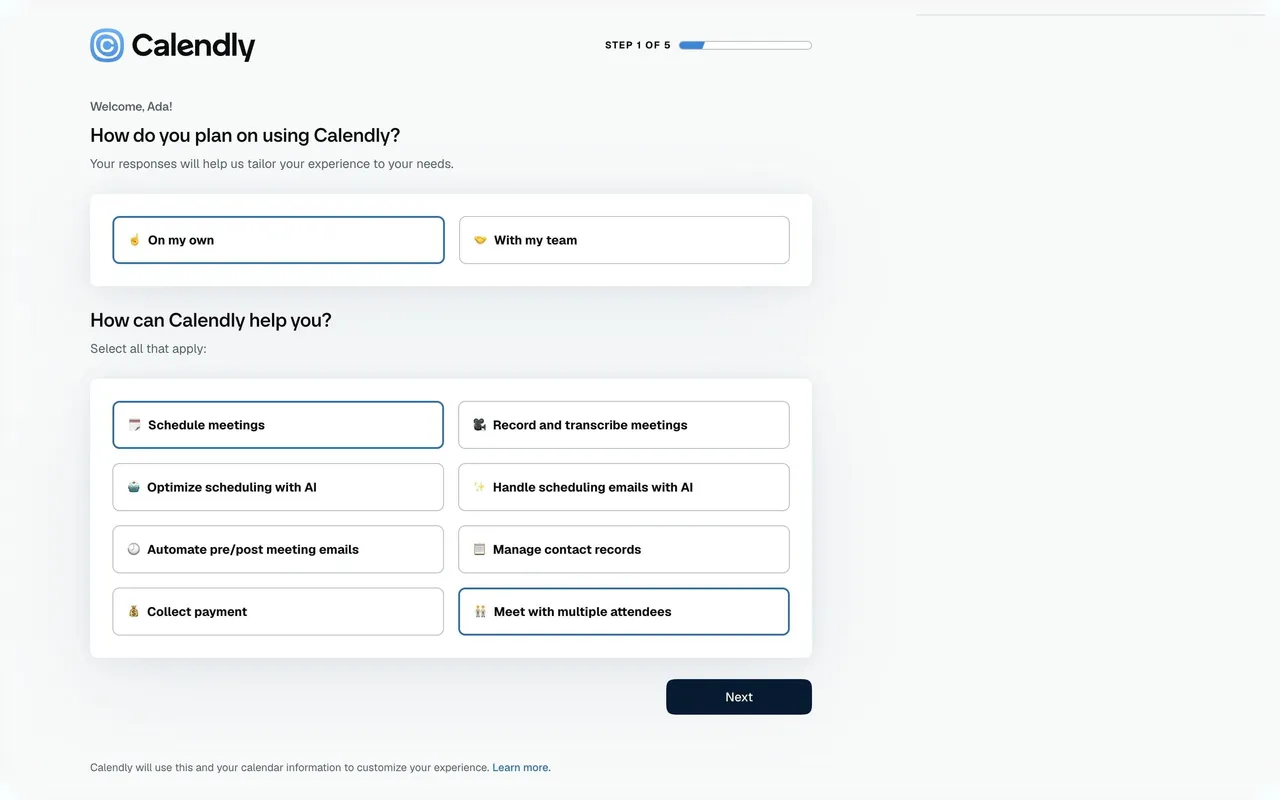
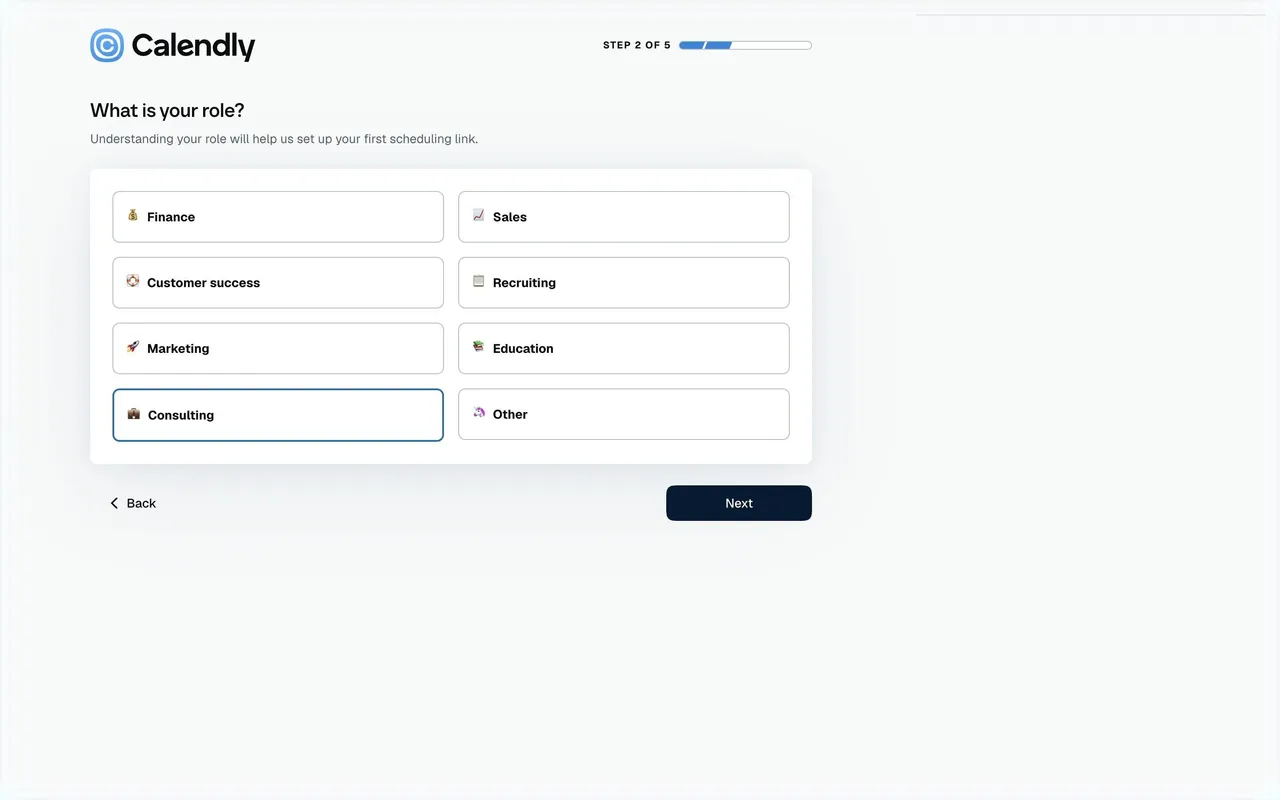
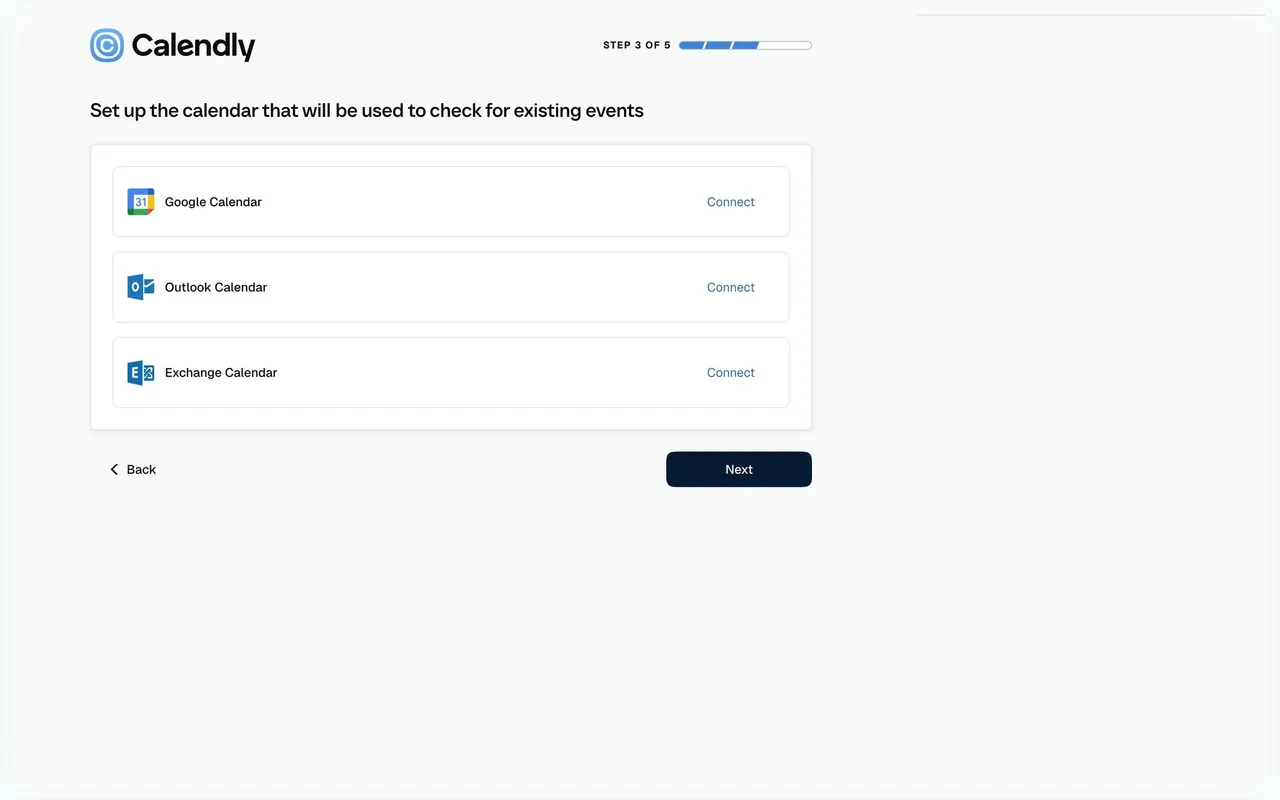
Calendly Booking a Meeting
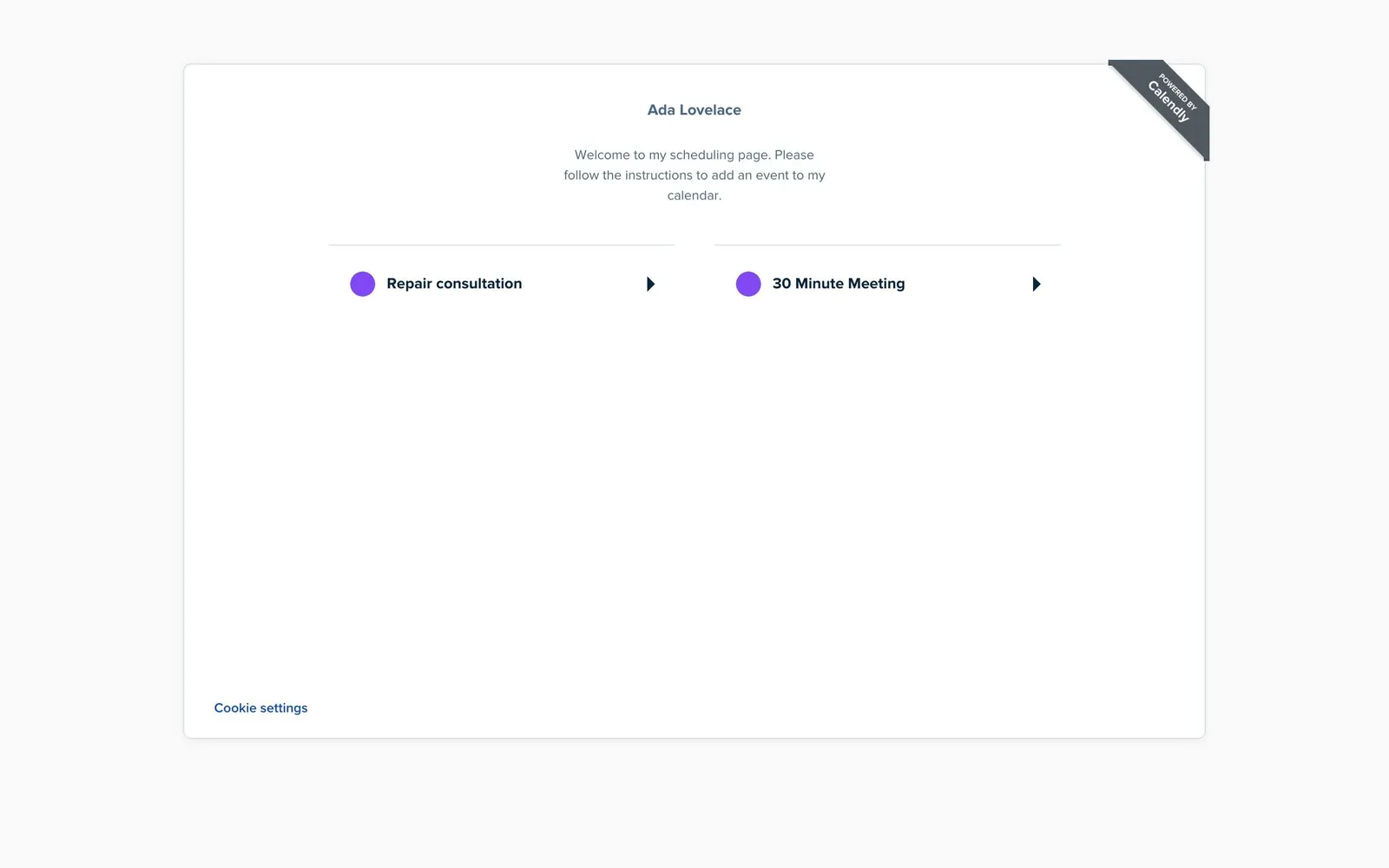
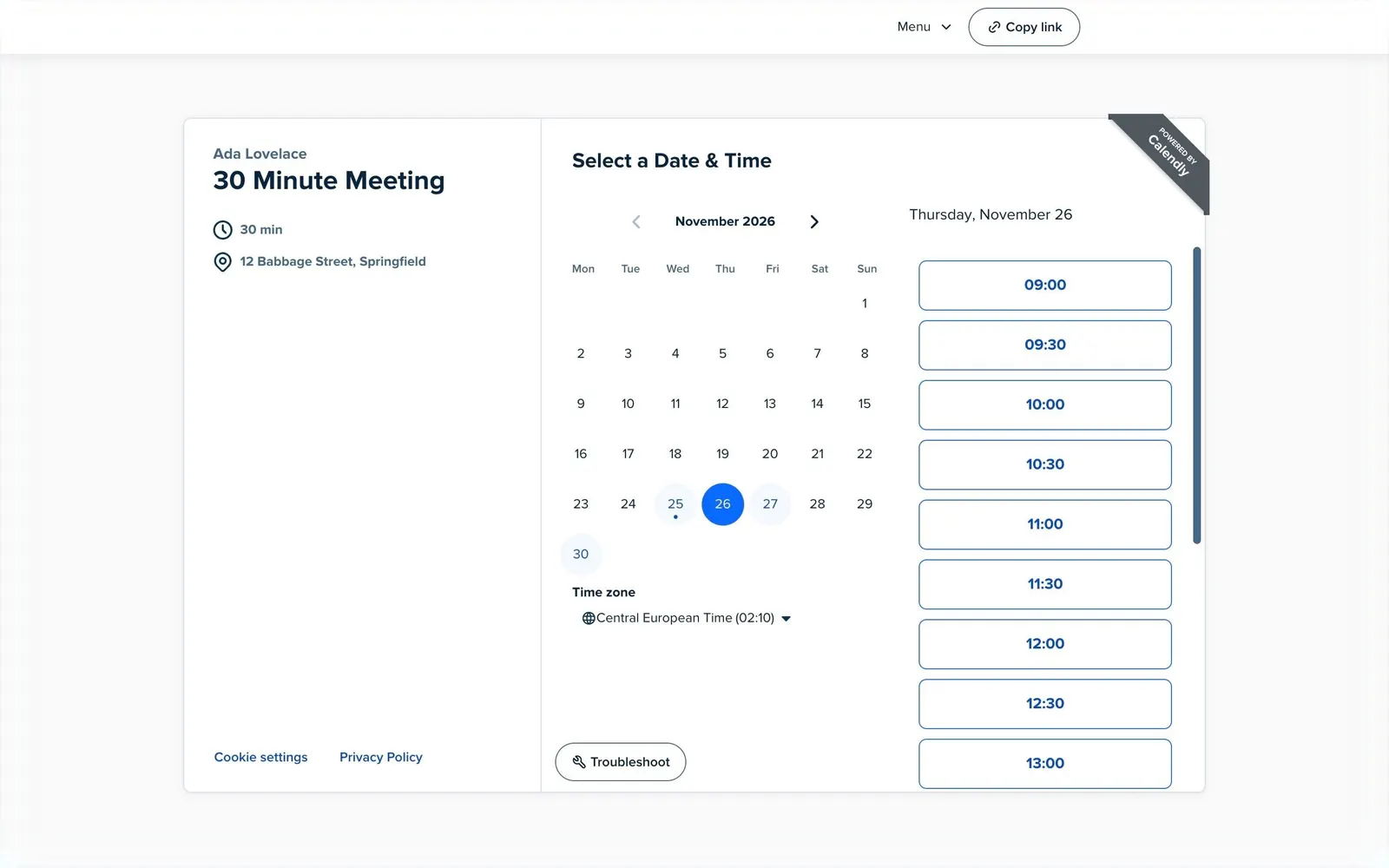
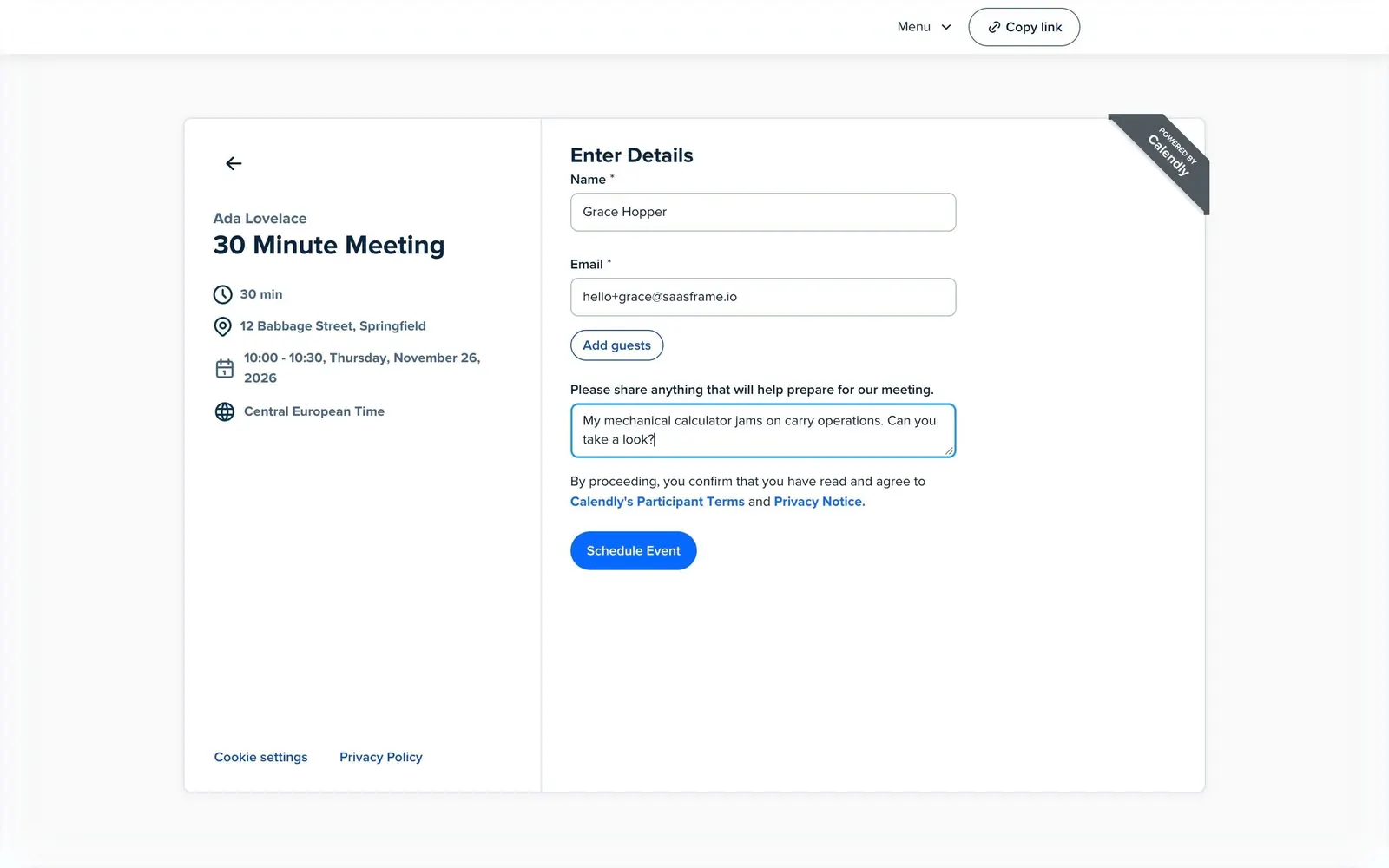
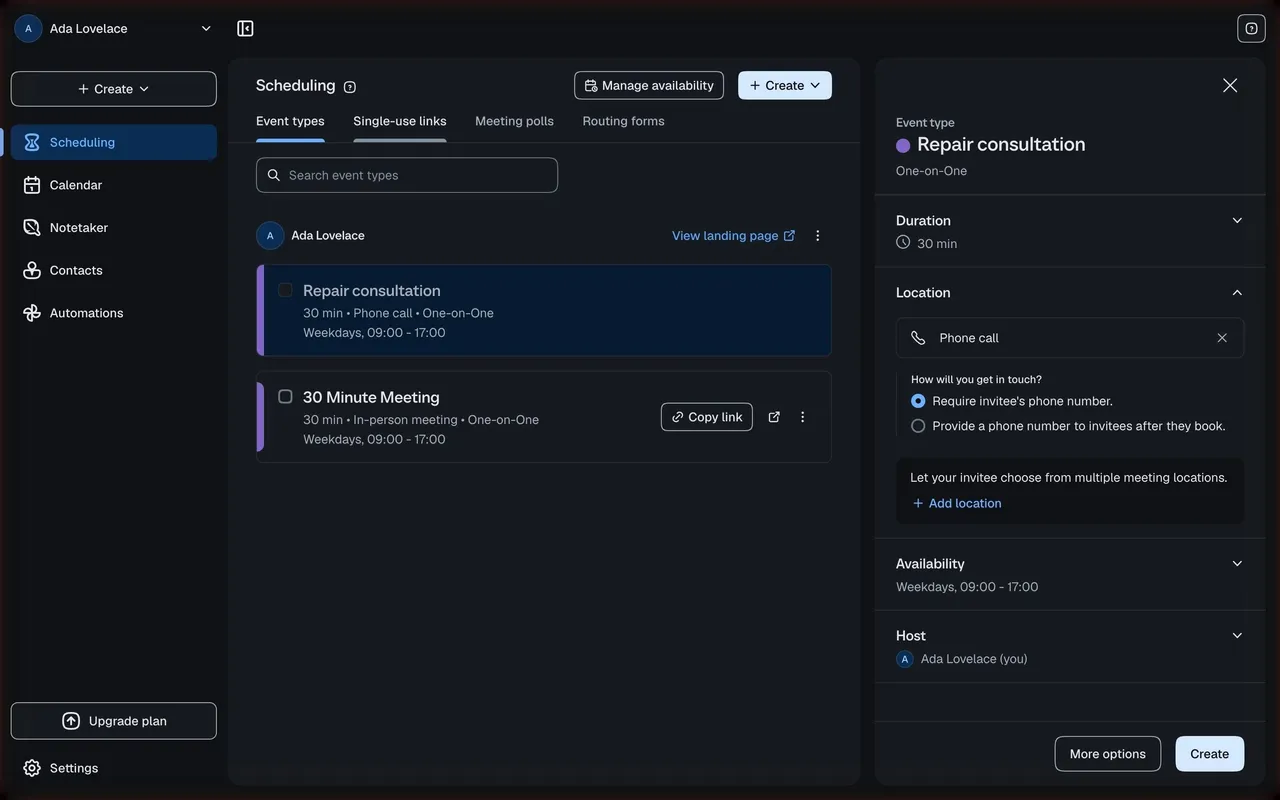
An invitee picks an event on the host's landing page, chooses a date and time slot, enters name and e-mail and gets a confirmation; the host then sees the meeting with its details in the calendar. The public pages are single white cards with one blue action, in contrast with the navy host view.
Follow Calendly’s booking a meeting flow step by step: 5 real screens captured from the live product, from scheduling landing page to meetings. Use ← → to move between steps, and open any screen to see it in full.
Steps in this flow
More flows from Calendly
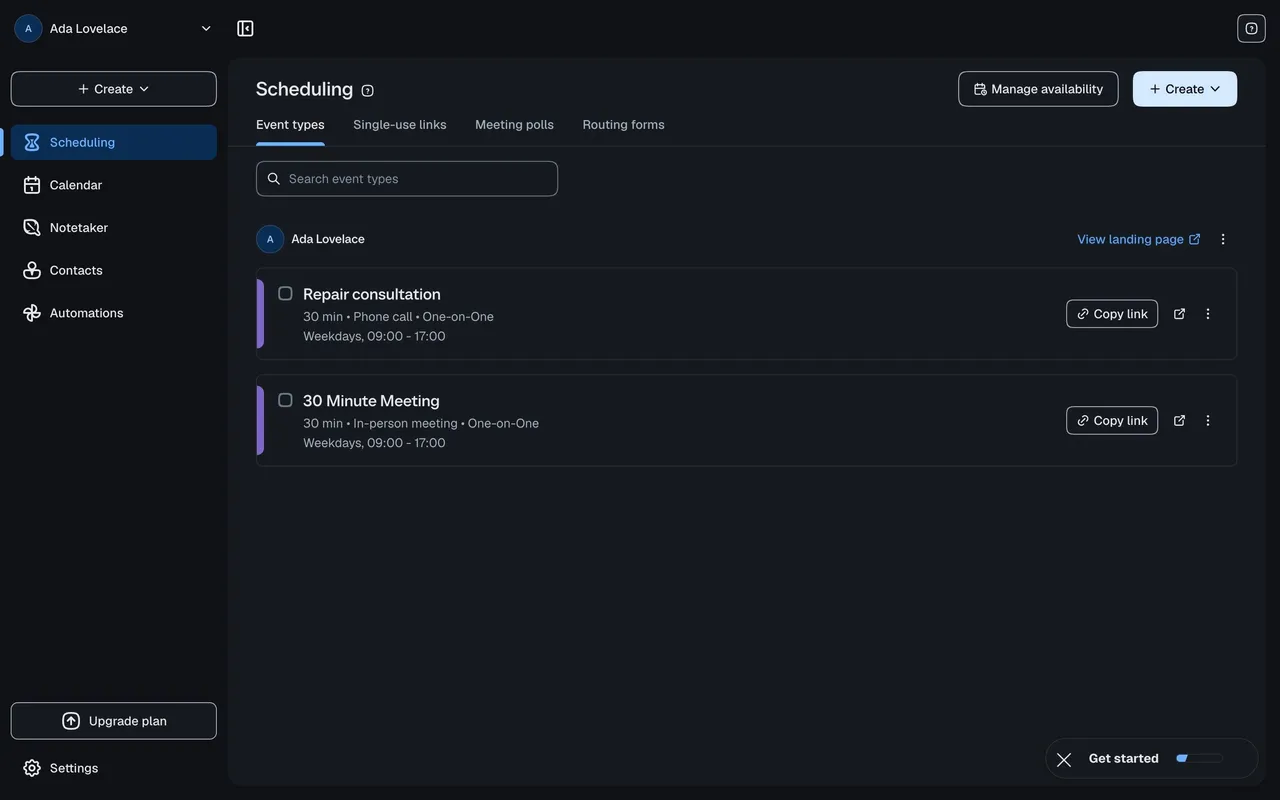
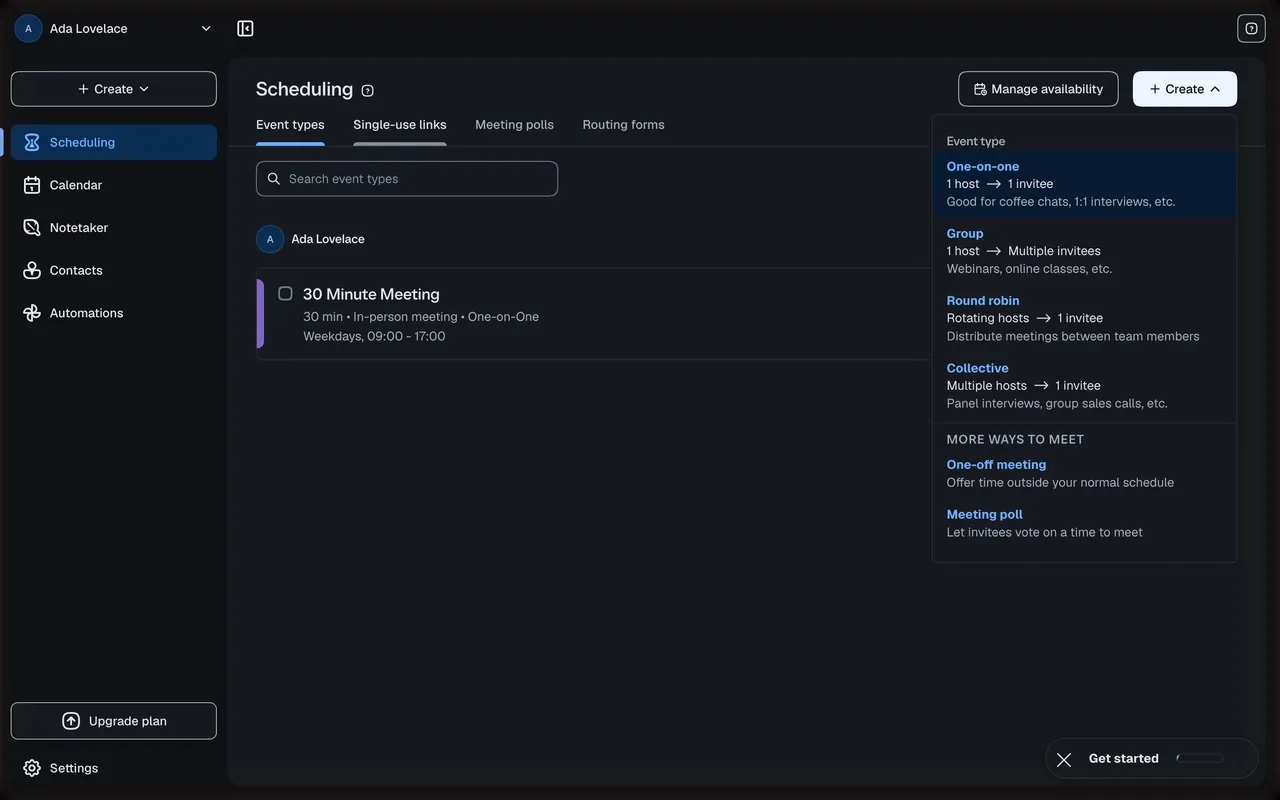
All Calendly Calendly Creating an Event Type
4 screens
Calendly Onboarding
6 screens