Prompt 565 words Copy
# Design from Reference: Pivot Login

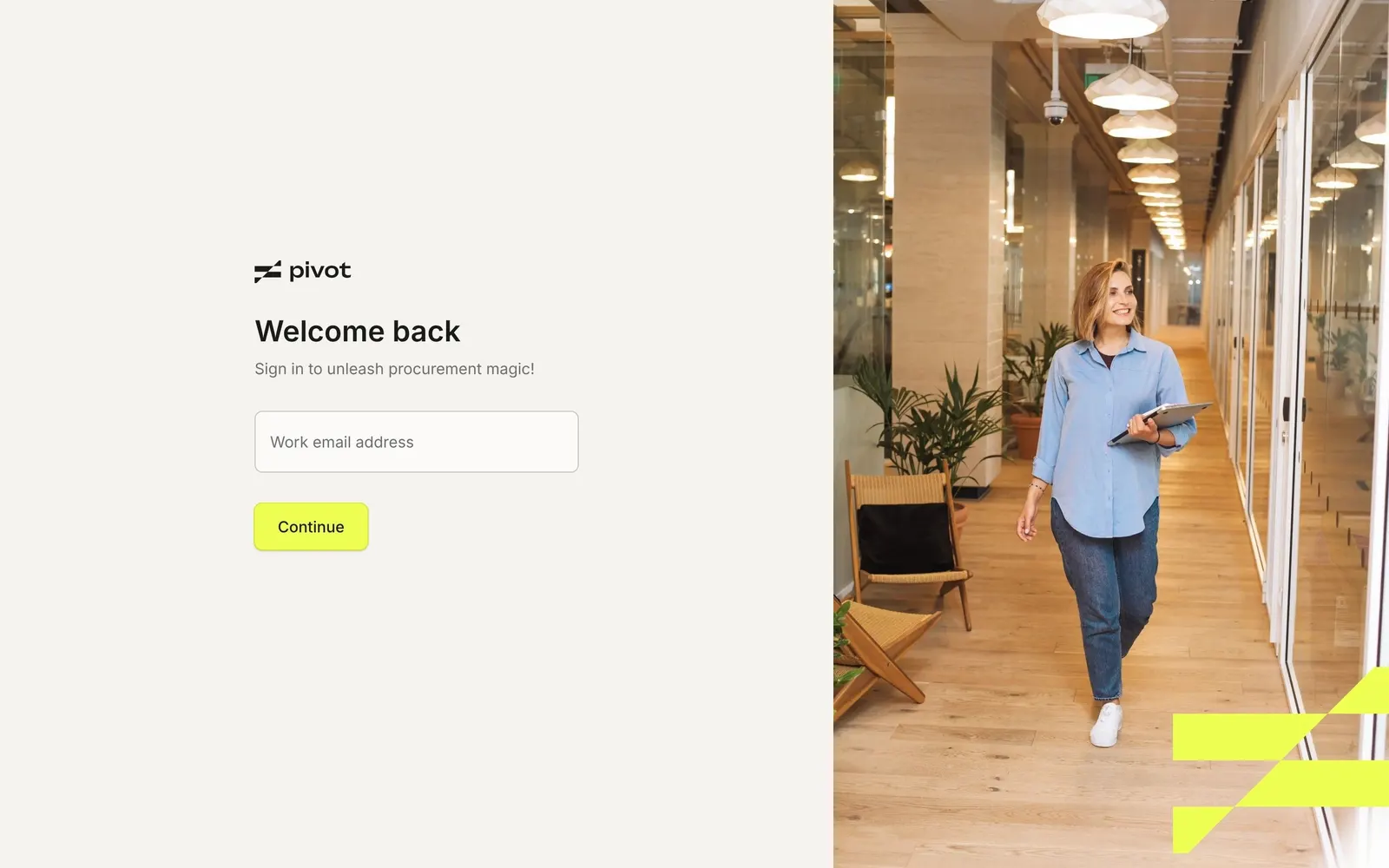
Create an original, high-fidelity visual design inspired by the reference. Prioritize composition, typography, colors, spacing, and component styling over technical implementation.

## Reference

- **Product:** Pivot
- **Category:** Login
- **Screenshot:** attached to this message (also available at https://media.saasframe.io/v/4f43c3ba0830bef76bba-1600.webp)
- **Source:** https://app.pivotapp.ai/login

Analyze the attached screenshot first. If no image is attached, open the screenshot link; if neither is accessible, ask for it rather than guessing.

## Visual Design Context

### Overall aesthetic

- **Character:** Warm, quiet split-screen login: soft off-white form panel, full-bleed office photography, one lime accent.

### Page composition

- **Capture:** 2880 × 1800 screenshot pixels; 2× CSS scale (1440px viewport).
- **Structure:** Left 60% form panel with vertically centred logo, title, subline, one email field and button; right 40% full-height photo with brand chevron in the bottom right.

### Information hierarchy

- **Priority:** "Welcome back", the email field, then Continue.

### Typography

- **Families:** Geometric grotesk heading, neutral sans body.
- **CSS scale:** Title 22px, subline 11px, input 11px, button 11px semibold.

### Colors & surfaces

- **Palette:** Panel #F4F3EF, input #FFFFFF with light border, text #060609 and #6B6B6B.
- **Accents:** Lime #E8FF3A Continue button and chevron mark on the photo.

### Components

- **Elements:** Logo, single text input, compact lime button, photo panel with brand mark.
- **Geometry:** Form width about 220px, input 40px tall, radius 6px.

### Responsive

- **Mobile capture:** Photo is hidden, the form fills the screen.

### Adaptation guidance

- **Transfer:** Start login with email only and route to SSO or password next; pair the form with one warm photo and a single accent colour.

## Content

**Instructions:**

Generate realistic example content that fits the selected design reference.

Create appropriate headlines, descriptions, labels, buttons, and supporting copy based on the type of interface being designed.

If a product or business description is provided, use it to guide the content.

Otherwise, invent a plausible fictional SaaS product appropriate for the reference.

Keep the content concise, coherent, and visually balanced.

Do not present fictional statistics, customer names, or testimonials as verified facts.

## Design Direction

**Instructions:**

Use the reference screenshot as the main source of visual inspiration rather than a strict layout template.

Preserve its most distinctive design characteristics, such as typography, visual rhythm, color relationships, component treatments, and overall aesthetic.

Feel free to modify section arrangements, proportions, spacing, and individual components to better suit my content.

Introduce original design decisions where they improve usability, composition, or brand consistency.

The result should clearly reflect the reference's visual language without looking like a direct reproduction.

Follow the visual identity of the reference design.

Use its typography, color palette, component styling, and overall aesthetic as the primary design direction.

Do not introduce an unrelated visual identity.

## Output

**Instructions:**

Generate a high-fidelity visual mockup of the requested interface.

Present the design as a polished, realistic website or product UI screenshot.

Prioritize visual composition, typography, spacing, colors, alignment, and component details.

Use the available image-generation or visual-design capabilities.

Do not replace the mockup with source code, a written design specification, or a textual description.

If direct visual generation is unavailable, clearly explain the limitation.

## Constraints

- Use the actual screenshot as the primary visual reference.
- Preserve essential messaging and factual accuracy.
- Prioritize visual quality and consistency.
- Do not invent unsupported product claims.
- Adapt structure and copy length for visual balance.
Reference image Attach it to your message: assistants can’t open image links. Open in ChatGPT ↗ Open in Claude ↗
Build it in Lovable ↗ v0 ↗ Figma Make ↗
Opening a tool copies the screenshot so you can paste it with your prompt.
 SaaSFrame