SaaSFrame Pro
4 more steps in this flow
Free accounts see the first 3 steps of each flow. Pro unlocks every step of every flow, plus every screen, section and Copy in Figma.
OpenAI Create An API Key
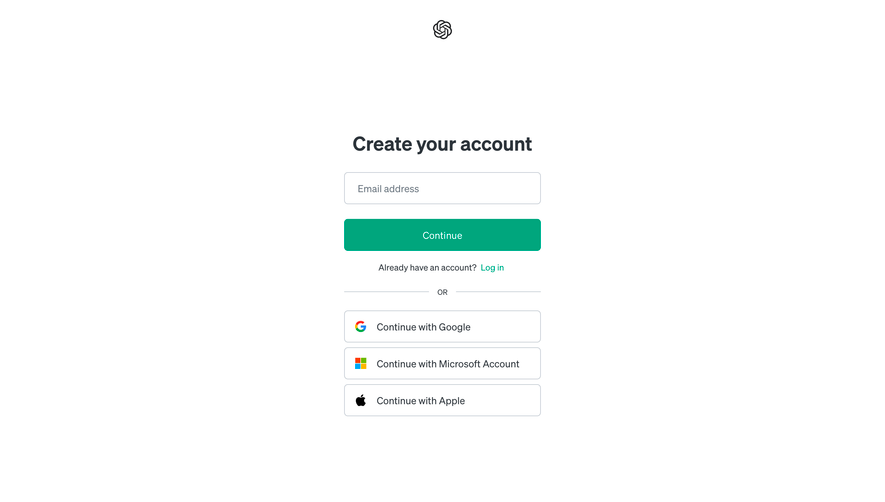
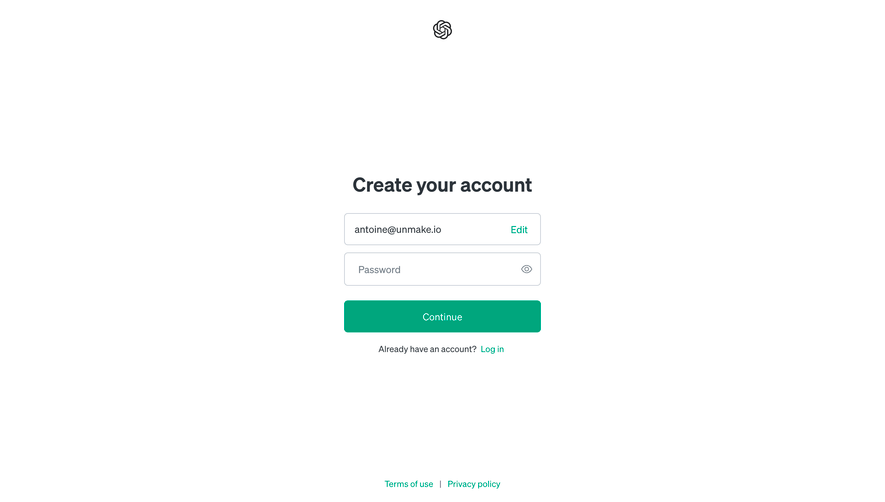
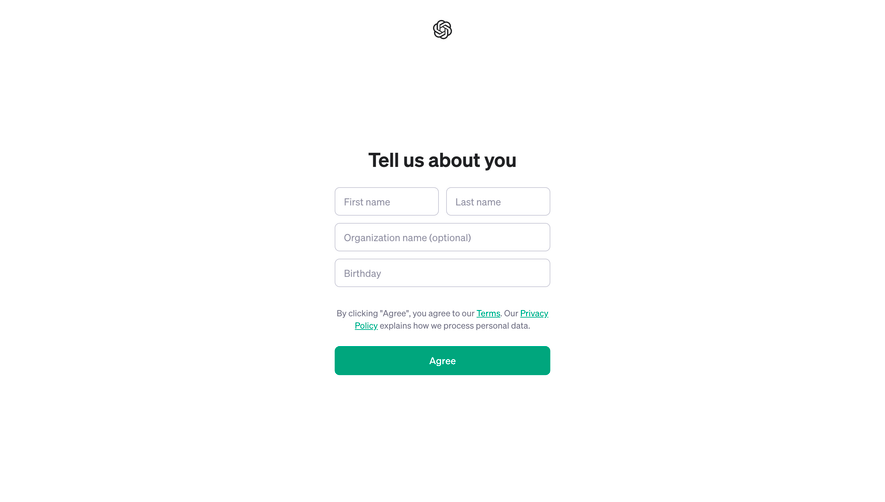
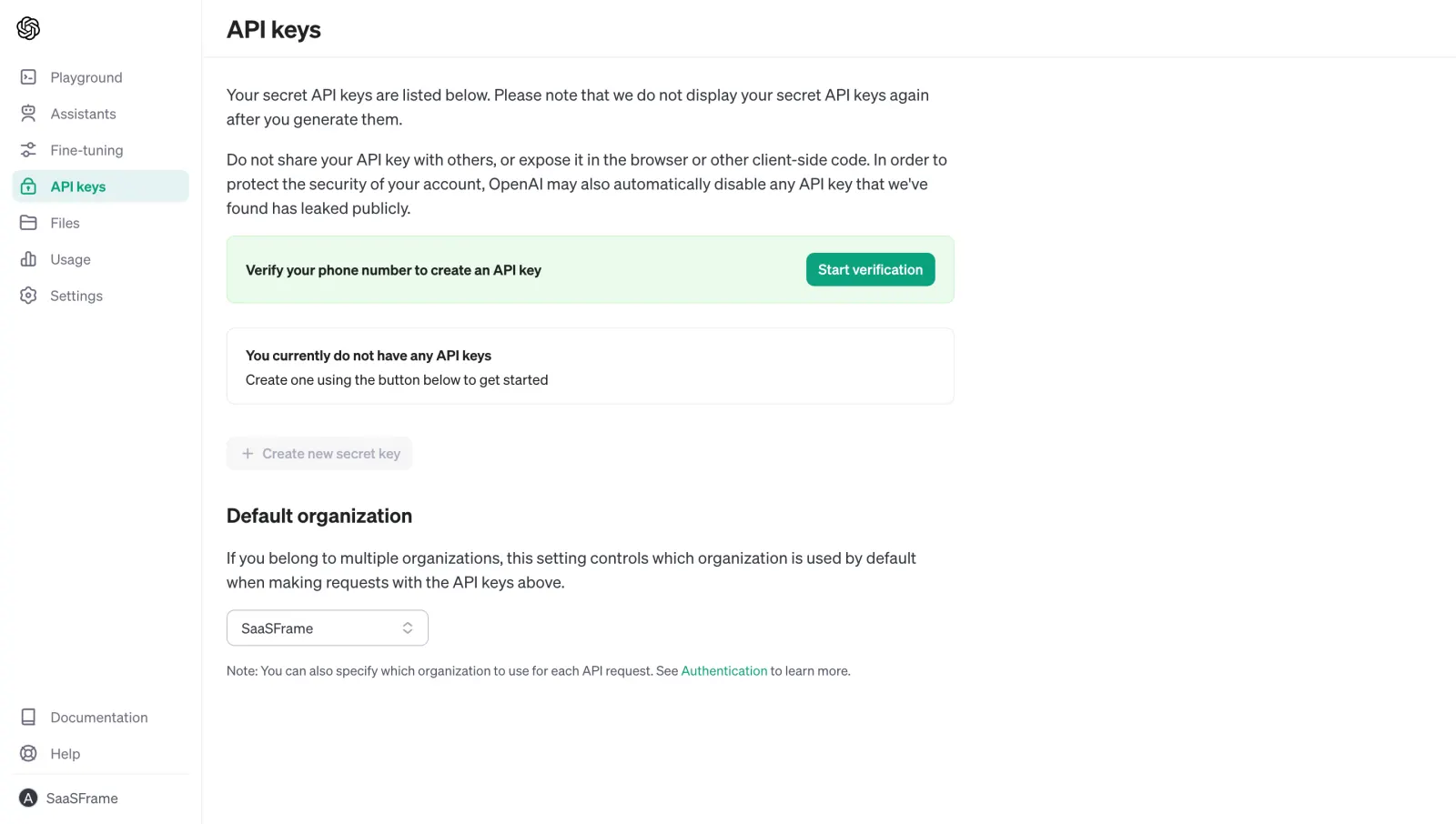
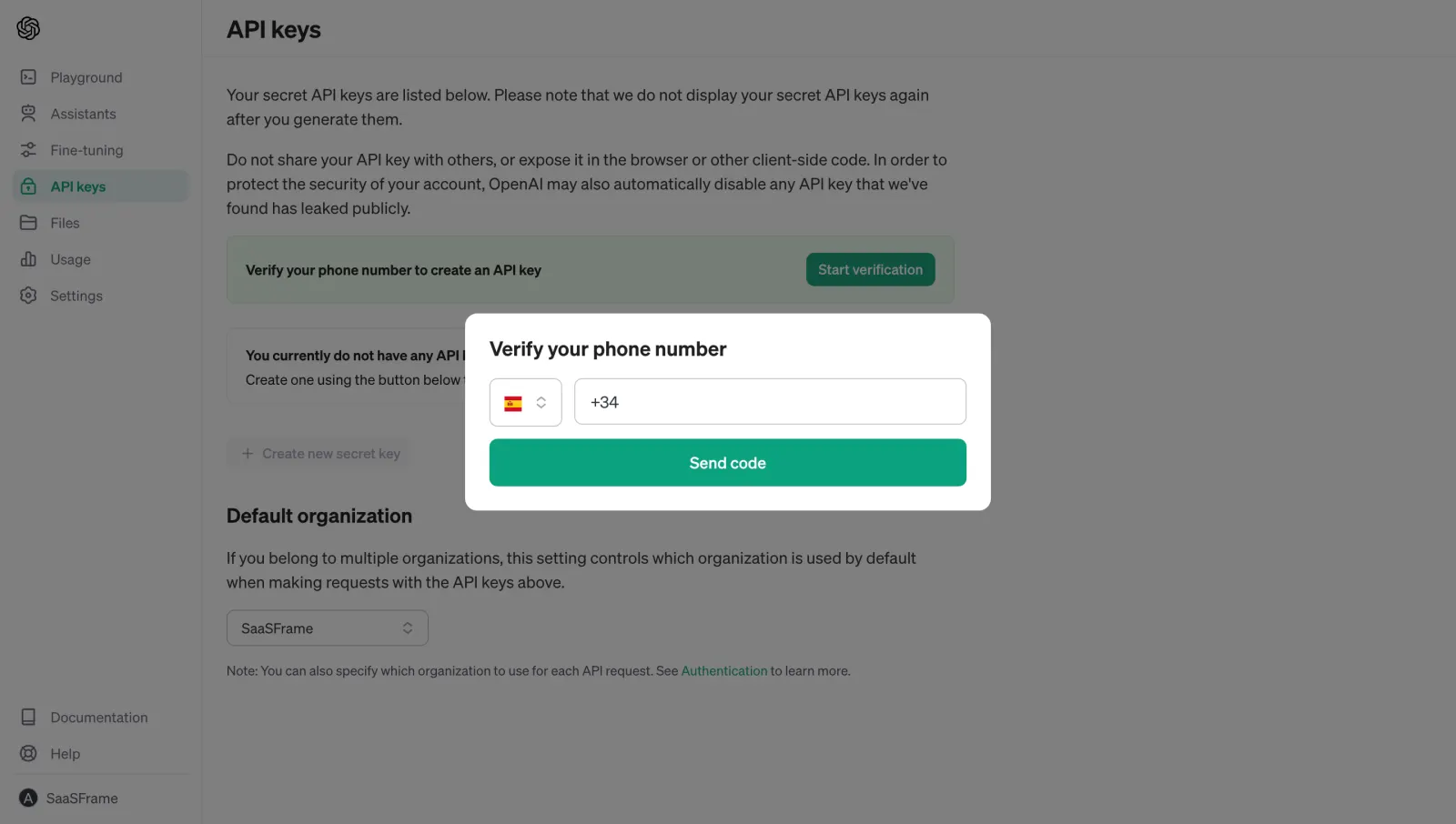
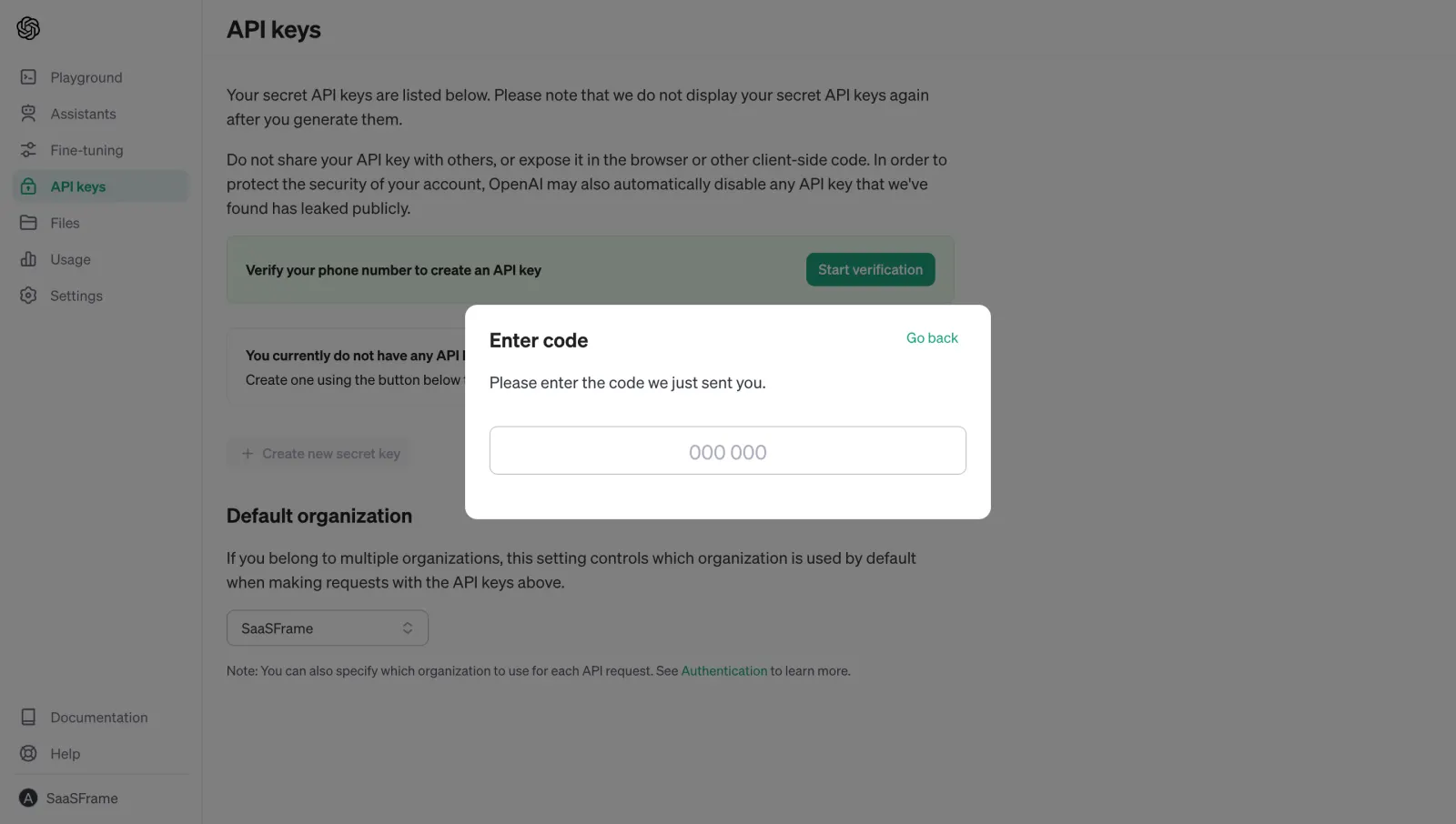
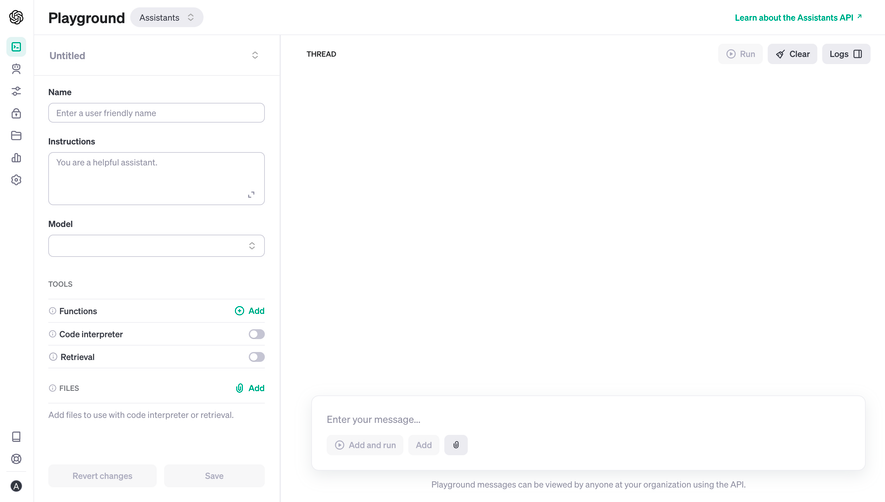
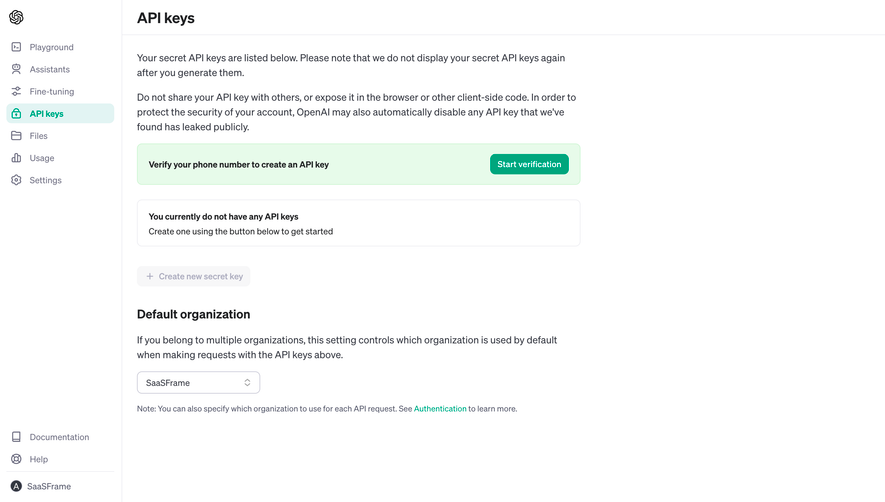
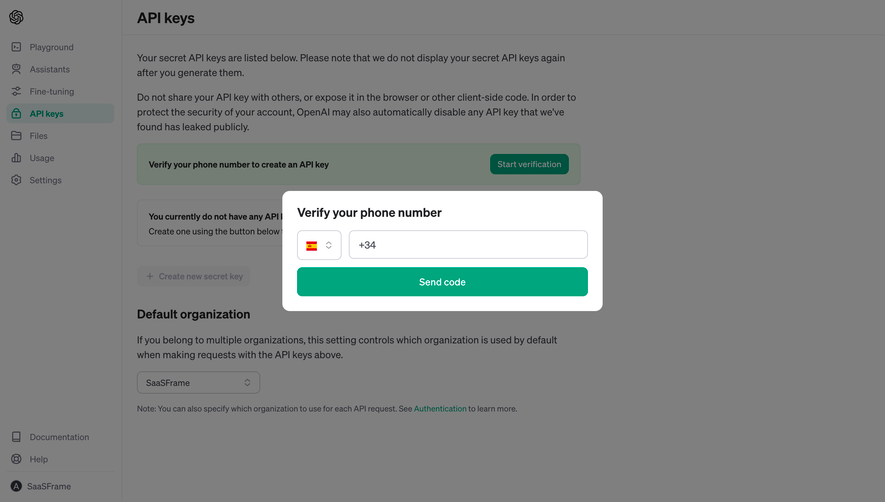
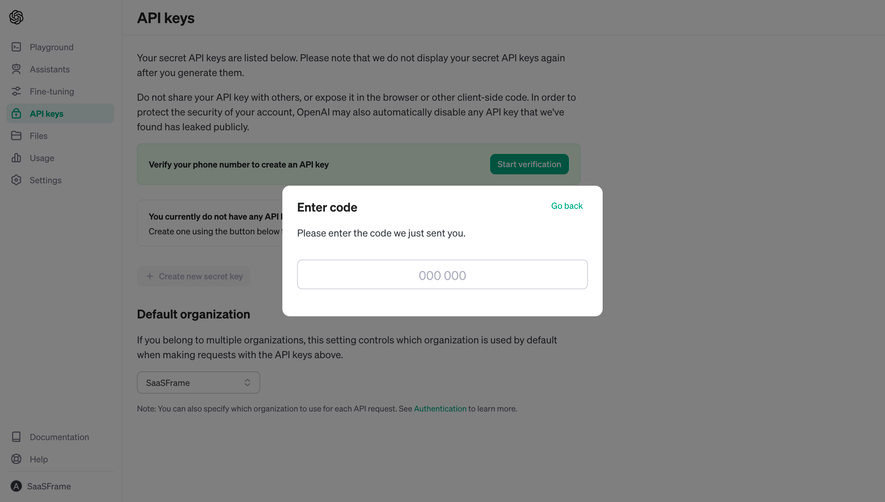
OpenAI's create-API-key flow combines key creation with phone verification through modals on the API keys page. Seven screens show a green verification banner, a name-the-key modal, a one-time secret with copy button and the updated keys table. Phone number, code entry and a credits notice follow as small centered modals with green actions.
Follow OpenAI’s create an api key flow step by step: 7 real screens captured from the live product, from verify phone to create api key to api keys. Use ← → to move between steps, and open any screen to see it in full.
Steps in this flow
More flows from OpenAI
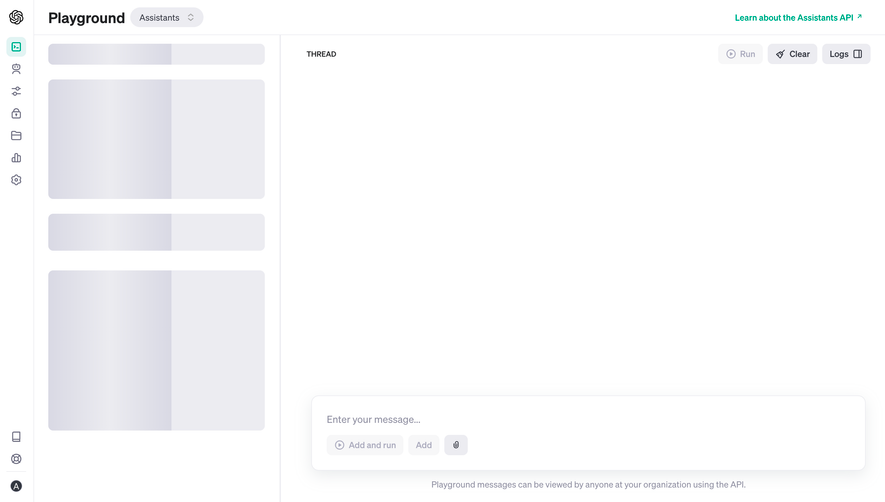
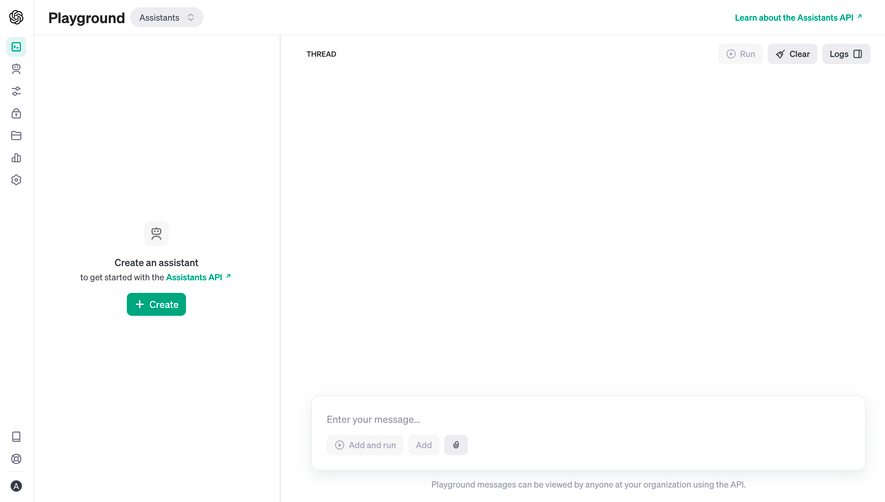
All OpenAI OpenAI Create An AI Assistant
6 screens
OpenAI Verify Phone Number
4 screens
OpenAI Create An Account
4 screens