 SaaSFrame
SaaSFrame Pro
1 more step in this flow
Free accounts see the first 3 steps of each flow. Pro unlocks every step of every flow, plus every screen, section and Copy in Figma.

UXCam User Onboarding
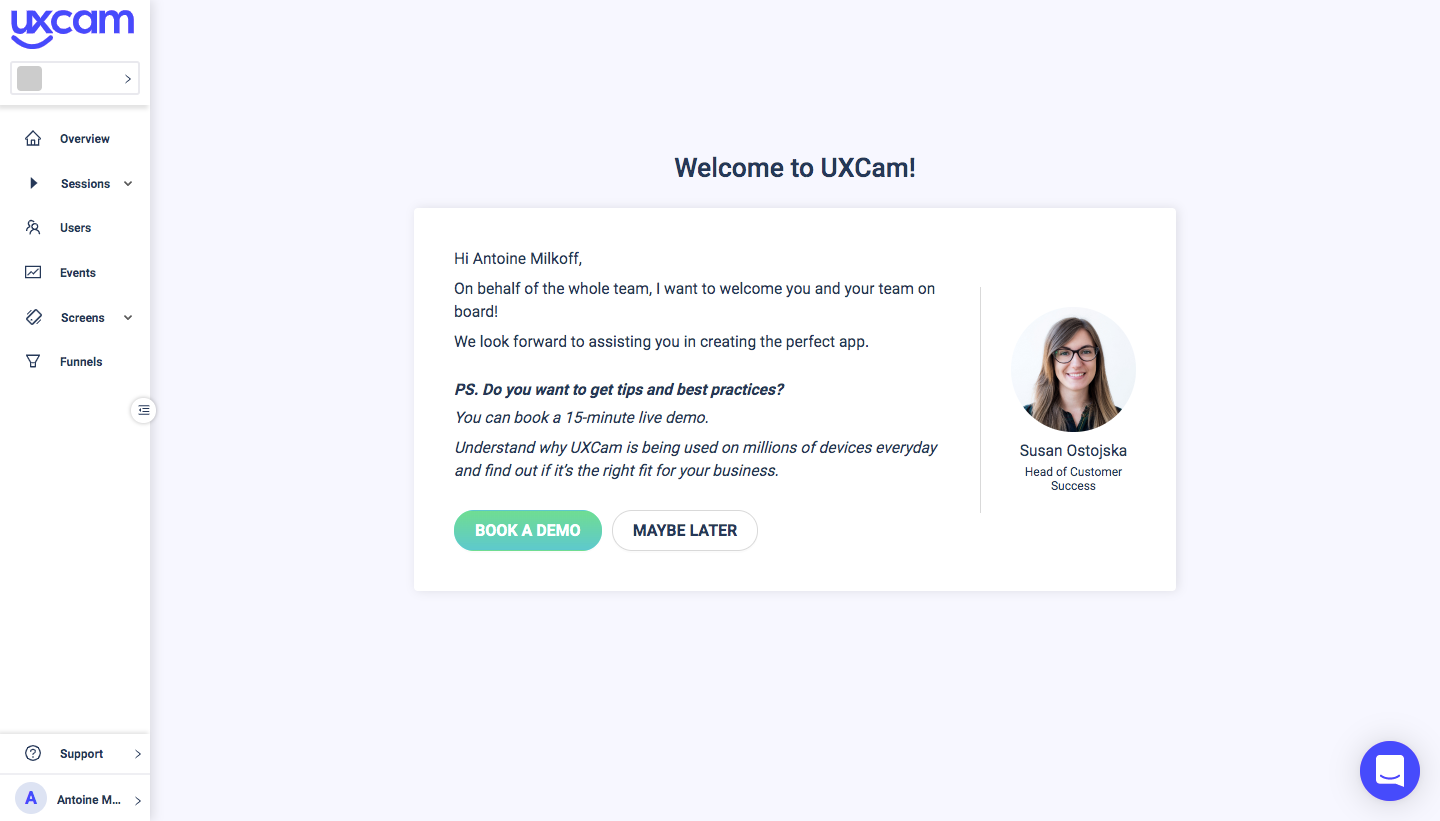
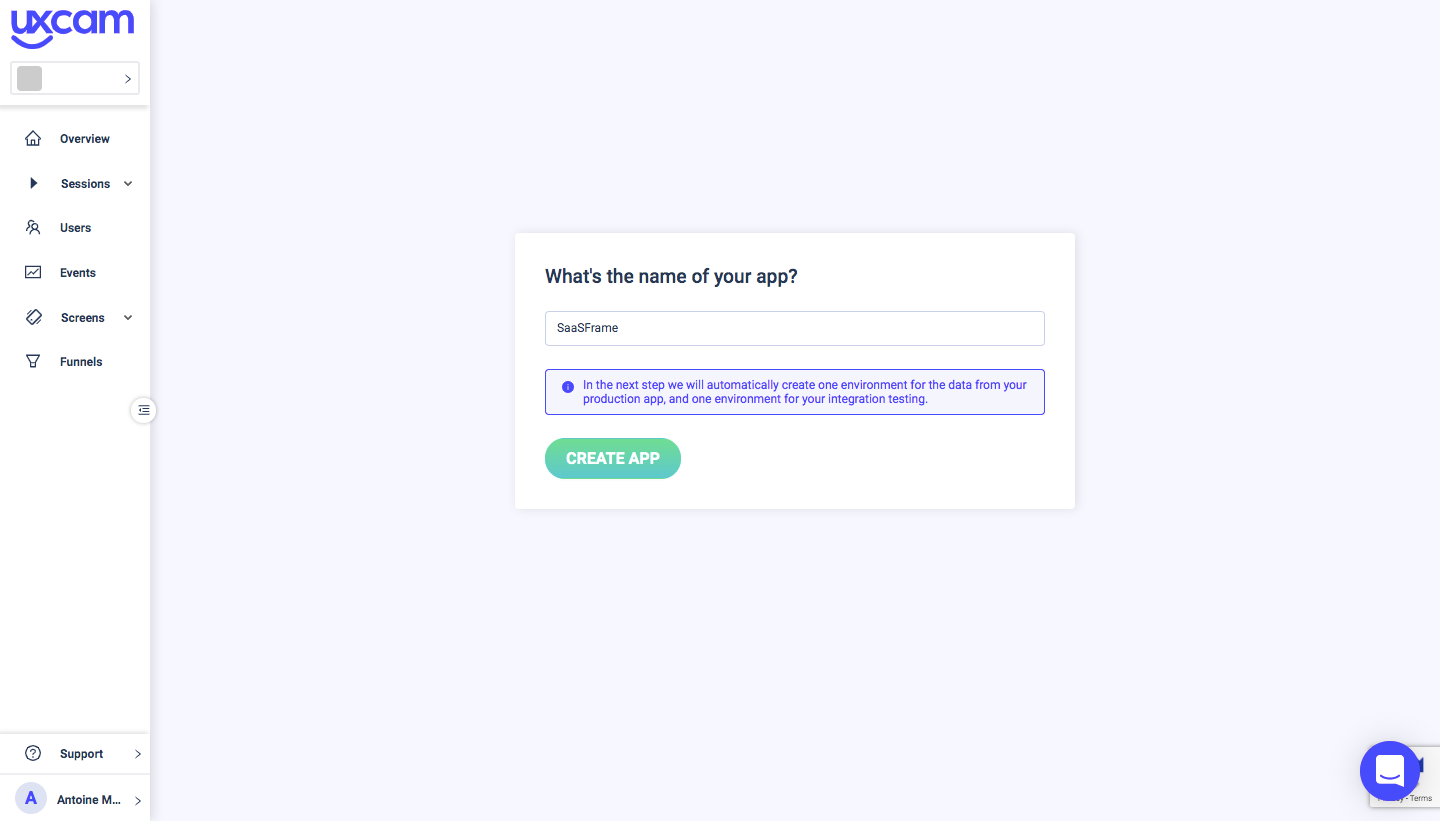
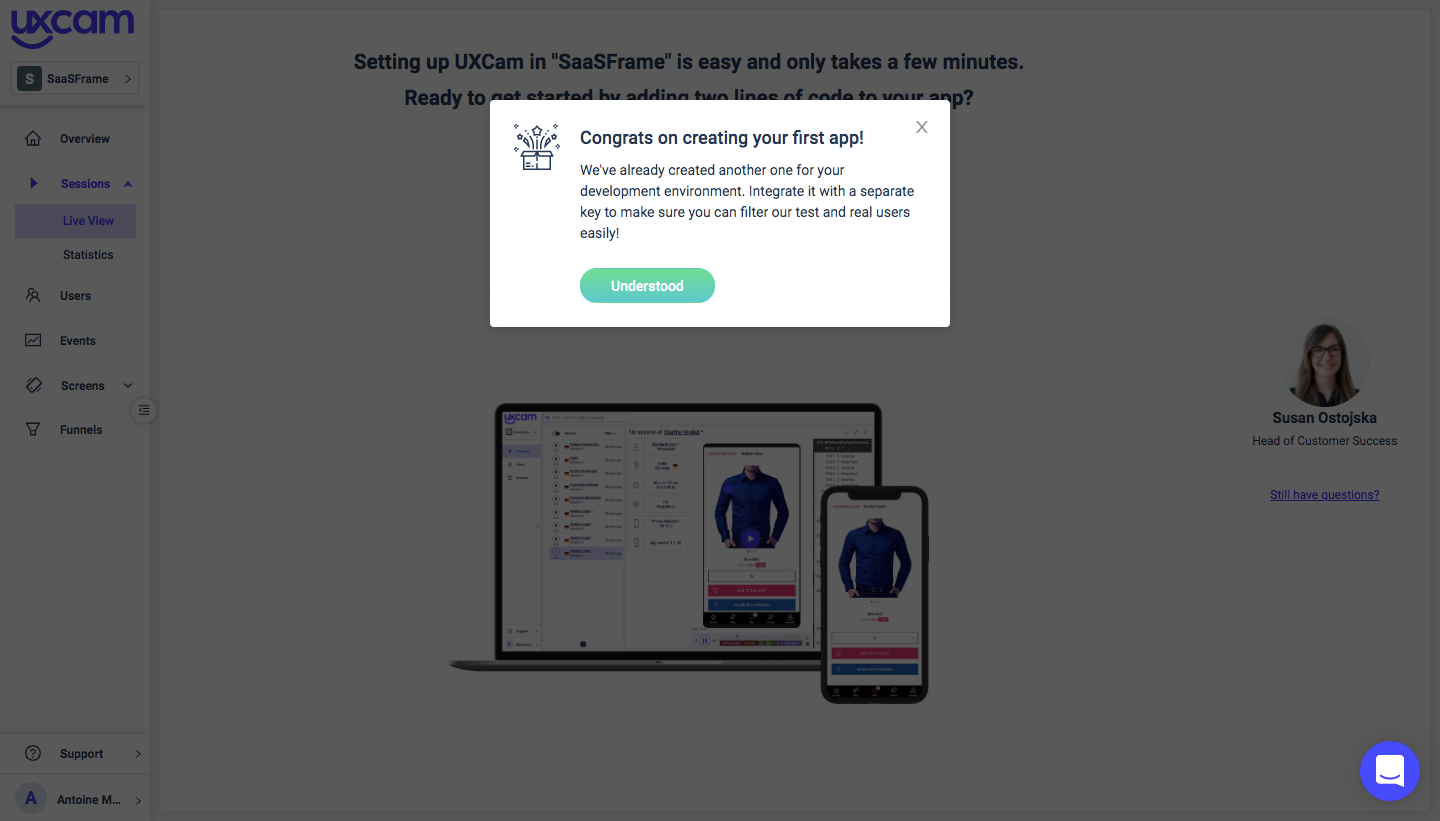
UXCam's onboarding takes a new account from a personal welcome to installing the SDK in four steps. A welcome card with a photo of the customer success lead offers a demo booking with a green pill button, then a single field names the app. A small congratulations modal leads to an install screen with laptop and phone mockups, two setup buttons and a copyable app key.
Follow UXCam’s user onboarding flow step by step: 4 real screens captured from the live product, from user onboarding: welcome to user onboarding: install sdk. Use ← → to move between steps, and open any screen to see it in full.