 SaaSFrame

PlayPlay Upgrading
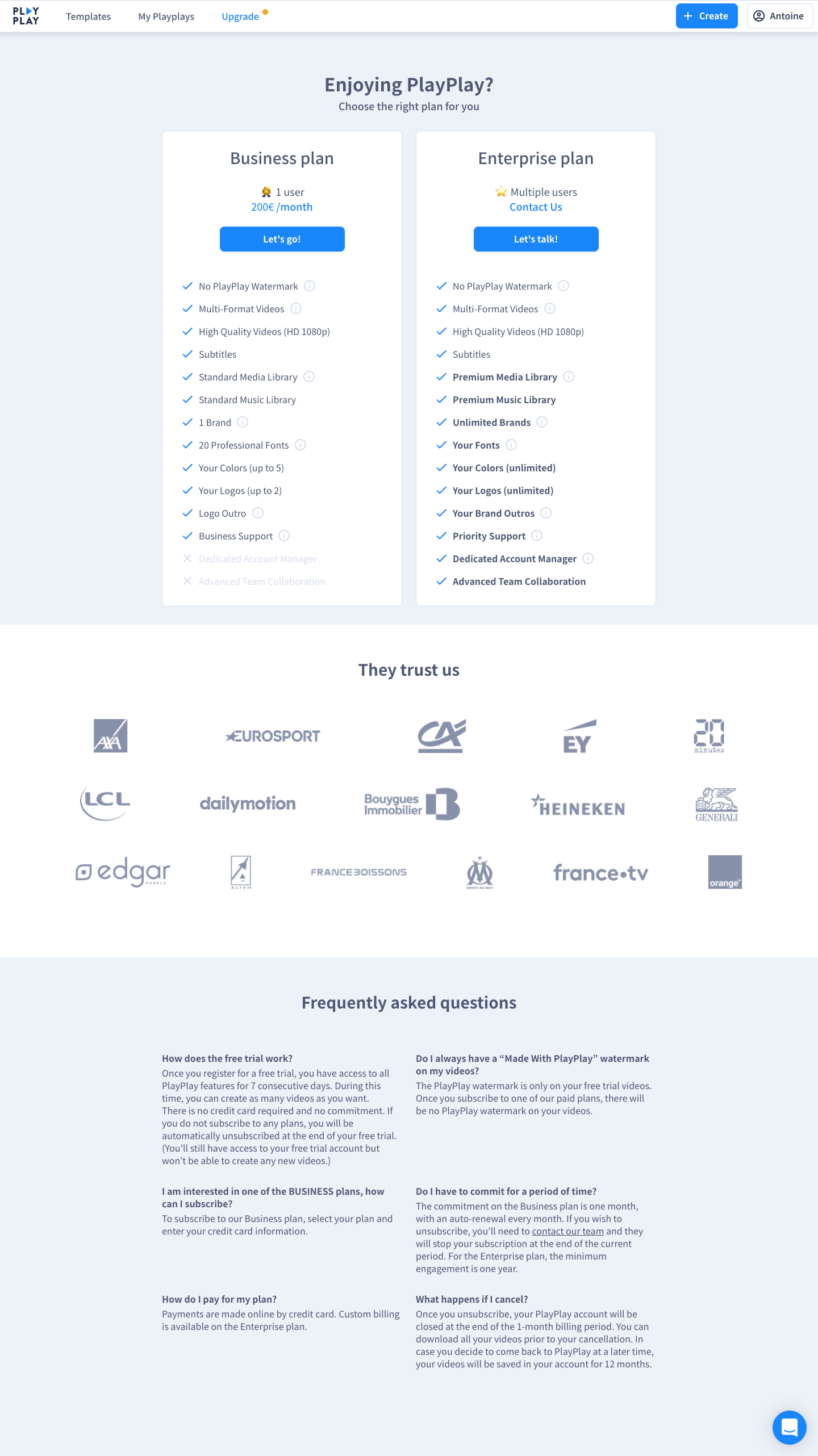
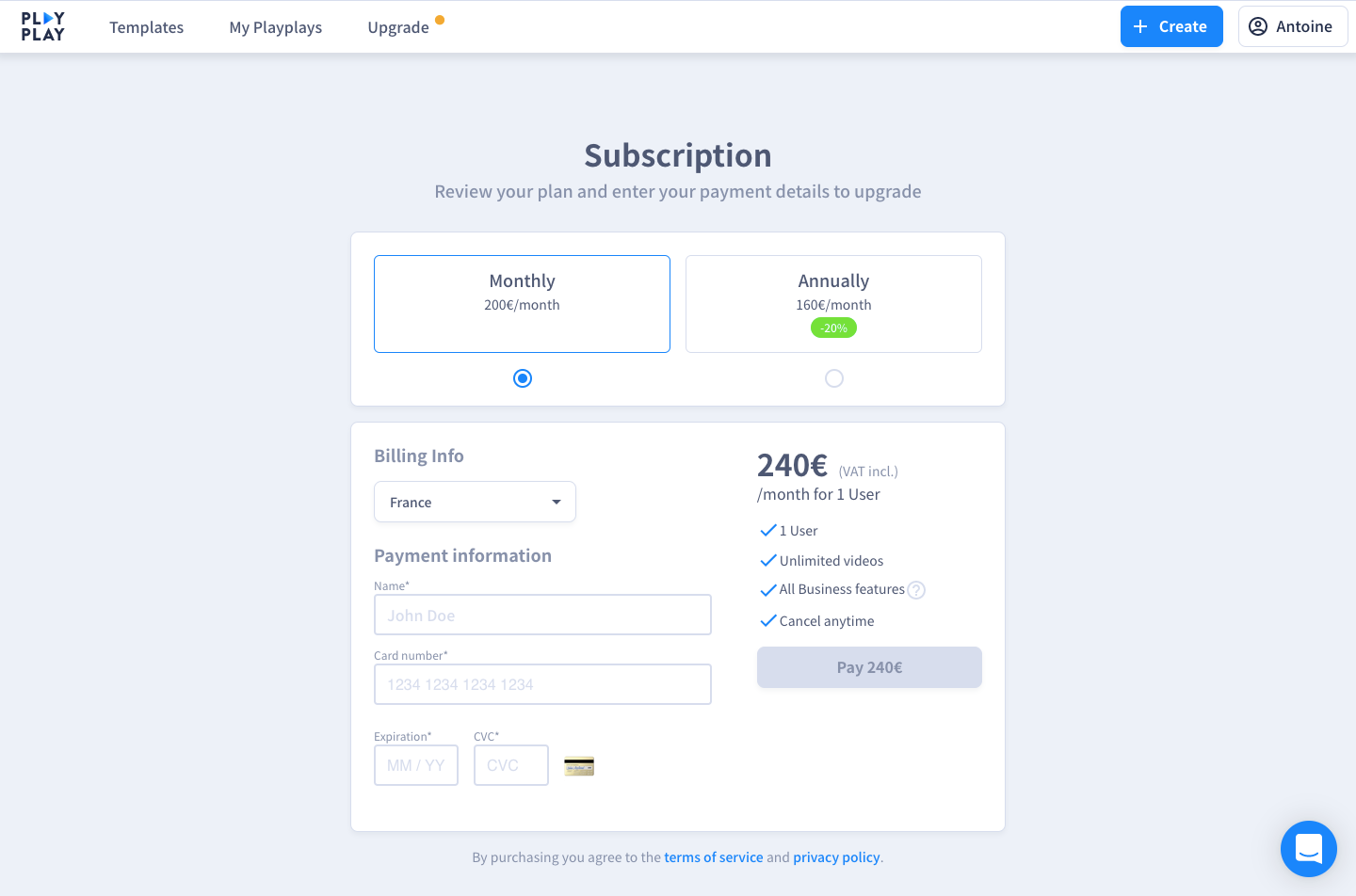
PlayPlay's upgrade flow compares two plans on a light blue page, then moves to a single subscription checkout. The plan cards list features with blue checkmarks and info icons under a price and a blue button. Checkout puts monthly and annual options in selectable boxes with a green savings badge, next to billing fields and an order summary with a muted pay button.
Follow PlayPlay’s upgrading flow step by step: 2 real screens captured from the live product, from upgrading to checkout. Use ← → to move between steps, and open any screen to see it in full.